
How to Create a Backup System for Your Files: A Beginner-Friendly Guide
When was the last time you backed up your computer files? If you had to stop and think about it… you’re not alone. Most people don’t consider backups until something goes wrong—like a hard drive failure, malware attack, or accidental deletion. And unfortunately, once your files are gone, it’s often too late to recover them.
The good news? Setting up a solid backup system is easier than you might think. In this guide, we’ll walk through why file backups matter, the different types you can use, how to set up your own backup process, and the simple tests you should run to make sure everything actually works. By the end, you’ll have a backup system you can rely on—and a whole lot more peace of mind.
Let’s dive in!
1. Understanding the Importance of File Backups
To most people, backing up files feels like an optional chore—something you’ll “get to eventually.” But your computer is a lot more fragile than it seems. A few common problems that can strike at any time include:
Hardware Failure
Hard drives don’t last forever. Traditional spinning hard drives (HDDs) can fail without warning, while SSDs eventually wear out after many read/write cycles. Even high-quality drives can randomly die with no clear reason.
Viruses and Ransomware
Malicious software can lock, encrypt, or completely destroy your files. Ransomware is especially dangerous because it blocks access to everything until you pay—and even then, you’re not guaranteed to get your files back.
Accidental Mistakes
Everyone has deleted the wrong file at least once. Maybe you emptied the Recycle Bin too quickly or overwrote a folder by accident. It happens!
Theft or Damage
Laptops get dropped, spilled on, or stolen more often than you think. One accident can wipe out years of work, photos, and personal data.
Peace of Mind
Backups make your digital life feel less stressful. When you know everything is safely saved somewhere else, you don’t have to worry about “what if” scenarios.
A good backup system acts like a safety net—always there in the background, ready to save the day.
2. Choosing the Right Backup Methods
There isn’t just one way to back up your files. In fact, the best system uses a combination of methods. Let’s break down the most common options so you can decide what works best for you.
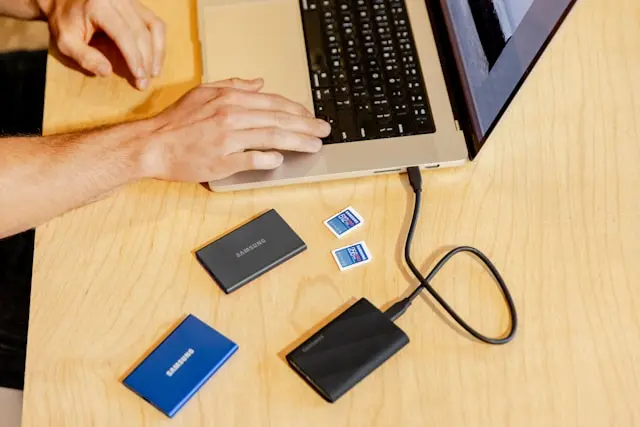
External Hard Drives
Best for: Fast, local backups
Pros: Affordable, large storage capacity, simple to use
Cons: Can fail, get damaged, or be lost; requires you to plug it in
An external drive is easy: plug it in, run software, and copy your files. Programs like File History (Windows) or Time Machine (Mac) make it pretty seamless.
Cloud Backups
Best for: Protection from physical damage or theft
Pros: Automatic, accessible anywhere, secure
Cons: Requires internet, monthly/annual cost for larger storage amounts
Cloud storage services include:
- Google Drive
- OneDrive
- Dropbox
- iCloud
There are also dedicated backup services like Backblaze and Carbonite, which back up everything continuously without you having to think about it.
USB Thumbs Drives
Best for: Small backups and important documents
Pros: Extremely portable, very cheap
Cons: Limited storage, easy to lose, not ideal as a primary backup method
These work best as a secondary backup for critical files like tax documents, personal records, or work data.
Network Attached Storage (NAS)
Best for: Advanced users, families, or small businesses
Pros: Central storage for multiple devices, expandable, great for automation
Cons: Higher cost and more technical to set up
A NAS device is like having your own personal cloud storage at home.
The 3-2-1 Backup Rule (Highly Recommended)
A common guideline is to keep:
- 3 copies of your files
- 2 different storage types
- 1 copy stored off-site (like cloud storage)
This gives you a powerful, well-rounded defense against any type of data loss.
3. Setting Up Your Backup System
Once you’ve chosen your backup methods, it’s time to put them into action. Let’s go step by step so you can get everything running smoothly.
Step 1: Organize Your Files
Before backing up, make sure your files are structured in a way that makes sense. The more organized your folders are, the easier it is to know what you need to save.
Create clear folders for:
- Documents
- Photos
- Videos
- Work files
- Downloads you actually need
Step 2: Install Your Backup Software
Most devices already have built-in tools:
Windows:
- File History
- Backup & Restore
- OneDrive integration
Mac:
- Time Machine
- iCloud Drive
Third-Party Options:
- Acronis True Image
- EaseUS Todo Backup
- Macrium Reflect
Pick the solution that works best for your setup.
Step 3: Configure What Gets Backed Up
You don’t need to back up everything. Focus on the files you can’t easily replace:
- Photos
- Documents
- Work projects
- App data folders
- School assignments
Avoid backing up temporary or unnecessary folders—they just waste space.
Step 4: Set a Schedule
Automation is the key to good backups. Set your system to back up:
- Daily for cloud services
- Weekly for external hard drives
- Monthly for secondary backups
The less you have to think about it, the better.
Step 5: Create an Off-Site Copy
If something happens to your home—fire, flood, theft—your local backups won’t help. That’s why an off-site copy (usually cloud storage) is essential.
You don’t need unlimited space. Backup the stuff you can’t live without.
4. Testing and Maintaining Your Backup System
Creating a backup is only half the job. You also need to make sure your system actually works. A surprising number of people only discover their backups are broken when it’s already too late.
Here’s how to keep things running smoothly:
Test Restoring Files
About once a month:
- Pick a file
- Delete the copy from your computer
- Restore it from your backup
If it works, great! If not, something needs fixing.
Check Your Backup Drive Health
External drives can develop issues over time. Use built-in tools like:
- Windows CHKDSK
- Mac Disk Utility
You don’t need to be an expert—just make sure the drive isn’t failing.
Monitor Cloud Storage Space
Cloud services notify you when you’re running low, but it’s smart to check periodically. Running out of storage means your backups may silently stop.
Update Your Backup Schedule as Life Changes
Got a new job? New computer? Big life event? These are all good times to review your system.
Your backup strategy should grow with your digital life.
Conclusion
Creating a reliable backup system might not be the most exciting part of owning a
computer, but it’s one of the most important. With a combination of local and cloud backups, automatic scheduling, and occasional testing, you can protect your files from accidents, failure, or unexpected disasters.
The best part? Once you set everything up, backups run quietly in the background—keeping your photos, documents, and memories safe without you lifting a finger.
If you found this guide helpful or you have your own backup tips to share, drop a comment below! I’d love to hear how you protect your files.