
How To Optimize Your Internet Connection For Gaming
Online gaming can be incredibly fun, but nothing ruins the experience faster than lag, high ping, disconnects, or slow download speeds. Many beginners assume poor gaming performance is always caused by their computer or console, but your internet connection often plays a huge role as well.
The good news is that you do not always need expensive upgrades to improve your gaming experience. Small adjustments to your network settings, hardware placement, and internet usage can make a noticeable difference. This beginner-friendly guide walks through the process step by step so you can create a smoother and more reliable gaming connection.
Step 1: Test Your Internet Speed
Before making changes, start by checking your current internet performance.
Run an internet speed test using a browser on your computer or phone. Pay attention to three important numbers:
- Download speed
- Upload speed
- Ping or latency
What These Mean
- Download speed affects how quickly games and updates download.
- Upload speed affects online communication and multiplayer performance.
- Ping measures how quickly your device communicates with game servers.
For gaming, lower ping is usually more important than extremely high download speeds.
General Gaming Recommendations
- Ping under 50ms is usually very good
- Ping between 50ms and 100ms is playable
- Ping above 100ms may cause noticeable lag
Testing your internet first helps you understand whether the issue is your connection or something else.
Step 2: Move Closer To Your Router
Wi-Fi signals weaken with distance and obstacles.
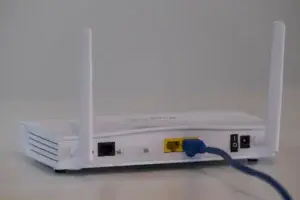
Walls, floors, furniture, and electronics can all interfere with your wireless signal. If your gaming setup is far from the router, your connection may become unstable.
Simple Things To Try
- Move closer to the router
- Reduce obstacles between your device and router
- Avoid placing the router inside cabinets
- Keep the router elevated off the floor
Even small improvements in signal strength can help reduce lag and connection drops.
Step 3: Use A Wired Ethernet Connection
One of the best ways to improve gaming performance is switching from Wi-Fi to Ethernet.
An Ethernet cable creates a direct connection between your device and the router. Wired connections are usually:
- More stable
- Lower latency
- Reduced wireless interference
How To Connect With Ethernet
- Plug one end of the Ethernet cable into your router
- Plug the other end into your PC or console
- Restart the device if needed
If Ethernet is possible in your setup, it is often worth using for competitive gaming.
Step 4: Restart Your Networking Equipment
Sometimes internet problems build up over time and can be fixed with a simple restart.
Restart Your Equipment In This Order
- Turn off your gaming device
- Unplug the modem
- Unplug the router
- Wait about 60 seconds
- Plug the modem back in
- Wait for it to reconnect
- Plug the router back in
- Turn your gaming device back on
Restarting your equipment refreshes the connection and may solve temporary network problems.
If you have a modem/router combination device, you only need to restart that single device.
Step 5: Limit Other Internet Activity
Your internet connection is shared across devices in your home.
Streaming videos, downloading files, video calls, and cloud backups can all compete with your game for bandwidth.
During Gaming Sessions
Try to:
- Pause large downloads
- Limit video streaming
- Avoid uploading large files
- Disconnect unused devices
Even if your internet plan is fast, heavy network traffic can still increase lag and latency.
Step 6: Update Your Router Firmware
Routers receive firmware updates that improve:
- Stability
- Security
- Performance
- Compatibility
Many beginners forget routers need updates too.
Basic Firmware Update Process
- Open a web browser
- Log into your router settings
- Check for firmware updates
- Follow your router manufacturer’s instructions to install any available firmware update.
- Restart the router
Every router brand has a different interface, so the exact steps may vary.
Keeping firmware updated can improve overall network reliability.
Step 7: Change Your Wi-Fi Band
Modern routers often support both:
- 2.4GHz
- 5GHz
Each band has advantages.
2.4GHz
- Better range
- Slower speeds
- More interference
5GHz
- Usually faster throughput
- Often less congested
- Shorter range
For gaming near the router, 5GHz may provide a faster and more reliable connection.
If you are farther away, 2.4GHz may provide a stronger connection because it generally has better range.
Step 8: Reduce Network Interference
Many household devices can interfere with Wi-Fi signals.
Common Sources Of Interference
- Microwaves
- Bluetooth devices
- Physical obstructions
- Other nearby Wi-Fi networks
Ways To Reduce Interference
- Keep the router away from electronics
- Avoid placing the router near thick walls
- Use less crowded Wi-Fi channels
- Position antennas properly if your router has them
Reducing interference can create a more stable gaming experience.
Step 9: Enable Quality Of Service (QoS)
Some routers include a feature called Quality of Service, often shortened to QoS.
QoS allows the router to prioritize gaming traffic over other internet activity.
Benefits Of QoS
- Help reduce lag during heavy network usage
- Prioritize gaming traffic or your gaming device on supported routers
- Improve responsiveness when other devices are using the connection
Basic Setup Steps
- Open your router settings
- Find the QoS section
- Enable QoS
- Prioritize your gaming device or gaming traffic
- Save settings
Not all routers include QoS, but it can be very useful if available.
Step 10: Choose The Closest Game Server
Many online games allow players to select server regions.
Connecting to a distant server increases latency because data must travel farther.
Best Practice
Always choose the server region closest to your physical location whenever possible.
For example:
- North American players should usually choose North American servers
- European players should choose European servers
Selecting the nearest server can noticeably lower ping.
Step 11: Keep Your Gaming Device Updated
System updates often include:
- Bug fixes
- Driver improvements
- Compatibility improvements
- Stability enhancements
Make Sure To Update
- Windows or console software
- Network drivers
- Game updates
- Router firmware
Outdated software can sometimes cause unexpected connection issues.
Step 12: Upgrade Old Networking Hardware
Older routers may have difficulty handling faster connections, newer Wi-Fi standards, or many connected devices.
If your router is outdated or struggling to handle your connection and connected devices, upgrading could improve:
- Wi-Fi coverage
- Speed
- Stability
- Device handling
Signs Your Router May Be Outdated
- Frequent disconnects
- Slow speeds
- Weak signal
- High latency
- Poor performance with multiple users
A newer router may improve coverage, capacity, and reliability if your current router is outdated or no longer meets your needs.
Common Beginner Mistakes
Many beginners accidentally create internet problems without realizing it.
Ignoring Router Placement
Poor router placement can weaken Wi-Fi signals dramatically.
Using Crowded Wi-Fi Networks
Apartment buildings and crowded neighborhoods may create wireless congestion.
Running Too Many Background Downloads
Automatic updates and downloads can increase lag during gaming.
Assuming More Speed Always Solves Lag
High download speeds do not automatically mean low latency.
Stable connections and low ping matter more for gaming.
What If Your Internet Is Still Lagging?
- Test another device on the same network.
- Test the game at another time of day.
- Try Ethernet if you’re using Wi-Fi.
- Check whether other devices are consuming bandwidth.
- Check whether your ISP is experiencing an outage.
- Contact your ISP if the problem affects multiple devices.
- If only one game has high ping, check that game’s server status and region settings.
If you’re still having problems with Windows or your network, check out our Beginner’s Guide to Windows Troubleshooting for more step-by-step troubleshooting guides.
Conclusion
Optimizing your internet connection for gaming does not have to be complicated. Small changes like using Ethernet, improving router placement, limiting network traffic, and updating equipment can greatly improve online gameplay.
The key is to work through the process step by step and test your connection after each adjustment. Over time, you can build a more reliable setup that reduces lag and improves your overall gaming experience.