

What To Do If Your PC Has a Virus: Step-by-Step for Beginners
Discovering that your computer may have a virus can be alarming. You might notice strange pop-ups, slow performance, browser redirects, or programs behaving unexpectedly. The good news is that many virus infections can be removed successfully if you take the right steps and avoid making the situation worse.
The key is to stay calm and work through the problem methodically. Acting too quickly or downloading random “virus removal” tools can sometimes cause more problems than the virus itself.
In this beginner-friendly guide, you’ll learn exactly what to do if your PC has a virus, how to remove the infection safely, and how to prevent future infections.
How Do You Know If Your PC Has a Virus?
Viruses often cause noticeable changes in how your computer behaves.
Common warning signs include:
- Slow performance
- Frequent crashes
- Pop-up advertisements
- Browser redirects
- Unusual error messages
- Missing files
- Programs opening on their own
- High CPU usage
- Antivirus warnings
While these symptoms don’t always mean you have a virus, they are worth investigating.
Related guide
Signs Your Computer May Have Malware
Step 1: Disconnect Your PC From the Internet
One of the first things you should do is disconnect your computer from the internet.
This helps prevent:
- Data theft
- Additional malware downloads
- Remote access by attackers
- Malware spreading across your network
Disconnect:
- Wi-Fi
- Ethernet cables
- Unnecessary Bluetooth connections
You can reconnect later when needed for updates or downloading trusted security tools.
Step 2: Do Not Panic or Start Deleting Random Files
Many beginners make the mistake of immediately deleting files they think are infected.
This can create additional problems if:
- Important Windows files are removed
- Legitimate programs are deleted
- Recovery becomes more difficult
Instead, focus on identifying and removing threats using trusted security software.
Step 3: Save Important Files If Possible
If your computer is still functioning normally enough to access your files, create backups of important data.
Consider backing up:
- Documents
- Photos
- Videos
- Work files
- School assignments
Use:
- External storage devices
- Cloud storage services
Avoid backing up suspicious executable files or unknown programs.
Step 4: Boot Into Safe Mode
Safe Mode starts Windows with only essential drivers and services.
Many viruses are less effective in Safe Mode because they are unable to load automatically.
To enter Safe Mode:
- Click Start
- Select Power
- Hold Shift
- Click Restart
- Choose:
-
- Troubleshoot
- Advanced Options
- Startup Settings
- Restart
- Press 4 for Safe Mode
Once Windows loads, you can begin scanning for threats.
Step 5: Update Your Antivirus Software
Before running a scan, make sure your antivirus definitions are up to date.
Updated virus definitions help security software detect the newest threats.
If you are using Windows Security:
- Open Windows Security
- Click Virus & Threat Protection
- Select Protection Updates
- Click Check for Updates
Keeping your antivirus current significantly improves detection rates.
Step 6: Run a Full Virus Scan
Now it’s time to scan your system.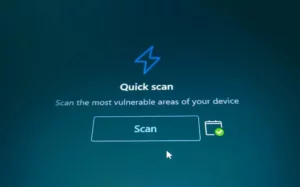
To run a Full Scan:
- Open Windows Security
- Click Virus & Threat Protection
- Select Scan Options
- Choose Full Scan
- Click Scan Now
A Full Scan checks:
- System files
- Downloads
- Installed applications
- Startup locations
- Hidden directories
This process may take some time, especially on larger drives.
Related article:
How to Scan Your PC for Viruses
Step 7: Remove or Quarantine Detected Threats
Once the scan completes:
- Review the results
- Follow the recommended actions
- Remove or quarantine detected threats
Quarantine places suspicious files in a secure location where they cannot run.
For most users, following the antivirus recommendations is the safest option.
Avoid restoring quarantined files unless you are certain they are legitimate.
Step 8: Run a Second Malware Scanner
No antivirus tool catches every threat.
Running a second-opinion scanner can help identify malware that may have been missed.
Examples include:
- Malwarebytes
- ESET Online Scanner
- Bitdefender Scanner
These tools are particularly useful for detecting:
- Adware
- Browser hijackers
- Spyware
- Potentially unwanted programs
Step 9: Check Installed Programs
Some malware disguises itself as normal software.
Review recently installed applications:
- Open Settings
- Select Apps
- Review installed programs
Look for:
- Unknown software
- Fake security tools
- Suspicious applications
- Programs you don’t remember installing
Remove anything clearly suspicious.
Related guide:
How to Remove Malware From Your PC
Step 10: Review Browser Extensions
Malware often targets web browsers.
Check for:
- Unknown extensions
- Toolbars
- Search engine changes
- Homepage modifications
Remove any browser add-ons you don’t recognize.
Browser hijackers are among the most common malware-related problems.
Step 11: Install Windows Updates
Many malware infections exploit known vulnerabilities.
After removing threats:
- Open Settings
- Select Windows Update
- Click Check for Updates
- Install available updates
Security updates help close vulnerabilities that malware may use.
Step 12: Change Important Passwords
If a virus infected your computer, assume your credentials may have been exposed.
Change passwords for:
- Email accounts
- Banking websites
- Shopping accounts
- Social media
- Password managers
Use strong, unique passwords whenever possible.
If available, enable two-factor authentication.
Step 13: Monitor Your PC for Continued Problems
Even after removing malware, keep an eye on your system.
Watch for:
- Recurring pop-ups
- Browser redirects
- Performance issues
- New antivirus warnings
- Unexpected software installations
If symptoms continue, additional scans or deeper troubleshooting may be necessary.
When a Virus Is Difficult To Remove
Some infections are more stubborn than others.
If malware keeps returning, consider:
- Microsoft Defender Offline Scan
- System Restore
- Resetting Windows
- Professional repair services
Persistent infections often require more advanced removal methods.
Common Mistakes To Avoid
Downloading Random “Virus Removal” Tools
Many fake security programs are actually malware themselves.
Only use trusted antivirus and anti-malware software.
Ignoring Security Warnings
Warnings from Windows Security should always be investigated.
Ignoring them can allow infections to spread.
Waiting Too Long To Act
The longer malware remains on a system, the more damage it can potentially cause.
Address suspected infections as soon as possible.
Disabling Antivirus Protection
Some users disable security software during troubleshooting and forget to turn it back on.
Always verify protection is re-enabled after cleaning your system.
How To Prevent Future Virus Infections
Good security habits greatly reduce your risk.
Keep Windows Updated
Security patches fix vulnerabilities regularly.
Use Antivirus Protection
Always maintain active real-time protection.
Download Software Carefully
Only download programs from trusted sources.
Be Cautious With Email Attachments
Verify unexpected files before opening them.
Perform Regular Maintenance
Routine scans and system checks help identify problems early.
Related guide:
How to Check Your PC Security Settings
Final Thoughts
Finding out your PC has a virus can be stressful, but most infections can be handled successfully with the right approach. The key is to stay calm, disconnect from the internet, run trusted scans, remove detected threats, and secure your system afterward.
Remember to:
- Disconnect from the internet
- Run full antivirus scans
- Remove suspicious software
- Check browser extensions
- Install updates
- Change important passwords
- Monitor your system after cleanup
Regular maintenance and safe browsing habits remain your best defense against future infections.
Continue learning here:
PC Maintenance for Beginners Hub Page