
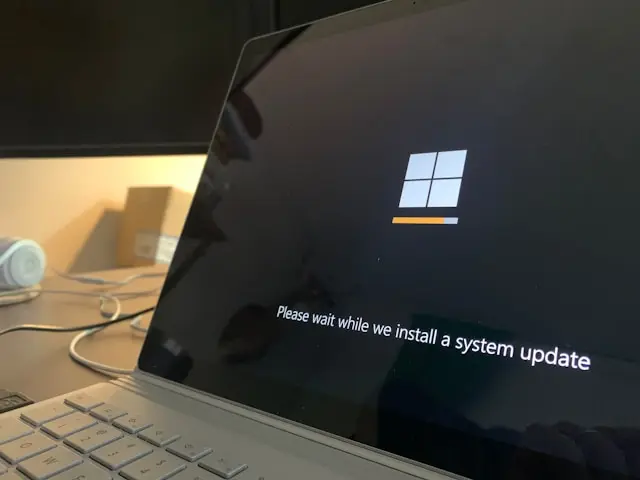
Why Windows Updates Matter: A Beginner’s Guide
If you’ve ever seen a Windows update notification and clicked “Remind me later,” you’re not alone. Many computer users delay updates because they worry about interruptions, changes, or simply don’t understand why updates are important.
However, Windows updates are one of the easiest ways to keep your computer secure, stable, and running properly.
As a computer repair specialist, one of the most common problems I see is a PC that hasn’t been updated in months—or even years. Outdated systems are more likely to experience security problems, software errors, driver issues, and performance problems.
The good news is that keeping Windows updated is simple.
In this beginner-friendly guide, you’ll learn why Windows updates matter, what they do, how to install them safely, and how they help protect your computer.
Difficulty: Beginner
Time Required: 5–20 minutes (depending on the size of the update)
What You’ll Need: A Windows PC, an internet connection, and a few minutes to allow your computer to restart if needed.
Who This Guide Is For
This guide is ideal if you:
- Are new to Windows computers
- Aren’t sure whether updates are important
- Have been putting off installing updates
- Want to keep your PC secure and running smoothly
The steps in this guide work for both Windows 10 and Windows 11. While the menus may look slightly different, the update process is nearly identical.
What Are Windows Updates?
Windows updates are improvements and fixes released by Microsoft for the Windows operating system.
These updates can include:
- Security patches
- Bug fixes
- Performance improvements
- Driver updates
- New features
- Compatibility improvements
Think of Windows updates as regular maintenance for your computer.
Just like a car needs oil changes and inspections, your PC needs updates to continue running safely and reliably.
Why Are Windows Updates Important?
Many beginners wonder if updates are really necessary.
The answer is yes.
Windows updates help with several important areas of computer maintenance.
Reason #1: Windows Updates Improve Security
One of the biggest reasons to keep Windows updated is security.
Cybercriminals constantly search for weaknesses in operating systems. When Microsoft discovers a security problem, they release updates to fix it.
Without updates, your computer may remain vulnerable to:
- Malware
- Viruses
- Ransomware
- Unauthorized access
- Data theft
Keeping Windows updated reduces your risk.
Related guide:
What Is Malware and How Does It Work
Reason #2: Updates Fix Windows Problems
Windows is a complex operating system with millions of users and thousands of hardware combinations.
Sometimes problems occur, such as:
- Programs crashing
- Settings not working correctly
- Devices disconnecting
- Slow performance
- Unexpected errors
Updates often include fixes for these issues.
Reason #3: Updates Improve Hardware Compatibility
Your computer depends on Windows communicating properly with your hardware.
Updates can improve compatibility with:
- Graphics cards
- Printers
- Storage devices
- Wi-Fi adapters
- Bluetooth devices
- Other peripherals
Keeping Windows updated can prevent problems when installing new hardware.
Related guide:
Complete Guide To Installing And Updating Drivers
Reason #4: Updates Help Protect Your Privacy
Security updates often improve how Windows handles:
- Account protection
- Data security
- Permissions
- Privacy settings
While updates cannot guarantee complete privacy, they help maintain important security protections.
Helpful resource:
How to Check Your PC Security Settings
Reason #5: Updates Improve Performance
Some Windows updates include improvements that help your computer run more efficiently.
Updates often include improvements that make Windows use your computer’s hardware more efficiently. While updates won’t magically turn an old PC into a new one, they can improve stability, fix performance issues, and help Windows run more smoothly.
An outdated computer may not perform as well as one running current software.
Related guide:
Types of Windows Updates
Not all updates are the same.
Understanding the different types can help beginners know what to expect.
Security Updates
Microsoft releases security updates on a regular monthly schedule (commonly known as “Patch Tuesday”).
Security updates fix vulnerabilities that attackers may exploit.
These updates are especially important and should usually be installed as soon as possible.
Feature Updates
Feature updates introduce larger changes to Windows.
They may include:
- New features
- Interface improvements
- Updated applications
- System enhancements
These updates usually happen less frequently than security updates.
Quality Updates
Quality updates focus on improving Windows reliability.
They commonly include:
- Bug fixes
- Stability improvements
- Small enhancements
Driver Updates
Driver updates improve communication between Windows and hardware components.
They can help with:
- Graphics performance
- Printer reliability
- Audio issues
- Network connections
Optional Updates
Some updates are listed as optional.
These may include:
- Driver updates
- Preview updates
- Feature improvements
Most users can safely leave optional updates alone unless they are trying to fix a specific problem or have been advised to install them.
How To Check For Windows Updates
Before You Begin
- Save any open work.
- Plug in your laptop if you’re using one.
- Make sure you have a stable internet connection.
- Allow enough time for your computer to restart if needed.
Checking for updates is simple.
Don’t worry if your computer needs to restart during the process. This is a normal part of installing Windows updates.
Follow these steps:
Step 1: Open Windows Settings
- Click the Start Menu.
- Select Settings.
Step 2: Open Windows Update
- Select Windows Update.
- Windows will show your current update status.
Step 3: Check for Updates
Click:
Check for Updates
Windows will search for available updates.
Step 4: Install Available Updates
If updates are available:
- Click Download and Install.
- Allow Windows to complete the process.
- Restart your computer if required.
Your PC may restart several times during larger updates.
How To View Update History
If you’re unsure whether your computer is up to date, you can also view your update history.
Open:
Settings → Windows Update → Update History
Here you’ll see recently installed updates, including security, quality, and driver updates.
How Often Should You Install Windows Updates?
For most users, the best option is allowing Windows Update to install updates automatically.
You should:
- Check occasionally for missed updates.
- Install important security updates promptly.
- Restart your computer when requested.
Avoid delaying updates for long periods.
Common Windows Update Problems
While updates are important, they don’t always go perfectly.
Here are some common issues beginners may encounter.
Problem #1: Updates Take Too Long
Large updates may take time.
Factors include:
- Internet speed
- Computer hardware
- Update size
- Available storage space
Avoid turning off your computer during an update unless absolutely necessary.
Problem #2: Not Enough Storage Space
Windows requires available storage space to download and install updates.
If your drive is full, updates may fail.
Helpful resource:
How To Free Up Disk Space
Problem #3: Updates Fail To Install
If an update fails:
Quick Tip:
If Windows Update continues to fail after several attempts, try running the built-in Windows Update Troubleshooter before attempting more advanced fixes.
Try:
- Restarting your computer.
- Checking your internet connection.
- Running Windows Update again.
- Removing unnecessary files.
- Checking available storage.
Related guide:
How to Fix Windows Update Problems
Problem #4: Computer Runs Differently After an Update
Sometimes updates change settings or drivers.
You may notice:
- Different menus
- Updated features
- Changed settings
Most changes are normal.
If a problem appears immediately after an update, additional troubleshooting may be needed.
Should You Install Updates Immediately?
For most users, yes—especially security updates.
However, waiting briefly may make sense for major feature updates if you want to confirm there are no widespread issues.
Before installing a major feature update, it’s also a good idea to make sure your important files are backed up, just in case something doesn’t go as planned.
For beginners:
- Install security updates promptly.
- Keep automatic updates enabled.
- Restart when Windows requests it.
Related guide:
How To Create A Backup System For Your Files
Common Windows Update Mistakes
Ignoring Update Notifications
Repeatedly delaying updates can leave your computer vulnerable.
Turning Off Automatic Updates
Automatic updates help ensure important security fixes are installed.
Shutting Down During Updates
Interrupting updates can sometimes cause Windows problems.
Allow the process to finish whenever possible.
Installing Updates From Unknown Sources
Only install Windows updates through:
- Windows Update settings
- Official Microsoft tools
Never install “Windows updates” from random websites or pop-ups.
How Windows Updates Fit Into PC Maintenance
Windows updates are just one part of keeping your computer healthy.
A complete maintenance routine should also include:
- Removing unnecessary files
- Checking security settings
- Running malware scans
- Cleaning dust
- Managing startup programs
- Backing up important files
Related guides:
- PC Maintenance for Beginners Hub Page
- How to Scan Your PC for Viruses
- How to Clean Dust From Your PC
- How to Disable Startup Programs on Your PC
Frequently Asked Questions
Can Windows Updates Slow Down My Computer?
Most updates are designed to improve security and stability. Occasionally, a specific update may cause problems, but keeping Windows outdated creates greater risks.
Do I Need Windows Updates If I Have Antivirus Software?
Yes.
Antivirus software helps protect against threats, but Windows updates fix operating system vulnerabilities that antivirus software cannot repair.
Can I Skip Windows Updates?
You can delay some updates, but regularly skipping updates is not recommended.
Important security updates should always be installed.
How Long Do Windows Updates Take?
Update times vary depending on your computer and the size of the update.
Some updates take only a few minutes, while larger feature updates may take longer.
Final Thoughts
Keeping Windows updated doesn’t require much effort, but it can prevent many common computer problems before they happen. By allowing Windows to install updates regularly, you’ll improve your computer’s security, reliability, and compatibility with the latest software and hardware.
Combined with regular malware scans, disk cleanup, hardware maintenance, and good backup habits, Windows updates are one of the easiest ways to keep your PC running at its best.
While updates can sometimes feel inconvenient, ignoring them can create much bigger problems later. Taking a few minutes to install updates today can save you hours of troubleshooting in the future.
Remember to:
- Keep automatic updates enabled.
- Install security updates regularly.
- Restart your PC when needed.
- Keep enough storage space available.
- Only install updates from official sources.
A properly updated computer is a safer, more reliable computer.
Continue learning here:
PC Maintenance for Beginners Hub Page