
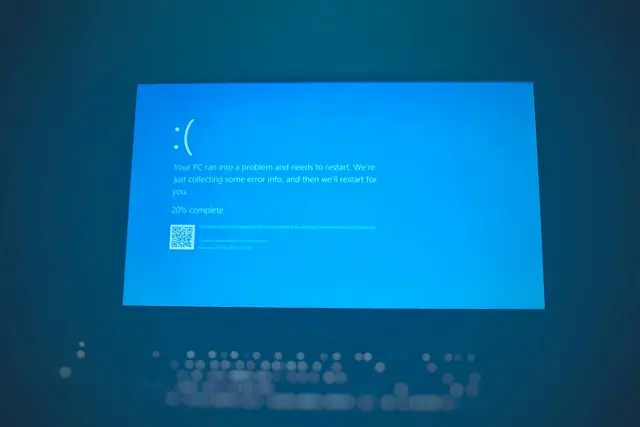
Have you ever been using your computer when Windows suddenly displays a blue screen and restarts? It can be alarming, especially if you have never encountered the problem before.
A blue screen error, sometimes called a Blue Screen of Death (BSOD), occurs when Windows encounters a serious problem that prevents it from continuing to run safely. You might see a message such as “Your device ran into a problem and needs to restart,” along with a stop code that can help identify the cause.
Blue screens can result from faulty drivers, problematic updates, damaged system files, memory problems, or failing hardware. Fortunately, many blue screen errors can be diagnosed and resolved without replacing your computer.
In this beginner-friendly guide, you’ll learn how to identify a blue screen error, work through common fixes, and recognize when professional help may be necessary.
Start Here: When Does the Blue Screen Appear?
Before changing anything, think about when the problem occurs.
- It happened once: Let Windows restart and see whether the problem returns.
- It started after installing an update or driver: Begin with Step 4.
- It happens while playing games or running demanding programs: Check for overheating, driver problems, or hardware issues.
- It appears repeatedly during startup: Continue to Step 6 to access Windows recovery options.
- The computer restarts before you can read the error: Try to record the stop code if it appears again.
This information can help narrow down the cause and prevent you from making unnecessary changes.
Before You Begin
Take a few minutes to prepare before troubleshooting.
- Save your work whenever Windows starts successfully.
- Write down the blue screen stop code and any error message.
- Disconnect unnecessary USB devices, such as external drives, printers, and accessories.
- If Windows starts normally, back up important personal files before attempting major repairs.
- If you suspect a failing hard drive or SSD, unusual clicking noises, or repeated storage errors, prioritize backing up your files and avoid unnecessary repair attempts.
Important: If the blue screen occurs repeatedly, avoid repeatedly forcing the computer to shut down. Allow Windows to complete its restart or recovery process when possible.
Step 1: Restart Your Computer
Estimated time: 2–5 minutes
Sometimes a blue screen results from a temporary software problem. A restart may be enough to clear it.
- Allow Windows to restart if it does so automatically.
- If Windows returns to the desktop, save any open work.
- Restart the computer using the normal Windows restart option.
- Use the computer as you normally would and see whether the blue screen returns.
You should see: Windows starting normally without another blue screen.
If the problem returns, continue to the next step. A recurring blue screen usually requires further investigation.
Step 2: Record the Stop Code
Estimated time: 2–5 minutes
The stop code is one of the most useful clues when diagnosing a blue screen. Examples include MEMORY_MANAGEMENT, IRQL_NOT_LESS_OR_EQUAL, and SYSTEM_THREAD_EXCEPTION_NOT_HANDLED.
- If another blue screen appears, take a photo of the screen with your phone.
- Look for the section labeled Stop code.
- Write down the code and any file name shown on the screen.
- Note what you were doing immediately before the error occurred.
Different stop codes can point toward different categories of problems, but they do not always identify a single cause. For example, a memory-related stop code can result from a driver issue as well as a physical memory problem.
Keep this information handy while working through the remaining steps.
Step 3: Disconnect Recently Added Devices
Estimated time: 5 minutes
A faulty peripheral, incompatible device, or device driver can sometimes trigger a blue screen.
- Shut down the computer if Windows is stable enough to do so.
- Disconnect unnecessary USB devices and external accessories.
- Leave essential devices connected, such as your monitor, keyboard, and mouse.
- Start Windows again.
- Check whether the blue screen returns.
You should see: Windows starting and operating without the error.
If disconnecting a device solves the problem, reconnect devices one at a time. Restart or test the computer after each one to identify which device may be responsible.
If the blue screen continues, move on to the next step.
Step 4: Undo a Recent Driver or Software Change
Estimated time: 10–20 minutes
Did the blue screen begin shortly after installing a new program, connecting new hardware, or updating a device driver? That recent change may be responsible.
Uninstall a recently added program
- Open Settings.
- Select Apps, then Installed apps if that option is available.
- Find the program you installed shortly before the blue screens began.
- Select its menu and choose Uninstall, if available.
- Restart Windows and check whether the problem returns.
Only remove software you recognize and believe may be related to the problem.
Roll back a recently updated driver
If you suspect a driver update, you may be able to return to the previous version.
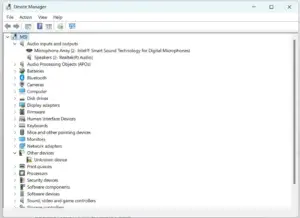
- Right-click the Start button and open Device Manager.
- Find the device associated with the problem, such as a graphics or network adapter.
- Right-click the device and select Properties.
- Open the Driver tab.
- If Roll Back Driver is available, follow the prompts.
The rollback option may be unavailable if Windows does not have a previous driver version to restore.
For additional guidance, see Complete Guide to Installing and Updating Drivers.
If the blue screen started immediately after a Windows update, continue to Step 5.
Step 5: Check for a Problematic Windows Update
Estimated time: 10–20 minutes
Occasionally, a Windows update can introduce a compatibility problem with a driver or application.
If Windows starts normally:
- Open Settings.
- Select Windows Update.
- Open Update history to review recent updates.
- Look for an update installed shortly before the blue screens began.
- If the timing strongly suggests that an update caused the problem, review Microsoft’s guidance before deciding whether to uninstall it.
Do not remove updates at random. Security updates help protect your computer, so you should have a reasonable basis for suspecting an update before removing one.
For a more detailed walkthrough, see How To Fix Windows Update Problems.
If Windows cannot start normally, proceed to the recovery options in Step 6.
Step 6: Start Windows in Safe Mode
Estimated time: 10–15 minutes
Safe Mode starts Windows with a limited set of drivers and services. If your computer works in Safe Mode but crashes during normal startup, a driver, application, or other software component may be involved.
If Windows will not start, you may need to enter the Windows Recovery Environment (WinRE) first. Depending on your Windows version and configuration, recovery options may appear automatically after repeated failed startups. You can also use Windows installation or recovery media if necessary.
Once you reach Windows Recovery Environment:
- Select Troubleshoot.
- Select Advanced options.
- Select Startup Settings.
- Choose Restart.
- After the computer restarts, select the Safe Mode option shown on screen, commonly option 4 or F4.
The exact menu options may vary. If BitLocker device encryption is enabled, Windows may ask for your recovery key.
You should see: A simplified Windows desktop with “Safe Mode” displayed on the screen.
If Safe Mode works, focus on recent driver, software, or update changes. Undo the most likely recent change, then restart Windows normally to test it.
For more detailed instructions, see How To Boot Windows Into Safe Mode.
Step 7: Repair Windows System Files
Estimated time: 15–30 minutes
Damaged Windows system files can sometimes contribute to crashes and blue screen errors. Windows includes built-in tools that can scan for and repair certain types of system file damage.
Use this step if Windows starts reliably enough to open an administrator command prompt.
- Right-click the Start button.
- Select Terminal (Admin) or Command Prompt (Admin), depending on your Windows version.
- Approve the permission prompt if it appears.
- Enter the following command and press Enter:
DISM /Online /Cleanup-Image /RestoreHealth - Allow the command to finish. It may take several minutes.
- Next, enter:
sfc /scannow - Press Enter and wait for the scan to complete.
- Restart the computer and check whether the blue screen returns.
DISM repairs the Windows component store that Windows uses for system repairs, while System File Checker checks and attempts to repair protected system files.
If Windows cannot start normally, these commands require a different approach from the recovery environment. Beginners should avoid running unfamiliar repair commands in recovery tools without reliable instructions.
These tools can help repair Windows system-file problems, but they won’t fix every cause of a blue screen, such as faulty hardware or an incompatible driver.
Step 8: Check Your Computer’s Memory
Estimated time: 15–30 minutes
Memory (RAM) problems can cause blue screens, random restarts, and other unpredictable behavior. However, a blue screen does not automatically mean your RAM is defective.
Windows includes a built-in memory diagnostic tool.
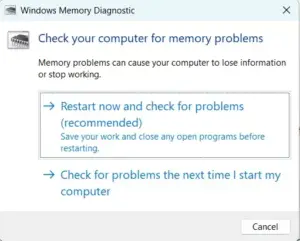
- Save your work and close open programs.
- Press Windows + R to open the Run dialog.
- Type
mdsched.exeand press Enter. - Select Restart now and check for problems if you are ready to restart.
- Allow the memory test to run.
Your computer will restart and perform the test before returning to Windows. Follow any on-screen instructions and review the results when available.
If the test reports memory errors, the RAM or its configuration may need further investigation. A failed test is a reason to investigate, not necessarily proof that a particular memory module is defective.
If you’re uncomfortable working inside a computer, have a technician check the memory rather than removing components yourself.
Step 9: Check for Overheating and Hardware Problems
Estimated time: 10–20 minutes for basic checks
Blue screens can sometimes result from overheating, unstable hardware, or failing storage devices.
Look for these warning signs:
- The computer becomes unusually hot.
- Fans run loudly or continuously.
- Blue screens occur during games or other demanding tasks.
- The computer freezes or restarts even when you are not running demanding software.
- You hear unusual clicking or grinding noises from a mechanical hard drive.
For a desktop PC, make sure the air vents are not blocked and that the computer has adequate airflow. For a laptop, use it on a hard, flat surface rather than a bed or blanket.
If overheating is suspected, shut down the computer and allow it to cool. Do not open the power supply or attempt electrical repairs.
If you suspect a failing drive, back up important files as soon as possible if you can do so safely. A technician can help test the storage device, memory, cooling system, and other hardware.
Related guide: How to Troubleshoot and Fix Common PC Hardware Issues.
Step 10: Use System Restore if the Problem Continues
Estimated time: 15–30 minutes or longer
If the blue screen began after a major system change and the previous steps have not helped, System Restore may return Windows system settings and certain installed software or drivers to an earlier state.
System Restore does not normally delete your personal documents, but it can remove applications, drivers, and updates installed after the selected restore point. Back up important files first whenever possible.
If Windows starts:
- Search for Create a restore point from the Start menu.
- Open the System Protection settings.
- Select System Restore, if available.
- Choose a restore point dated before the blue screens began.
- Review the programs that may be affected, then follow the prompts.
If Windows will not start, you may be able to use System Restore through Windows Recovery Environment. The option may not be available if no restore points exist.
For the complete walkthrough, see How To Use System Restore in Windows.
What If the Blue Screen Keeps Returning?
If none of these steps fixes the problem, avoid repeating the same actions without a clear reason. Instead, gather the information that can help narrow down the cause.
- Record the stop code each time it appears.
- Note whether the crash happens during startup, gaming, browsing, or another activity.
- Check whether the problem began after a particular update or hardware change.
- Back up important files if Windows remains accessible.
- Consider professional diagnostics if the computer cannot stay running long enough to troubleshoot.
Resetting Windows or reinstalling it may be options later, but they should not be your first response to every blue screen. These procedures can remove applications and may cause data loss if handled incorrectly. Make sure you understand the recovery options and have a reliable backup before proceeding.
If Windows repeatedly crashes during startup, use How to Fix Startup Failures and Boot Problems for additional guidance.
Common Mistakes to Avoid
When troubleshooting a blue screen, avoid these common mistakes:
- Assuming the RAM is bad immediately. Drivers and software can also cause memory-related errors.
- Downloading drivers from unfamiliar websites. Use Windows Update, your PC manufacturer’s website, or the hardware manufacturer’s official website.
- Changing several settings at once. Make one reasonable change at a time so you can tell what helped.
- Ignoring important files. Back up your data before major repairs when possible.
- Repeatedly forcing shutdowns. Interrupting updates or recovery operations can create additional problems.
- Resetting Windows too soon. Try appropriate diagnostic steps first, and understand the data-loss risks before resetting or reinstalling.
When Should You Get Professional Help?
It is reasonable to troubleshoot common software causes yourself, but some problems require more advanced diagnostics.
Contact a qualified computer repair technician if:
- The blue screen occurs repeatedly despite trying the steps above.
- Memory diagnostics report errors.
- The computer shows signs of a failing SSD or hard drive.
- The computer overheats, shuts down unexpectedly, or has other signs of hardware trouble.
- Windows cannot start and recovery options do not work.
- You have important files that are not backed up and are concerned that the drive may be failing.
Getting help early can prevent unnecessary repairs and reduce the risk of losing important data.
Frequently Asked Questions
What causes a Windows blue screen?
Common causes include faulty drivers, incompatible software, damaged system files, memory errors, and hardware problems. The stop code and the circumstances surrounding the crash can help narrow down the cause.
Can a blue screen damage my computer?
A blue screen itself is Windows stopping to protect the system from a serious error. It does not automatically mean the computer has physical damage. However, repeated crashes can indicate an underlying problem that should be investigated.
Will restarting fix a blue screen?
A restart may resolve a temporary issue, particularly if the error happens only once. If the blue screen returns, record the stop code and work through the troubleshooting steps.
Should I reinstall Windows to fix a blue screen?
Not as your first step. Reinstalling Windows can remove applications and potentially cause data loss. Try identifying the cause, checking drivers and system files, and using appropriate recovery tools first.
What if I cannot read the blue screen before the computer restarts?
Take a photo of the screen if possible. You can also look for related error information in Windows after the computer starts again, but the available details depend on how the crash occurred. If the computer repeatedly restarts before Windows loads, use the startup recovery guidance linked above.
Final Thoughts
A Windows blue screen can be unsettling, but it does not automatically mean your computer is broken. Start by recording the stop code, disconnecting unnecessary devices, and checking whether a recent software or driver change may be responsible. Then work through the appropriate repair and diagnostic steps.
If Windows continues to crash, avoid guessing or making several changes at once. Protect your files, keep track of what you have tried, and seek professional help when hardware trouble or repeated startup failures are involved.
For more beginner-friendly help with Windows errors, updates, startup problems, and other common PC issues, visit the Beginner’s Guide to Windows Troubleshooting.