
Beginner’s Guide to Windows Troubleshooting
Windows problems can be frustrating, especially when you’re not sure what caused them or where to start fixing them. The good news is that many common Windows problems can be solved with a few simple troubleshooting steps.
You don’t need to be a computer expert to troubleshoot Windows. In many cases, restarting your PC, checking for updates, or using a built-in Windows tool can get things working again.
This beginner-friendly guide will walk you through some of the most common Windows troubleshooting steps and show you where to find more detailed help for specific problems.
Who Is This Guide For?
This guide is for beginners who are experiencing problems with a Windows PC and aren’t sure what to try first.
It can help if your computer is:
- Running slowly
- Freezing or becoming unresponsive
- Having trouble installing updates
- Experiencing program crashes
- Having problems connecting to the internet
- Showing error messages
- Having trouble starting properly
- Experiencing other common Windows problems
If you’re dealing with a specific problem, you can also use the guides below to jump directly to a solution.
Windows Troubleshooting Guides
- How To Use System Restore in Windows
- How to Fix Common Windows Problems
- How To Fix Windows Apps That Won’t Open
- How to Fix Common Software Crashes
- How to Troubleshoot Internet Connection Problems in Windows
- How To Fix Startup Failures And Boot Problems
- Troubleshooting Guide For Blue Screen Of Death Errors
- [Placeholder: How to Fix Common Windows Audio Problems]
- [Placeholder: How to Fix Common Printer Problems in Windows]
Don’t see your problem listed? Start with the basic troubleshooting steps below.
Start With These Basic Troubleshooting Steps
Before trying more advanced solutions, it’s worth working through a few simple checks.
1. Restart Your Computer
Restarting your PC is one of the simplest troubleshooting steps, but it can fix more problems than you might expect.
A restart can clear temporary problems, close programs that aren’t responding properly, and give Windows a fresh start.
To restart Windows:
- Select Start.
- Select Power.
- Choose Restart.
- Wait for Windows to shut down and start again.
After your computer restarts, check whether the problem has gone away.
Quick tip: If your computer is completely frozen, you may need to hold the physical power button to turn it off. However, avoid doing this unless Windows is genuinely unresponsive because shutting down this way can cause you to lose unsaved work.
2. Look for Error Messages
If Windows displays an error message, don’t immediately dismiss it.
Take a moment to read what it says. An error message may give you a clue about which program, feature, or device is causing the problem.
If possible, write down the exact message or take a screenshot. You can then search for that specific error when looking for a solution.
3. Check for Windows Updates
Microsoft regularly releases Windows updates that include security improvements, bug fixes, and other changes.
If you’re experiencing a Windows problem, checking for available updates is a good troubleshooting step.
Go to:
Settings → Windows Update
Then check for available updates.
For a more detailed explanation, see Why Windows Updates Matter.
4. Check Whether the Problem Affects Everything
Try to determine how widespread the problem is.
For example, if one program keeps crashing but everything else works normally, the problem may be related to that particular program.
On the other hand, if Windows itself is freezing, several programs are crashing, or your entire computer is becoming unresponsive, the problem may be more widespread.
This distinction can help you choose the right troubleshooting approach.
Troubleshoot Common Windows Problems
Once you’ve completed the basic checks, you can move on to troubleshooting the specific problem you’re experiencing.
Windows Is Running Slowly
A slow computer can have many possible causes, including too many programs running in the background, limited storage space, or programs launching when Windows starts.
If your main problem is performance, start with our Speed Up Your PC Hub.
You may also find these guides helpful:
- How to Speed Up a Slow Computer
- How To Reduce Background Apps
- How To Free Up Disk Space
- How To Remove Unnecessary Programs
- How To Use Task Manager To Speed Up Your PC
These articles focus primarily on improving PC performance, but many of the same steps can help when you’re troubleshooting a slow Windows computer.
Programs Keep Crashing or Freezing
If one program repeatedly crashes, first try closing and reopening it. You can also check whether an update is available for the program.
If several programs are freezing or Windows itself becomes unresponsive, you may need to investigate further.
See [Placeholder: How to Fix Programs That Keep Crashing] for a step-by-step guide.
You can also use Task Manager to see whether a program has stopped responding or is using an unusually large amount of system resources.
See How To Use Task Manager To Speed Up Your PC for a beginner-friendly introduction to Task Manager.
Windows Update Isn’t Working
Windows Update problems can prevent your PC from installing important updates.
Start by checking your internet connection and restarting your computer. Then return to Windows Update and try again.
If the problem continues, see How to Fix Common Windows Update Problems.
You Can’t Connect to the Internet
If your Windows PC can’t connect to the internet, first determine whether the problem affects only your computer or every device on your network.
Try restarting your PC and checking your router or modem.
If other devices can connect normally but your computer cannot, the problem may be specific to Windows or your PC’s network settings.
See How to Troubleshoot Internet Connection Problems in Windows for more help.
Windows Won’t Start Normally
Startup problems can be more serious, but there are still several things you can try.
If Windows won’t start normally, you may be able to use Windows Recovery Environment or Safe Mode to diagnose the problem.
See How to Boot Windows Into Safe Mode for a step-by-step guide.
You can also see [Placeholder: How to Fix Common Windows Startup Problems] for additional troubleshooting steps.
Use Windows’ Built-In Troubleshooting Tools
Windows includes several tools that can help you diagnose problems.
You don’t need to use all of them for every problem. Start with the tool that best matches what you’re experiencing.
Task Manager
Task Manager lets you see which programs and processes are running and how much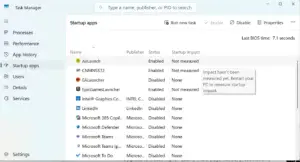 CPU, memory, disk, and network resources they’re using.
It’s particularly useful when your computer is slow or a program has stopped responding.
See How To Use Task Manager To Speed Up Your PC to learn the basics.
Windows Security
Windows Security provides built-in protection against malware and other security threats.
If you suspect that malware may be causing unusual behavior, running a security scan is a good idea.
See How to Scan Your PC For Viruses and How To Remove Malware for more information.
Device Manager
Device Manager lets you view hardware installed in your computer and check for certain driver-related problems.
It’s especially useful if a device such as your sound card, network adapter, printer, or other hardware isn’t working correctly.
See Complete Guide to Installing and Updating Drivers for more information about drivers.
Safe Mode
Safe Mode starts Windows with a limited set of drivers and services.
This can help determine whether a third-party program or driver is causing a problem.
For a step-by-step guide, see How To Boot Windows Into Safe Mode.
System File Checker
Windows includes a tool called System File Checker that can check protected system files for problems and attempt to repair them.
This is a more advanced troubleshooting step, so it’s best used when simpler solutions haven’t worked.
See [Placeholder: How to Use System File Checker to Repair Windows] for a beginner-friendly walkthrough.
What If You Don’t Know What’s Causing the Problem?
That’s completely normal.
You don’t always need to know the exact cause before you begin troubleshooting.
Instead, start by asking a few simple questions:
When did the problem begin?
If Windows worked normally yesterday but started having problems after installing something today, the recent change may be important.
Does the problem happen every time?
A problem that happens consistently is usually easier to investigate than one that happens randomly.
Does it affect one program or the whole computer?
This can help you determine whether you’re dealing with an application-specific problem or a Windows-wide problem.
Did you recently install software, hardware, or a driver?
New software or hardware can sometimes introduce compatibility problems.
Did the problem start after a Windows update?
If so, Windows Update may be worth investigating.
Writing down what happened before the problem started can make troubleshooting much easier.
When You Should Stop Troubleshooting
Not every Windows problem should be fixed by trying random solutions from the internet.
If you’ve tried the appropriate troubleshooting steps and the problem continues, it’s okay to stop and get additional help.
You should be especially cautious if:
- Important files are at risk.
- Your hard drive or SSD may be failing.
- Your computer repeatedly crashes.
- You suspect malware or another security problem.
- Windows won’t start and recovery options aren’t working.
- You aren’t comfortable making advanced system changes.
Before attempting major repairs, make sure your important files are backed up.
See [Placeholder: Beginner’s Guide to Backing Up Your Computer] for help getting started with backups.
Quick Windows Troubleshooting Checklist
When something goes wrong with Windows, work through these steps in order:
- Restart your computer.
- Read and record any error messages.
- Check whether the problem affects one program or the entire PC.
- Check Windows Update.
- Think about any recent software, hardware, or driver changes.
- Use the Windows troubleshooting tool that matches the problem.
- Try a specific troubleshooting guide.
- Back up important files before attempting major repairs.
- Get additional help if the problem continues.
You don’t necessarily need to try every step. The goal is to start with the simplest and safest solution and work your way toward more advanced troubleshooting only when necessary.
Related PC Guides
Windows troubleshooting often overlaps with other areas of PC maintenance and performance.
You may also find these guides useful:
- PC Maintenance for Beginners
- Speed Up Your PC
- [Placeholder: Beginner’s Guide to Backing Up Your Computer]
- [Placeholder: PC Security Hub]
- [Placeholder: Beginner’s Guide to PC Components]
These guides cover related problems that may not be specific to Windows troubleshooting.
Conclusion
Troubleshooting Windows doesn’t have to be intimidating. Start with the basics, identify what changed, and work through the simplest possible solutions before moving on to more advanced tools.
A restart, Windows Update, Task Manager, Safe Mode, or another built-in Windows tool can often point you in the right direction.
And remember: you don’t have to fix everything yourself. If a problem involves possible hardware failure, important data, or advanced system repairs, getting professional help may be the safest choice.
If you’re dealing with a specific Windows problem, use the troubleshooting guides linked throughout this page to find a more detailed, step-by-step solution.