
How To Troubleshoot Internet Connection Problems in Windows
Is your Windows PC connected to Wi-Fi but unable to access the internet? Maybe websites won’t load, your connection keeps dropping, or everything suddenly feels much slower than usual.
Internet connection problems are frustrating, but many common issues can be fixed without calling a technician. The key is to troubleshoot the problem one step at a time instead of changing several settings at once.
In this beginner-friendly guide, you’ll learn how to troubleshoot common internet connection problems in Windows, identify whether the problem is with your PC or network, and get your connection working again.
Before You Start
Before changing anything on your computer, take a moment to identify what is actually happening.
Ask yourself:
- Is your PC connected to Wi-Fi or Ethernet?
- Can other devices connect to the internet?
- Is the problem affecting every website or only one?
- Did the problem start after an update or software installation?
- Does the connection keep disconnecting?
If other devices are also offline, the problem may be with your router, modem, or internet service rather than your Windows PC.
Related guide:
Beginner’s Guide to Windows Troubleshooting Hub Page
Step 1: Check Your Internet Connection
Start with the simplest possible explanation.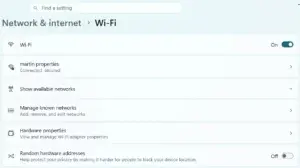
Look at the network icon in the Windows taskbar.
You may see:
- A Wi-Fi icon
- An Ethernet connection icon
- A disconnected symbol
- A warning symbol
Click the network icon and confirm that your computer is connected to the correct network.
If you’re using Wi-Fi, make sure Wi-Fi is turned on.
If you’re using Ethernet, check that the network cable is securely connected to both your PC and router.
Step 2: Check Other Devices
This is one of the most useful troubleshooting steps.
Try connecting another device, such as:
- Smartphone
- Tablet
- Another computer
- Smart TV
If other devices also cannot access the internet, the problem probably isn’t your Windows PC.
In that situation, check your router and modem or contact your internet service provider if the outage continues.
If other devices work normally, continue troubleshooting your PC.
Step 3: Restart Your Router and Modem
If multiple devices are having trouble connecting, restarting your network equipment may help.
- Turn off your modem and router.
- Unplug them from power.
- Wait about 30 seconds.
- Plug the modem back in.
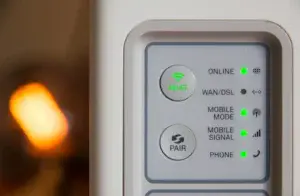
- Wait for its lights to stabilize.
- Plug the router back in.
- Wait a few minutes.
- Try connecting your PC again.
This simple step can resolve many temporary network problems.
Quick tip: Don’t repeatedly restart your router. Give it time to reconnect before deciding whether the problem is fixed.
Step 4: Restart Your Computer
If other devices work normally, restart your Windows PC.
- Save your work.
- Close your programs.
- Click Start.
- Select Power.
- Choose Restart.
A restart can clear temporary network problems and restart Windows networking services.
If your PC has been running for a long time, this simple step is especially worth trying.
Step 5: Forget and Reconnect to Wi-Fi
If you’re using Wi-Fi and the connection continues to fail, try removing the saved network and reconnecting.
- Open Settings.
- Select Network & Internet.
- Select Wi-Fi.
- Open Manage known networks.
- Find your wireless network.
- Select Forget.
- Return to the Wi-Fi settings.
- Select your network.
- Enter the Wi-Fi password.
- Click Connect.
This forces Windows to create a fresh connection to the wireless network.
Important: Make sure you know your Wi-Fi password before forgetting the network.
Step 6: Check Airplane Mode
It sounds simple, but Airplane Mode can prevent your PC from connecting to the internet.
- Open the Windows quick settings.
- Look for Airplane mode.
- Make sure it is turned off.
- Confirm that Wi-Fi is enabled.
If your Wi-Fi suddenly stopped working, this is a quick setting worth checking.
Step 7: Run the Windows Network Troubleshooter
Windows includes troubleshooting tools that can help identify common network problems.
Depending on your version of Windows, you may find network troubleshooting options under Settings → System → Troubleshoot → Other troubleshooters, or Windows may direct you to the Get Help app.
Look for network-related troubleshooters and follow the instructions provided.
Windows may automatically identify problems with your connection or network configuration.
Step 8: Check Your Network Adapter
Your network adapter allows Windows to communicate with your Wi-Fi or Ethernet connection.
If the adapter has a problem, your computer may not be able to connect properly.
To check it:
- Right-click the Start button.
- Select Device Manager.
- Expand Network adapters.
- Look for your Wi-Fi or Ethernet adapter.
- Check for a warning symbol.
If you see a warning symbol, Windows may have detected a problem with the device or its driver.
Related guide:
Complete Guide to Installing and Updating Drivers
Step 9: Restart Your Network Adapter
Sometimes the adapter itself simply needs to be restarted.
- Open Settings.
- Go to Network & Internet.
- Open your network settings.
- Find the option to disable and re-enable the network adapter.
- Turn the adapter off.
- Wait a few seconds.
- Turn it back on.
- Try connecting again.
If the option isn’t available in your Windows version, you can also use Device Manager to disable and re-enable the adapter.
Step 10: Check Your Internet Speed
If the internet works but seems unusually slow, the problem may not be a complete connection failure.
Run a reputable internet speed test and compare the result with the speed you’re paying your internet provider for.
Keep in mind that internet speed can vary because of:
- Network congestion
- Wi-Fi signal strength
- Distance from the router
- Other devices using the connection
- Your internet service plan
If speeds are consistently much lower than expected, contact your internet provider.
Step 11: Move Closer to Your Wi-Fi Router
Wi-Fi performance can decrease as you move farther away from your router.
Walls, floors, furniture, and other electronic devices can also interfere with the signal.
If possible:
- Move closer to the router.
- Test your connection again.
- Compare the results.
If the connection improves significantly, your problem may be related to Wi-Fi signal strength rather than Windows itself.
Step 12: Check for Windows Updates
An outdated version of Windows or a network driver can sometimes contribute to connection problems.
To check for updates:
- Open Settings.
- Select Windows Update.
- Click Check for updates.
- Install available updates.
- Restart your PC if requested.
Keeping Windows updated is an important part of routine PC maintenance.
If Windows Update isn’t working correctly, see How To Fix Windows Update Problems for additional troubleshooting steps.
Related guide:
Why Windows Updates Matter
Step 13: Check for Malware
Malware can sometimes interfere with internet connections or change network settings.
If your connection problems are accompanied by other unusual symptoms, such as:
- Browser redirects
- Unexpected pop-ups
- Unknown programs
- Disabled security software
- Unusual system activity
run a malware scan.
Related guides:
- How to Scan Your PC for Viruses
- What Is Malware and How Does It Work
- Signs Your Computer May Have Malware
Step 14: Reset Your Network Settings
If you’ve tried the previous steps and your connection still doesn’t work, Windows provides a Network Reset option.
This should be considered a later troubleshooting step because it removes saved network information and resets network adapters.
Before using it:
- Make sure you know your Wi-Fi password.
- Save any important network information.
- Understand that you may need to reconnect to your networks afterward.
To find the option:
- Open Settings.
- Select Network & Internet.
- Look for Advanced network settings.
- Select Network reset.
- Review the warning.
- Follow the instructions to reset your network.
Afterward, Windows will restart your computer.
Common Internet Connection Problems and What They Mean
Connected to Wi-Fi but No Internet
Your PC may be connected to the router but the router may not have an active internet connection.
Check another device to determine whether the problem affects the entire network.
Internet Keeps Disconnecting
Possible causes include:
- Weak Wi-Fi signal
- Router problems
- Driver issues
- Network congestion
- Interference
Wi-Fi Doesn’t Appear
Possible causes include:
- Wi-Fi being disabled
- Airplane Mode being enabled
- A disabled network adapter
- Missing or damaged drivers
Ethernet Doesn’t Work
Check:
- The network cable
- Router port
- PC Ethernet port
- Network adapter
- Ethernet driver
Try another cable if you have one available.
Websites Won’t Load but Other Internet Apps Work
The problem may be related to:
- Your browser
- DNS settings
- Browser extensions
- A specific website
Try opening another website or using another browser to narrow down the problem.
Common Troubleshooting Mistakes
Changing Too Many Settings at Once
If you change five things and the problem disappears, you won’t know which change fixed it.
Work through the steps one at a time.
Resetting Network Settings Too Quickly
Network Reset can be useful, but it shouldn’t be your first step.
Try the simpler solutions first.
Assuming Your PC Is Always the Problem
If every device in your home is offline, the problem is probably related to your network equipment or internet service.
Downloading Random “Internet Repair” Programs
Be careful with websites claiming that you need special software to repair your internet connection.
Windows already includes several useful troubleshooting tools.
When To Contact Your Internet Provider
You may need to contact your internet service provider if:
- Multiple devices are offline.
- Your modem shows an error.
- Your connection repeatedly drops.
- Your internet service is experiencing an outage.
- Your connection remains slow after troubleshooting.
Before calling, restart your modem and router and check whether other devices are affected.
Final Thoughts
Internet connection problems can be frustrating, but you don’t need to be a computer expert to troubleshoot many of them.
Start with the basics: check your connection, test another device, restart your network equipment, and restart your PC. Then work through the Windows troubleshooting steps if the problem continues.
Remember to:
- Check whether other devices are affected.
- Restart your router and PC.
- Check Wi-Fi and network settings.
- Update Windows and network drivers.
- Run a malware scan when appropriate.
- Save Network Reset for later in the troubleshooting process.
Most importantly, take one step at a time. That’s the best way to troubleshoot a computer problem without making things more complicated.
Continue learning here:
Beginner’s Guide to Windows Troubleshooting Hub Page