
How To Fix Windows Apps That Won’t Open
Have you ever clicked an app on your Windows computer and nothing happened?
Maybe the app opens for a second and then disappears. Perhaps you see an error message, or the app simply refuses to start.
This can be frustrating, especially when you need the app to get something done.
Fortunately, an app that won’t open doesn’t necessarily mean that something is seriously wrong with your computer. The problem could be caused by a temporary Windows issue, a damaged app installation, missing updates, or another simple problem.
In this beginner-friendly guide, I’ll show you how to troubleshoot Windows apps that won’t open, starting with the easiest solutions first.
Why Won’t My Windows App Open?
There are several reasons a Windows app might refuse to start.
Common causes include:
- The app is temporarily frozen.
- Windows needs to be restarted.
- The app needs an update.
- Windows needs an update.
- The app’s files have become damaged.
- The app doesn’t have the permissions it needs.
- Another program is interfering with it.
- Your computer doesn’t have enough available storage.
- The app is no longer compatible with your version of Windows.
- Malware or another Windows problem is affecting the computer.
You don’t need to know exactly what caused the problem before you start troubleshooting.
Work through the following steps one at a time.
Before You Start
Before making any changes, save your work and close any programs you don’t need.
It’s also helpful to determine whether one app is having trouble or several apps are refusing to open.
If only one app is affected, the problem is more likely to be related to that particular program.
If several apps are failing, the problem may involve Windows itself.
For broader Windows troubleshooting, see:
Beginner’s Guide to Windows Troubleshooting
Step 1: Restart Your Computer
Start with one of the simplest troubleshooting steps: restart Windows.
A restart can clear temporary problems and stuck processes that may prevent an app from opening.
To restart your computer:
- Save your work.
- Close your open programs.
- Click Start.
- Click Power.
- Select Restart.
- Wait for Windows to start again.
Once Windows has restarted, try opening the app.
If it still won’t open, continue to the next step.
Step 2: Check Whether the App Is Already Running
Sometimes an app is running in the background even though its window isn’t visible.
You can check using Task Manager.
- Press Ctrl + Shift + Esc.
- Find the problem app in the list of running processes.
- If you see it, select the app.
- Click End task.
- Close Task Manager.
- Try opening the app again.
Important: Only end the task for the app you’re troubleshooting. Don’t randomly end Windows system processes.
If you’re unfamiliar with Task Manager, see:
How To Use Task Manager To Speed Up Your PC
Step 3: Check for Windows and App Updates
Outdated software can sometimes cause compatibility problems.
Start by checking Windows Update:
- Open Settings.
- Select Windows Update.
- Click Check for updates.
- Install any available updates.
- Restart your computer if Windows asks you to.
Then check whether the app itself needs an update.
For apps installed through the Microsoft Store:
- Open the Microsoft Store.
- Select Library.
- Check for available app updates.
- Install any available update for the problem app.
If you downloaded the app directly from the developer’s website, check that website for an official update.
Quick tip: Avoid downloading app updates from unfamiliar websites. Stick with the Microsoft Store or the software developer’s official website whenever possible.
If Windows Update itself isn’t working, see:
How To Fix Windows Update Problems
Step 4: Check Your Available Storage
A computer that’s almost out of storage space can experience problems installing, updating, or running applications.
To check your available storage:
- Open Settings.
- Select System.
- Select Storage.
- Check how much free space is available.
If your drive is nearly full, remove files or programs you no longer need.
For more help:
Don’t randomly delete files from Windows folders just to make room. Use Windows’ built-in storage tools or remove files you know you no longer need.
Step 5: Try Running the App as an Administrator
Some programs require administrator permissions to perform certain tasks.
You can test whether permissions are causing the problem by running the app as an administrator.
- Find the app in the Start menu.
- Right-click the app.
- Select Run as administrator.
- Select Yes if Windows asks for permission.
If the app opens this way, the problem may be related to permissions.
Important: Don’t automatically run every program as an administrator. Only use this option when necessary.
Step 6: Repair the App
Windows can sometimes repair certain apps without completely removing them.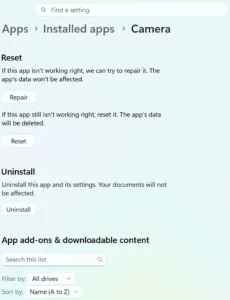
If the option is available:
- Open Settings.
- Select Apps.
- Select Installed apps.
- Find the problem app.
- Click the three dots next to the app.
- Select Advanced options.
- Look for Repair.
- Click Repair.
Windows will attempt to repair the app while keeping its data.
The exact options may vary depending on the app and your version of Windows.
After the repair finishes, try opening the app again.
Step 7: Reset the App
If repairing the app doesn’t work, you may see a Reset option in the same area.
Resetting an app can return it to its default state.
To reset the app:
- Open Settings.
- Select Apps.
- Select Installed apps.
- Find the problem app.
- Select Advanced options.
- Select Reset if the option is available.
- Confirm the reset.
Important: Resetting an app can remove its settings or locally stored app data.
Before using Reset, make sure you understand what information the app may store locally.
If you’re unsure, check the app developer’s documentation first.
Step 8: Check for Malware
If an app suddenly stops working along with other unusual computer behavior, malware could be part of the problem.
Warning signs can include:
- Strange pop-ups.
- Unexpected browser redirects.
- Unknown programs appearing.
- Unusual computer slowdowns.
- Security warnings you don’t recognize.
- Several programs behaving strangely.
Run a security scan if you suspect malware.
How To Scan Your PC for Viruses
If you’re seeing several signs of infection, you may also want to review:
Signs Your Computer May Have Malware
Don’t download a random “app repair” program simply because a website claims your computer is infected.
Use trusted security software and reputable sources.
Step 9: Check Whether the App Is Compatible With Windows
Older software may not work correctly with newer versions of Windows.
If the app is several years old, visit the software developer’s official website and check its system requirements.
Look for information about:
- Supported versions of Windows.
- Required hardware.
- Required software.
- Known compatibility problems.
- Available updates.
If the developer no longer supports the program, you may need to find a newer alternative.
Step 10: Reinstall the App
If the previous steps haven’t worked, reinstalling the app may fix damaged or missing program files.
Before uninstalling it, make sure you know whether the app stores important information locally.
To reinstall the app:
- Open Settings.
- Select Apps.
- Select Installed apps.
- Find the problem app.
- Select the three dots next to it.
- Select Uninstall.
- Follow the instructions.
- Restart your computer if requested.
- Download the app again from the Microsoft Store or the developer’s official website.
- Install the app.
- Try opening it.
Important: If the app contains important local files or settings, make sure they’re backed up before uninstalling it.
Step 11: Determine Whether the Problem Is Bigger Than One App
If you’ve tried the app-specific fixes and it still won’t open, check whether other programs work normally.
Try opening:
- Your web browser.
- File Explorer.
- Another application you regularly use.
- A Windows built-in app.
If other programs work normally and only one app refuses to open, the problem is more likely specific to that application.
If several programs are failing, don’t assume every app is broken. The problem may involve Windows itself.
At that point, work through the broader Windows troubleshooting process:
How To Troubleshoot Common Windows Problems
Step 12: Try System Restore If the Problem Started After a Change
If the app worked normally until you installed a program, driver, or made another major Windows change, System Restore may be worth considering.
System Restore can return certain Windows system settings and drivers to an earlier state.
How To Use System Restore In Windows
Choose a restore point from before the problem began and review which programs may be affected before continuing.
Common Problems and What To Try
The App Opens and Immediately Closes
If the app briefly opens and then disappears, try:
- Checking whether the app is already running.
- Restarting Windows.
- Updating the app.
- Repairing or resetting the app.
- Reinstalling the app.
Nothing Happens When I Click the App
If clicking the app produces no visible response, check Task Manager to see whether it is running in the background.
If it isn’t, work through the app repair and update steps in this guide.
Several Apps Won’t Open
If multiple programs are affected, the problem may involve Windows rather than one particular application.
Check the broader troubleshooting guide:
How To Troubleshoot Common Windows Problems
The App Started Failing After a Windows Update
First, restart your computer and make sure Windows has completed any available updates.
If the problem affects only one app, check that app for an update or compatibility information.
If Windows Update itself is having problems, see:
How To Fix Windows Update Problems
Common Mistakes To Avoid
Downloading Random “Repair” Software
Be cautious when websites tell you that you need a special repair tool.
You usually don’t need one.
Stick with Windows’ built-in tools and software from trusted sources.
Making Too Many Changes at Once
Don’t repair, reset, uninstall, reinstall, and change Windows settings all at the same time.
Work through the steps one at a time.
That way, you’ll have a better idea of what fixed the problem.
Running Everything as Administrator
Administrator access gives programs additional permissions.
Don’t use it unnecessarily.
Ignoring Other Warning Signs
If one app won’t open, the problem may be limited to that application.
If your computer is also crashing, displaying strange pop-ups, running unusually slowly, or having other problems, investigate the larger issue.
When Should You Get Professional Help?
Most app problems can be handled by working through the troubleshooting steps in this guide.
Consider getting professional help if:
- Several important Windows programs won’t open.
- Windows itself is unstable.
- Your computer repeatedly crashes.
- You suspect serious malware.
- Windows won’t start normally.
- You see repeated system errors.
- An important program contains data you can’t risk losing.
- You’ve tried the basic solutions and the problem continues.
If you’re uncomfortable making system changes, it’s better to stop and get help than to make the problem worse.
Frequently Asked Questions
Why Won’t My Windows App Open?
There are many possible causes, including damaged app files, outdated software, Windows problems, insufficient storage, compatibility issues, or temporary glitches.
Start with the simple troubleshooting steps in this guide.
Should I Restart My Computer If an App Won’t Open?
Yes. Restarting Windows is one of the easiest troubleshooting steps and can clear temporary problems that prevent an app from starting.
Should I Repair or Reset the App?
Try Repair first if Windows provides that option.
Resetting the app is a bigger step because it can remove settings or locally stored app data.
Should I Reinstall an App That Won’t Open?
Reinstalling can help if the app’s files are damaged or missing.
Before uninstalling, make sure you won’t lose important locally stored information.
What If No Windows Apps Will Open?
If several Windows apps refuse to open, the problem may involve Windows rather than one particular application.
Start with the broader troubleshooting steps in:
Beginner’s Guide to Windows Troubleshooting
Final Thoughts
When a Windows app won’t open, don’t assume that you need to reinstall Windows or replace your computer.
Start with the simplest solutions. Restart Windows, check for updates, make sure you have enough storage space, and then work through the app-specific repair and recovery options.
If only one app is affected, concentrate on that app. If several programs are failing, broaden your troubleshooting to Windows itself.
Remember:
- Start with the simplest troubleshooting steps.
- Check whether the app is already running.
- Keep Windows and your apps updated.
- Make sure you have enough storage space.
- Try Repair before Reset when available.
- Be careful when uninstalling an app.
- Download software only from trusted sources.
- Consider malware if you notice other unusual behavior.
- Get professional help if several Windows features are failing.
With a little patience, many Windows app problems can be fixed without advanced computer knowledge.
Continue learning here: