

How To Troubleshoot Common Windows Problems
When your Windows PC starts acting strangely, it can be difficult to know where to begin. Maybe an application won’t open, Windows is running slowly, your computer keeps freezing, or something that worked yesterday suddenly stopped working.
The good news is that many common Windows problems can be fixed without advanced computer knowledge.
As a computer repair specialist, I recommend starting with the simplest solutions first. There’s no need to immediately change complicated settings or reinstall Windows. A few basic troubleshooting steps can often identify and fix the problem.
In this beginner-friendly guide, you’ll learn how to troubleshoot some of the most common Windows problems step by step.
Before You Start
Before trying to fix a problem, take a moment to figure out exactly what’s happening.
Ask yourself:
- What isn’t working?
- When did the problem start?
- Did anything change before the problem appeared?
- Does the problem happen every time?
- Does the problem affect the entire computer or just one program?
For example, if only one application is having problems, Windows itself may be working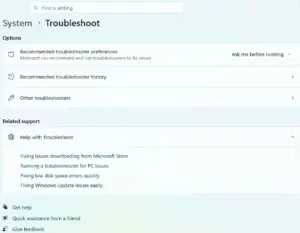 correctly.
Quick tip: Write down any error messages you see. Even a short error message can provide useful information later.
If you’re dealing with a specific problem, you may also want to return to the Beginner’s Guide to Windows Troubleshooting hub for more targeted guides.
Beginner’s Guide to Windows Troubleshooting Hub Page
Step 1: Restart Your Computer
It may sound too simple, but restarting your computer should be one of the first troubleshooting steps you try.
A restart can clear temporary problems with:
- Windows services
- Memory
- Applications
- Network connections
- Hardware drivers
To restart your PC:
- Save your work.
- Close your open programs.
- Click Start.
- Select Power.
- Click Restart.
- Wait for Windows to start again.
After restarting, check whether the problem is still happening.
If it has disappeared, the problem may have been temporary.
Step 2: Check for Windows Updates
Microsoft regularly releases Windows updates that include security fixes, bug fixes, and improvements.
An outdated version of Windows can sometimes contribute to problems with software, hardware, or system stability.
To check for updates:
- Open Settings.
- Select Windows Update.
- Click Check for updates.
- Install available updates.
- Restart your computer if Windows asks you to.
Keeping Windows updated should be part of your regular PC maintenance routine.
Step 3: Check Your Internet Connection
If websites won’t load, applications can’t connect to the internet, or Windows reports that you’re offline, check your network connection.
Start by:
- Checking the network icon in the taskbar.
- Confirming Wi-Fi is turned on if you’re using wireless.
- Checking that an Ethernet cable is connected securely.
- Testing another device on the same network.
If other devices also can’t connect, the problem may be with your router or internet service rather than your PC.
For a complete walkthrough, see:
How To Troubleshoot Internet Connection Problems in Windows
Step 4: Check Task Manager
Task Manager can help you find programs that are using too many system resources.
You can use it to check:
- CPU usage
- Memory usage
- Disk usage
- Network activity
- Running applications
To open Task Manager:
- Right-click the Start button.
- Select Task Manager.
- Look at the Processes tab.
- Check which programs are using the most resources.
If a program is using an unusually large amount of CPU or memory, it may be contributing to the problem.
Important: Don’t end a process simply because you don’t recognize its name. Some Windows processes are necessary for the operating system to work correctly.
How To Use Task Manager To Speed Up Your PC
Step 5: Close Programs That Are Not Responding
Sometimes a single application freezes while Windows continues working normally.
If this happens:
- Open Task Manager.
- Find the program that isn’t responding.
- Select it.
- Click End task.
- Wait a few seconds.
- Try opening the program again.
You may lose unsaved work in that application, so use this option only when the program won’t respond normally.
If the same program repeatedly freezes, check whether it has an available update or whether reinstalling it solves the problem.
Step 6: Check Your Storage Space
Windows needs available storage space to operate properly.
If your drive is nearly full, you may experience:
- Slow performance
- Failed Windows updates
- Application problems
- Difficulty saving files
To check your storage:
- Open Settings.
- Select System.
- Select Storage.
- Review how much space is available.
If your drive is nearly full, remove unnecessary files and applications.
Step 7: Check Your Installed Programs
A newly installed application can sometimes cause problems with Windows or other software.
Think about whether the problem began after you installed:
- A new program
- A utility
- A browser extension
- A driver
- Security software
If you suspect a recently installed application, you may be able to uninstall it and see whether the problem disappears.
To remove an application:
- Open Settings.
- Select Apps.
- Select Installed apps.
- Find the program.
- Click the menu next to it.
- Select Uninstall.
- Follow the instructions.
Only remove programs you’re confident you no longer need or that you’ve identified as the source of the problem.
Step 8: Check Your Drivers
Drivers allow Windows to communicate with hardware such as:
- Graphics cards
- Printers
- Wi-Fi adapters
- Sound devices
- USB devices
A damaged, outdated, or incompatible driver can cause hardware problems.
To check your drivers:
- Right-click Start.
- Select Device Manager.
- Look for devices with warning symbols.
- Expand the appropriate category.
- Review the device information.
Don’t randomly uninstall drivers if you’re unsure what they do.
For more information about managing drivers:
Complete Guide To Installing And Updating Drivers
Step 9: Run a Malware Scan
Malware can cause many different Windows problems.
Possible warning signs include:
- Unusual pop-ups
- Browser redirects
- Slow performance
- Unknown programs
- Disabled security software
- Unexpected system behavior
If your computer is behaving strangely, run a security scan.
Start with your installed antivirus software and perform a Full Scan.
How To Scan Your PC for Viruses
If you suspect your PC is already infected, see:
What To Do If Your PC Has a Virus
Step 10: Try Windows Troubleshooters
Windows includes troubleshooting tools designed to help diagnose certain problems automatically.
Depending on your version of Windows, you may find troubleshooters under:
Settings → System → Troubleshoot
You may see troubleshooters for areas such as:
- Internet connections
- Audio
- Printers
- Windows Update
- Bluetooth
Select the troubleshooter that matches your problem and follow the instructions.
Windows may identify the problem and recommend a solution.
Step 11: Try Safe Mode
If Windows continues having problems, Safe Mode can help determine whether third-party software or drivers are causing the issue.
Safe Mode starts Windows with a limited set of drivers and services.
It can be useful for troubleshooting:
- Startup problems
- Driver issues
- Malware
- Software conflicts
If you need to use Safe Mode, follow our step-by-step guide:
How To Boot Windows Into Safe Mode
Step 12: Check for Overheating
Hardware problems can sometimes look like Windows problems.
If your computer:
- Shuts down unexpectedly
- Freezes during demanding tasks
- Runs unusually slowly
- Has constantly loud fans
overheating may be contributing to the problem.
Make sure your computer’s air vents aren’t blocked and check for excessive dust.
You can also learn more about maintaining good cooling:
Why PC Airflow Matters for Beginners
Step 13: Restart Windows Explorer
If the Windows desktop, taskbar, or Start menu isn’t responding correctly, restarting Windows Explorer may help.
To do this:
- Open Task Manager.
- Find Windows Explorer in the list.
- Select it.
- Click Restart.
Your taskbar and desktop may disappear briefly and then return.
This doesn’t restart your entire computer. It simply restarts the Windows Explorer process responsible for much of the Windows interface.
Step 14: Use System Restore When Appropriate
If a problem started after installing software, drivers, or making a system change, System Restore may help.
System Restore can return certain Windows system settings to an earlier restore point.
It is most useful when:
- Windows recently developed a problem.
- The problem began after a system change.
- A restore point is available.
Keep in mind that System Restore isn’t a replacement for backing up your personal files.
How To Use System Restore in Windows
Common Windows Problems and Where To Start
Not sure where to begin? Here’s a quick guide to the first things you should try.
Your PC Is Running Slowly
Start by:
- Restarting your computer.
- Checking Task Manager for programs using a lot of resources.
- Checking how much storage space is available.
How To Use Task Manager To Speed Up Your PC
Your Internet Isn’t Working
Start by:
- Checking whether other devices can connect.
- Restarting your router and PC.
- Checking your Wi-Fi or Ethernet connection.
How To Troubleshoot Internet Connection Problems in Windows
A Program Won’t Open
Start by:
- Restarting your computer.
- Checking for updates for the program.
- Reinstalling the program if necessary.
A Program Is Frozen
Try:
- Waiting a moment to see if it responds.
- Opening Task Manager.
- Selecting the frozen program.
- Clicking End task.
Windows Won’t Update
Try:
- Restarting your computer.
- Checking your available storage space.
- Running Windows Update again.
- Using the Windows Update troubleshooter.
For more detailed troubleshooting steps, see How To Fix Windows Update Problems.
You can also learn more about why keeping Windows updated is important in Why Windows Updates Matter.
Your Printer Isn’t Working
Start by checking:
- Whether the printer is turned on.
- The USB or network connection.
- Whether the correct printer is selected.
- Whether the printer needs a driver update.
How To Troubleshoot Common Printer Problems
Your PC Keeps Crashing
Start by:
- Restarting the computer.
- Checking for Windows updates.
- Checking for driver problems.
- Looking for signs of overheating.
Strange Pop-Ups Are Appearing
Run a malware scan and look for other unusual behavior.
How To Scan Your PC for Viruses
Your Browser Keeps Redirecting You
Check your browser extensions and run a malware scan.
How To Remove Browser Hijackers
Your PC Won’t Start Normally
Try starting Windows in Safe Mode or using the available Windows recovery options.
How To Boot Windows Into Safe Mode
Common Troubleshooting Mistakes Beginners Make
Changing Too Many Things at Once
If you change several settings at the same time, you won’t know which change fixed the problem—or potentially caused another one.
Work through troubleshooting steps one at a time.
Ignoring Error Messages
Don’t immediately close an error message.
Write down what it says or take a screenshot. The information may help you find the correct solution.
Downloading Random Repair Programs
Be careful with websites claiming that your computer needs a special “Windows repair” program.
Some of these programs are legitimate, but others may be unwanted or even malicious.
Only download software from trusted sources.
How To Install Software Safely on Windows
Immediately Resetting or Reinstalling Windows
A complete Windows reset should usually be a last resort.
Try simpler troubleshooting steps first.
Resetting Windows can remove applications and may require additional setup afterward.
When Should You Ask for Professional Help?
Sometimes a Windows problem isn’t something you should attempt to fix yourself.
Consider getting professional assistance if:
- Your PC won’t start at all.
- You hear unusual clicking or grinding sounds.
- Your computer repeatedly shuts down.
- Important files are inaccessible.
- Windows becomes completely unstable.
- You suspect serious hardware failure.
- Malware continues returning after removal attempts.
If you aren’t comfortable with a particular troubleshooting step, it’s perfectly reasonable to stop and ask for help.
Final Thoughts
Troubleshooting Windows doesn’t have to be intimidating. The most important thing is to stay calm and work through the problem methodically.
Start with the basics: restart your PC, check for updates, look for obvious problems, and determine whether the issue affects Windows, a particular program, your network, or your hardware.
Then move on to more advanced troubleshooting only when necessary.
Remember to:
- Start with the simplest solution.
- Change one thing at a time.
- Write down error messages.
- Keep Windows updated.
- Scan for malware when appropriate.
- Avoid downloading questionable repair tools.
- Ask for professional help when you’re unsure.
Once you become comfortable with these basic techniques, you’ll be able to solve many everyday Windows problems without needing to call a technician.
Continue learning in the Beginner’s Guide to Windows Troubleshooting: