
Why PC Airflow Matters for Beginners
When people think about keeping a computer running well, they often focus on software updates, antivirus scans, or cleaning up files. While those are all important, there’s another part of PC maintenance that’s just as critical—keeping your computer cool.
Your PC generates heat every time you use it. The processor (CPU), graphics card (GPU), power supply, and other components all produce heat while they’re working. Without proper airflow to move that heat out of the case, temperatures can rise quickly, leading to poor performance, unexpected crashes, or even permanent hardware damage.
The good news is that understanding PC airflow doesn’t require any technical experience. In this beginner-friendly guide, you’ll learn what airflow is, why it matters, and how a few simple habits can help your computer run cooler, quieter, and last longer.
What Is PC Airflow?
PC airflow is the movement of cool air into your computer case and warm air out of it.
Your computer relies on fans to:
- Pull cool air into the case.
- Push warm air out.
- Keep components at safe operating temperatures.
Good airflow creates a continuous flow of air that helps prevent heat from building up inside your PC.
Without adequate airflow, even powerful components can overheat.
Related guide:
How to Clean Dust From Your PC
Why Keeping Your PC Cool Is Important
Heat is one of the biggest enemies of computer hardware.
High temperatures can cause:
- Slower performance
- System crashes
- Random restarts
- Shorter hardware lifespan
- Noisy cooling fans
- Reduced gaming performance
Keeping temperatures under control helps your computer perform at its best.
How Heat Builds Up Inside a Computer
Every major component generates heat while it’s in use.
Common heat-producing components include:
- Processor (CPU)
- Graphics card (GPU)
- Power supply (PSU)
- Storage drives
- Motherboard components
If warm air cannot escape the case, temperatures continue to rise.
This is why airflow is so important.
Signs Your PC May Have Poor Airflow
Many airflow problems develop gradually.
Watch for these warning signs:
- Fans running loudly all the time
- Computer feeling hot to the touch
- Unexpected shutdowns
- Poor gaming performance
- Frequent freezing
- Higher-than-normal temperatures
- Dust building up inside the case
These symptoms don’t always indicate poor airflow, but they are worth investigating.
What Causes Poor Airflow?
Several issues can reduce airflow inside a computer.
Common causes include:
Dust Buildup
Dust blocks vents and cooling fans, making it harder for air to move through the case.
Even a thin layer of dust can reduce cooling performance over time.
Helpful resource:
How to Clean Dust From Your PC
Blocked Air Vents
Many users accidentally place their computer where vents cannot breathe.
Examples include:
- Against a wall
- Inside enclosed cabinets
- On thick carpet
- Next to piles of papers
Always leave several inches of space around ventilation openings.
Poor Cable Management
Loose cables can block airflow inside desktop computers.
While beginners don’t need perfect cable management, keeping cables reasonably organized helps air move more freely.
Too Few Case Fans
Some computers only include one fan from the factory.
Adding another intake or exhaust fan can improve airflow significantly, although this is usually something beginners can consider later if needed.
Why Airflow Helps Your Components Last Longer
Electronic components generally last longer when operating at lower temperatures.
Better airflow helps protect:
- CPUs
- Graphics cards
- Storage drives
- Motherboards
- Power supplies
Lower temperatures also reduce wear on cooling fans, since they don’t have to work as hard.
Airflow Can Improve Performance
Modern processors automatically reduce their speed when they become too hot.
This is called thermal throttling.
Thermal throttling helps protect your hardware but may cause:
- Lower frame rates in games
- Slower applications
- Longer rendering times
- Reduced responsiveness
Keeping your PC cool allows components to maintain higher performance for longer periods.
Laptops Need Good Airflow Too
Desktop computers aren’t the only systems that require proper airflow.
Laptop users should avoid:
- Using laptops on blankets
- Blocking bottom vents
- Using laptops on pillows
Instead:
- Use a hard, flat surface.
- Keep air vents clear.
- Clean vents regularly.
Simple habits can significantly improve cooling.
Common Airflow Myths
“More Fans Always Mean Better Cooling”
Not necessarily.
Poorly placed fans can actually disrupt airflow.
Quality airflow is usually more important than simply adding more fans.
“If My PC Turns On, It’s Not Overheating”
Many computers continue operating while running hotter than recommended.
Performance may suffer long before the computer shuts down.
“Dust Doesn’t Matter”
Dust is one of the most common causes of poor airflow.
Cleaning your PC regularly helps maintain proper cooling.
“Opening the Side Panel Always Improves Cooling”
While removing the side panel may lower temperatures temporarily, computer cases are generally designed to cool more effectively when all panels are installed and airflow follows its intended path.
Simple Ways To Improve PC Airflow
You don’t need expensive upgrades to improve airflow.
Here are a few easy improvements.
Clean Dust Regularly
Dust is the biggest enemy of airflow.
Cleaning every few months can make a noticeable difference.
Related guide:
How to Clean Dust From Your PC
Give Your PC Room to Breathe
Leave several inches of space around:
- Rear vents
- Side vents
- Top vents
- Front intake areas
Never block airflow with furniture or clutter.
Keep the Area Around Your Computer Clean
Dusty rooms cause computers to collect dust more quickly.
Vacuuming around your PC helps reduce airborne dust.
Organize Internal Cables (Desktop PCs)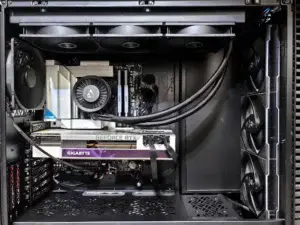
If you’re comfortable opening your desktop computer, neatly organizing loose cables can improve airflow.
If you’re unsure how to do this safely, consider waiting until you’re more familiar with your PC.
Monitor Temperatures
Many free monitoring tools allow you to check CPU and GPU temperatures.
While beginners don’t need to constantly monitor temperatures, occasional checks can help identify cooling problems early.
How Often Should You Check Airflow?
Most home users should inspect their computer every three to six months.
You may need to clean it more often if:
- You have pets.
- You smoke indoors.
- Your home is dusty.
- Your PC sits on the floor.
- You use your computer heavily for gaming.
Regular inspections help prevent overheating before it becomes a problem.
Frequently Asked Questions
Is It Safe to Leave My PC Running All Day?
Yes, provided it has adequate airflow and cooling.
Many computers operate continuously without problems.
Can Overheating Damage My Computer?
Yes.
Repeated overheating can shorten the lifespan of hardware components and may eventually cause failures.
Should I Leave My PC on the Floor?
Whenever possible, placing your desktop on a desk or stand helps reduce the amount of dust pulled into the case.
Are Loud Fans a Sign of Poor Airflow?
Not always, but constantly loud fans can indicate your computer is working harder than it should to stay cool.
Investigating the cause is a good idea.
Final Thoughts
Good airflow is one of the simplest yet most overlooked aspects of PC maintenance. By allowing cool air to flow through your computer and warm air to escape, you help protect your hardware, improve performance, and extend the life of your system.
The best part is that maintaining good airflow doesn’t require advanced technical skills. Simple habits like cleaning dust, keeping vents clear, and giving your PC enough space to breathe can make a noticeable difference.
Remember to:
- Clean dust regularly.
- Keep vents unobstructed.
- Avoid placing your PC in enclosed spaces.
- Watch for signs of overheating.
- Inspect your computer every few months.
A cooler computer is often a faster, quieter, and more reliable computer—and that’s a win for every beginner.
Continue learning here:
PC Maintenance for Beginners Hub Page