
Signs Your PC Is Overheating
Have you noticed your computer getting unusually hot, the fans running constantly, or your games suddenly slowing down? These could all be signs that your PC is overheating.
Every desktop PC or laptop generates heat while it’s running. Normally, fans and airflow keep temperatures under control. However, if heat builds up faster than it can escape, your computer may begin to experience performance problems, random shutdowns, or even hardware damage over time.
The good news is that overheating is often preventable and, in many cases, easy to fix. By recognizing the warning signs early, you can take action before serious problems develop.
In this beginner-friendly guide, you’ll learn the most common signs of an overheating PC, what causes overheating, and the simple steps you can take to keep your computer running cool.
Estimated reading time: 7 minutes
Who This Guide Is For
This guide is for anyone who is noticing their desktop PC or laptop running hotter than normal, hearing loud fans, or seeing slowdowns or unexpected shutdowns. No technical experience is required.
Why Computers Get Hot
Your desktop PC or laptop contains several components that produce heat while they work.
The biggest heat producers are:
- Processor (CPU)
- Graphics card (GPU)
- Power supply (PSU)
- Storage drives
- Motherboard components
As these parts work harder, they generate more heat. Your cooling system removes this heat through fans, heatsinks, and airflow.
If the cooling system can’t keep up, temperatures begin to rise.
Related guide:
Why PC Airflow Matters for Beginners
Why Overheating Is a Problem
Modern desktop PCs and laptops are designed to protect themselves from excessive heat, but when cooling systems can’t keep up, temperatures can rise high enough to reduce performance or even force the system to shut down.
When temperatures become too high, Windows or your hardware may:
- Reduce performance
- Increase fan speeds
- Restart unexpectedly
- Shut down automatically
These protections help prevent permanent damage, but repeated overheating can still shorten the lifespan of your hardware.
Programs such as HWMonitor or HWiNFO can show your CPU and GPU temperatures in real time, making it easier to determine whether overheating is causing performance issues.
Sign #1: Your Fans Run Constantly
One of the earliest signs of overheating is constantly loud cooling fans.
Normally:
- Fans speed up during demanding tasks.
- They slow down once the workload decreases.
If your fans remain loud even during light use, your computer may be struggling to stay cool.
Sign #2: Your Computer Feels Hot
It’s normal for parts of your computer to feel warm.
However, it may be overheating if:
- The keyboard becomes unusually hot.
- The bottom of a laptop feels uncomfortable to touch.
- Hot air blowing from vents feels much hotter than usual.
Always avoid blocking ventilation openings.
Sign #3: Your PC Suddenly Becomes Slow
Heat can force your processor and graphics card to reduce their speed.
This process is called thermal throttling.
You may notice:
- Programs taking longer to open.
- Lower gaming frame rates.
- Videos stuttering.
- Slower multitasking.
Thermal throttling protects your hardware but reduces performance.
Related guide:
[PLACEHOLDER LINK – How to Diagnose a Slow PC]
Sign #4: Random Restarts or Shutdowns
If your computer suddenly powers off without warning, overheating could be responsible.
This safety feature prevents temperatures from reaching dangerous levels.
Unexpected shutdowns should always be investigated.
Related guide:
Beginner’s Guide to Windows Troubleshooting
Sign #5: Frequent Freezing or Crashing
Overheating can make Windows unstable.
Common symptoms include:
- Frozen screens
- Programs crashing
- Blue screen errors
- Unexpected reboots
While many problems can cause crashes, overheating is one possible culprit.
Sign #6: Games Run Worse Than They Used To
Gamers often notice overheating before anyone else.
You may experience:
- Lower frame rates
- Stuttering
- Longer loading times
- Reduced graphics performance
These issues often appear after playing for a while, once temperatures have increased.
Sign #7: Your Laptop Is Noisy
If your laptop fan suddenly becomes much louder than normal during everyday tasks, it may be struggling to remove heat efficiently.
Because laptops have much less internal space than desktop PCs, even a small buildup of dust can noticeably reduce cooling efficiency.
Dust buildup or blocked air vents are common causes.
Sign #8: Your Computer Shuts Down During Heavy Workloads
Overheating often appears during activities like:
- Gaming
- Video editing
- Streaming
- 3D rendering
- Large software updates
If your PC shuts down only during demanding tasks, heat may be contributing to the problem.
Common Causes of Overheating
Fortunately, many overheating problems have simple explanations.
Dust Buildup
Dust acts like a blanket over heatsinks and cooling fans, trapping heat inside your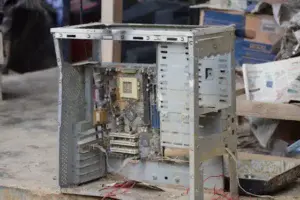 computer instead of allowing it to escape.
Even a small amount of dust can significantly reduce cooling performance.
Helpful resource:
How to Clean Dust From Your PC
Poor Airflow
Computers need room to move air.
Poor airflow may result from:
- Blocked vents
- Enclosed cabinets
- Placing laptops on blankets
- Tight spaces around desktop cases
Related guide:
Why PC Airflow Matters for Beginners
High Room Temperature
If the room itself is very warm, your PC has a harder time cooling itself.
Keeping your computer in a cooler environment can improve performance.
Heavy Workloads
Certain activities naturally increase temperatures.
Examples include:
- Gaming
- Video editing
- AI applications
- Large file transfers
It’s normal for temperatures to increase during these activities. What isn’t normal is frequent shutdowns, severe slowdowns, or temperatures that remain high long after the workload has ended.
Aging Cooling Components
Over time, cooling fans can wear out or become less effective.
If a fan stops working, temperatures can rise quickly.
How To Check If Your PC Is Overheating
You don’t have to guess.
You can:
- Listen for constantly loud fans.
- Feel for excessive heat around vents.
- Watch for slow performance.
- Use trusted temperature-monitoring software.
If temperatures remain unusually high even during light use, further investigation is recommended.
Related guide:
[PLACEHOLDER LINK – How to Monitor CPU and RAM Usage]
How To Help Cool Your PC
The good news is that many overheating problems are easy to prevent.
Clean Dust Regularly
Dust is one of the biggest causes of poor cooling.
Never use a household vacuum inside your computer because static electricity can damage sensitive components. Instead, use compressed air designed for electronics.
Cleaning your PC every few months helps maintain good airflow.
Keep Air Vents Clear
Leave several inches of space around your computer.
Avoid placing desktops inside enclosed cabinets.
Never block laptop vents.
Use Your Laptop on a Hard Surface
Soft surfaces like blankets and pillows block airflow underneath many laptops.
Use a desk, table, or lap desk instead.
Keep Windows Updated
Driver and firmware updates occasionally improve cooling efficiency and hardware management.
Related guide:
Why Windows Updates Matter
Complete Guide to Installing and Updating Drivers
Shut Down Occasionally
Restarting or shutting down your computer periodically allows it to cool and can resolve temporary software issues.
What Temperatures Are Normal?
Most CPUs and graphics cards typically operate between 95°F and 175°F (35°C to 80°C), depending on the workload. During gaming or other demanding tasks, temperatures are expected to rise. Brief spikes are normal, but temperatures that remain near the manufacturer’s recommended operating limits should be investigated.
Common Overheating Myths
“Hot Air Means Something Is Wrong”
Warm air coming from your PC is normal.
It means the cooling system is removing heat.
“More Fans Always Solve Overheating”
Not always.
Proper airflow is more important than simply adding more fans.
“My Computer Is Old, So It Should Always Run Hot”
Age alone doesn’t cause overheating.
Dust buildup and poor maintenance are much more common causes.
“Opening the Case Fixes Cooling”
Most desktop cases are designed to cool best when all panels are installed and airflow follows the intended path.
Frequently Asked Questions
Can Overheating Damage My Computer?
Yes.
Repeated overheating can shorten the lifespan of important hardware components.
Is It Normal for Gaming PCs to Get Hot?
Yes.
Gaming places heavy demands on your CPU and GPU, so temperatures naturally increase.
The key is ensuring temperatures stay within safe operating limits.
How Often Should I Clean My Computer?
Most home users should clean their PC every three to six months.
Homes with pets or higher dust levels may require more frequent cleaning.
Should I Worry About Loud Fans?
Occasional loud fans are normal during demanding tasks.
Fans that stay loud all the time may indicate a cooling problem.
Final Thoughts
Overheating is one of the most common—and most preventable—computer problems. Learning to recognize the warning signs early can help you avoid unexpected shutdowns, poor performance, and expensive hardware repairs.
Fortunately, keeping your PC cool doesn’t require advanced technical skills. Regular cleaning, good airflow, and paying attention to unusual symptoms can make a big difference.
Remember to:
- Clean dust regularly.
- Keep air vents unobstructed.
- Watch for constantly loud fans.
- Investigate random shutdowns.
- Give your computer room to breathe.
- Monitor temperatures if problems continue.
With a little routine maintenance, you can help your PC stay cool, perform better, and last for many years to come.
Continue learning here:
PC Maintenance for Beginners Hub Page