
How to Clean and Maintain Your Computer: A Simple Guide for Everyday Users
Introduction
Your computer works hard every day—handling emails, browsing the web, streaming videos, gaming, and everything in between. But when was the last time you actually cleaned it? Dust, fingerprints, crumbs, and cluttered software can quietly slow your system down and even shorten its lifespan. The good news is that cleaning and maintaining your computer doesn’t require expensive tools or advanced technical skills.
In this guide, we’ll walk through why regular cleaning matters, what tools you actually need, how to safely clean your computer step by step, and how to maintain it long-term so it stays fast and reliable. Whether you’re using a desktop or laptop, these tips are designed for everyday users—no tech degree required.
Why Regular Cleaning and Maintenance Matter
Many people think of cleaning as something you only do when a problem shows up, but regular maintenance can prevent issues before they start.
Better Performance
Dust buildup inside your computer can block airflow, causing components like the CPU and GPU to run hotter than they should. When that happens, your system may slow itself down to prevent damage. Keeping things clean helps your computer stay cool and run smoothly.
Longer Hardware Lifespan
Heat is one of the biggest enemies of computer components. Regular cleaning helps reduce heat buildup, which can extend the life of your fans, processor, and graphics card.
Quieter Operation
If your computer sounds like it’s preparing for takeoff, dust is often the culprit. Clean fans don’t have to work as hard, which means less noise.
Improved Reliability
Routine software maintenance—like updates and disk cleanup—helps prevent crashes, freezes, and mysterious slowdowns. A well-maintained system is far less likely to surprise you with problems.
Health and Hygiene
Keyboards and mice collect germs, dust, and oils from your hands. Regular cleaning isn’t just good for your PC—it’s good for you, too.
Essential Tools and Supplies for Cleaning
You don’t need a toolbox full of fancy gear. A few basic items go a long way.
Must-Have Cleaning Tools
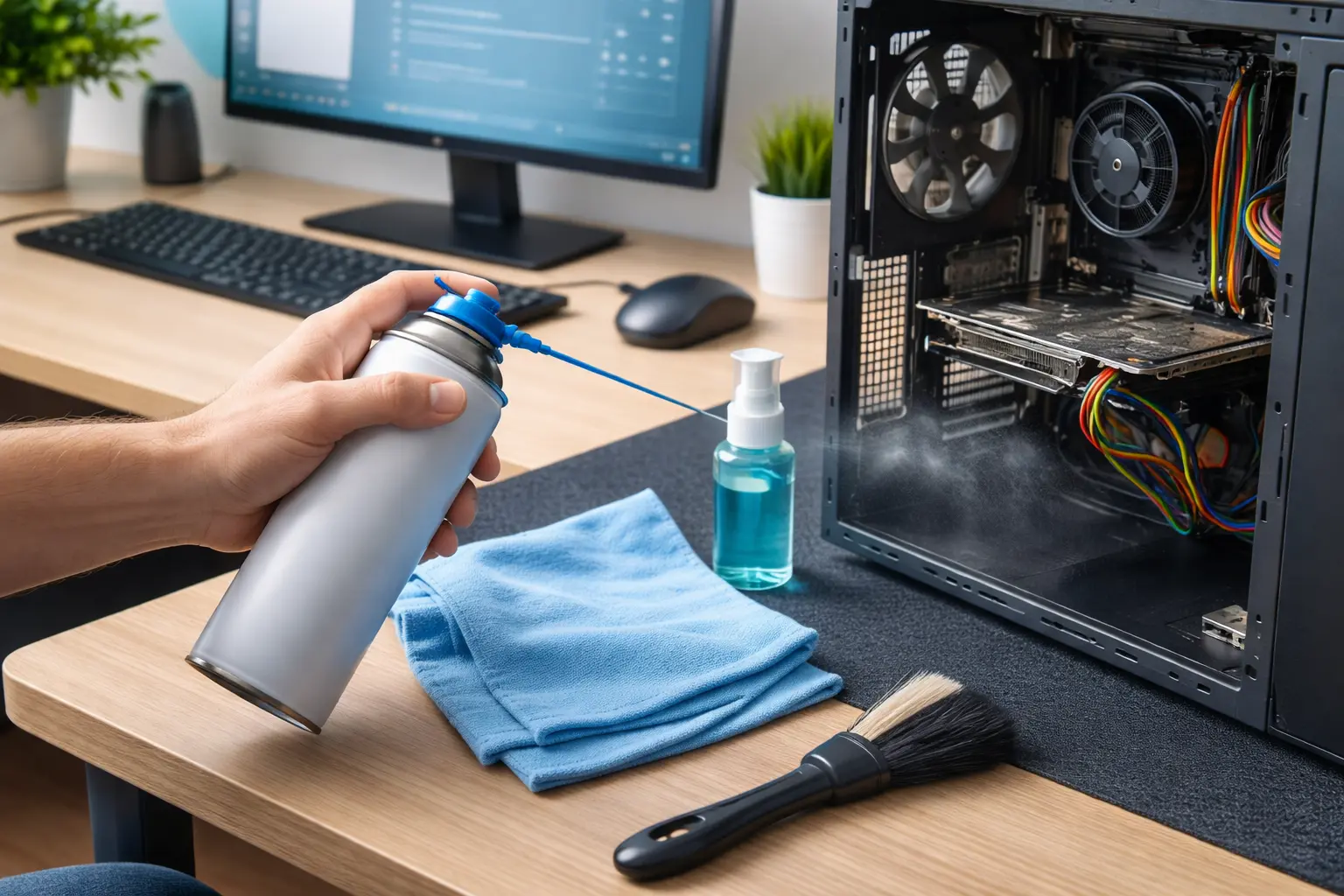
- Compressed air – Great for blowing dust out of fans and vents
- Microfiber cloth – Safe for screens and surfaces
- Isopropyl alcohol (70% or higher) – Ideal for disinfecting and removing grime
- Cotton swabs – Perfect for tight spaces
- Small soft brush – Helps loosen stubborn dust
Optional but Helpful
- Anti-static wrist strap – Reduces the risk of static damage
- Screwdriver – For opening desktop cases
- Keyboard cleaning gel – Pulls dust from between keys
What NOT to Use
- Paper towels (they scratch screens)
- Household cleaners (can damage coatings)
- Vacuum cleaners inside the case (static risk)
- Excessive liquid of any kind
Always power down your computer and unplug it before cleaning.
Step-by-Step Guide to Cleaning Your Computer
Let’s break this down into manageable steps. Take your time—this isn’t a race.
Step 1: Shut Down and Unplug
Turn off your computer completely and unplug it from the wall. If it’s a laptop, remove the charger and power it off.
Step 2: Clean the Exterior
Use a slightly damp microfiber cloth to wipe down:
- The case
- Monitor frame
- Laptop body
For stubborn spots, add a tiny bit of isopropyl alcohol to the cloth—never directly to the device.
Step 3: Clean the Screen
Gently wipe the screen with a dry microfiber cloth. If needed, lightly dampen the cloth with distilled water or screen cleaner.
Step 4: Keyboard and Mouse
- Turn the keyboard upside down and gently shake it
- Use compressed air between the keys
- Clean key surfaces with alcohol on a cloth or cotton swab
For the mouse, wipe the surface and clean around the sensor opening.
Step 5: Clean Internal Components (Desktop PCs)
If you’re comfortable opening your case:
- Remove the side panel
- Use compressed air to blow dust out of:
- Fans
- Heat sinks
- Power supply vents
- Hold fans still while blowing air to prevent damage
Avoid touching components unless necessary.
Step 6: Laptop Vent Cleaning
Laptops are harder to open, so focus on:
- Blowing air through vents
- Cleaning external ports gently
If overheating is severe, professional internal cleaning may be worth it.
Routine Maintenance Tips for Longevity
Cleaning isn’t just about dust—it’s also about keeping your system organized and updated.
Keep Software Updated
Install updates for:
- Operating system
- Drivers
- Antivirus software
Updates fix bugs, improve security, and boost performance.
Run Disk Cleanup and Storage Checks
Delete:
- Temporary files
- Old downloads
- Unused programs
On Windows, tools like Disk Cleanup and Storage Sense make this easy.
Check Startup Programs
Too many startup apps can slow boot times. Disable programs you don’t need launching automatically.
Monitor Temperatures
Use free tools to keep an eye on CPU and GPU temperatures. If temps rise unexpectedly, it’s a sign cleaning or airflow improvements are needed.
Back Up Your Data
Maintenance isn’t just physical—data matters too. Regular backups protect you from hardware failure and accidents.
Create a Maintenance Schedule
- Monthly: Exterior cleaning, keyboard, mouse
- Every 3–6 months: Internal dust removal
- Yearly: Deep clean and performance check
Consistency is more important than perfection.
Conclusion
Cleaning and maintaining your computer doesn’t have to be complicated or time-consuming. A little effort every few months can keep your system running faster, quieter, and longer—saving you money and frustration in the long run. From wiping down surfaces to clearing out dust and keeping software updated, these small habits make a big difference.
If you’ve never cleaned your computer before, now is the perfect time to start. And if you already have a routine, maybe this guide gave you a few new ideas to improve it.
💬 How often do you clean your computer—or what part do you find the most annoying to clean?
Leave a comment below and let’s talk tech care!