
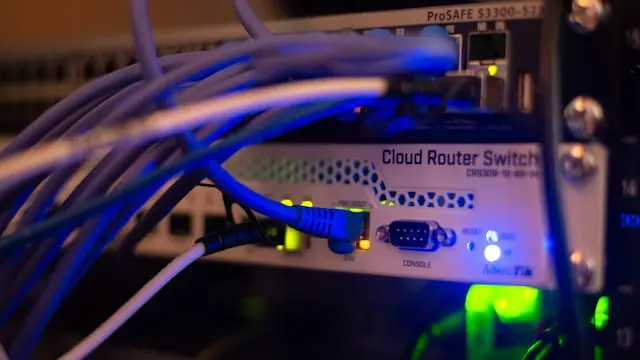
Tips for Troubleshooting Network Connectivity Issues
Introduction
Few things are more frustrating than a slow or broken internet connection—especially when you’re trying to work, game, stream, or just browse the web. One minute everything is fine, and the next your Wi-Fi drops, pages won’t load, or your connection crawls at a snail’s pace. For many typical users, network problems can feel mysterious and overwhelming.
The good news is that most network connectivity issues have simple causes and straightforward solutions. You don’t need to be a networking expert to fix many common problems. In fact, a step-by-step approach can help you identify the issue and get back online faster than you might expect.
In this guide, we’ll walk through how to identify the root cause of network issues, try basic troubleshooting steps, explore more advanced solutions when problems persist, and set up preventive measures to avoid future headaches. Let’s break it down in a way that actually makes sense.
Identifying the Root Cause of Network Issues
Before you start changing settings or unplugging cables, the first step is figuring out where the problem is coming from. Network issues usually fall into one of a few categories.
Is It Your Device or the Network?
Start by checking whether the issue affects just one device or multiple devices.
- If only one device is having trouble, the problem is likely with that device.
- If multiple devices can’t connect, the issue is probably your router, modem, or internet service.
Try connecting another device—like your phone or tablet—to the same network to compare results.
Wired vs. Wireless Problems
If you’re using Wi-Fi, try connecting your computer directly to the router using an Ethernet cable.
- If the wired connection works, the issue is likely related to Wi-Fi interference or signal strength.
- If the wired connection also fails, the issue may be with your router, modem, or internet provider.
Internet vs. Local Network
Sometimes your local network works, but the internet itself doesn’t.
- Can you access your router’s settings page?
- Can devices see each other on the network?
If yes, your local network is working, and the issue may be outside your home.
Understanding where the problem lives helps you avoid wasting time on unnecessary fixes.
Basic Troubleshooting Steps
Most network issues can be resolved using a few simple steps. These should always be your starting point.
Restart Your Equipment
It sounds basic, but it works more often than you’d think.
- Turn off your modem and router.
- Unplug them from power.
- Wait 30–60 seconds.
- Plug them back in and power them on.
This clears temporary glitches and refreshes your connection.
Check Cables and Connections
Loose or damaged cables can cause intermittent issues.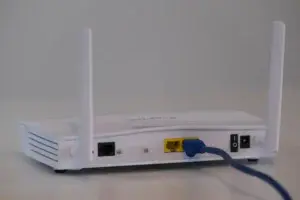
- Make sure Ethernet cables are securely connected
- Inspect cables for visible damage
- Try a different cable if possible
Even slightly loose connections can lead to dropped connections or slow speeds.
Check Wi-Fi Signal Strength
Weak signals cause slow speeds and disconnects.
- Move closer to the router
- Avoid walls, metal objects, and large appliances
- Reposition the router to a central location
Sometimes simply moving your router a few feet can make a big difference.
Verify Network Settings
Make sure your device is connected to the correct network.
- Check that Wi-Fi is enabled
- Confirm you’re not connected to a guest network by mistake
- Disable airplane mode if it’s turned on
Also, try disconnecting and reconnecting to the network.
Advanced Solutions for Persistent Problems
If basic steps don’t fix the issue, it’s time to dig a little deeper.
Update Network Drivers
Outdated or corrupted network drivers can cause connectivity problems.
- Open Device Manager (Windows) or System Settings (macOS)
- Look for network adapters
- Check for driver updates
Updating drivers can resolve compatibility issues and improve performance.
Change Wi-Fi Channels
Wi-Fi interference from nearby networks can slow things down.
- Log into your router’s settings
- Switch to a less crowded channel
- Use 5GHz Wi-Fi if available
This is especially helpful in apartments or crowded neighborhoods.
Reset Network Settings
If settings have become misconfigured, resetting them can help.
- On Windows, use the “Network Reset” option
- On macOS, remove and re-add the Wi-Fi network
This restores default configurations without affecting your files.
Check for Firmware Updates
Routers and modems also need updates.
- Visit your router manufacturer’s website
- Check for firmware updates
- Apply updates carefully, following instructions
Firmware updates often fix bugs and improve stability.
Contact Your Internet Service Provider
If everything else fails, the issue may be outside your control.
- Ask if there’s an outage in your area
- Have them test your connection
- Ask if your modem is compatible with their service
Sometimes the fastest fix is simply getting confirmation from your provider.
Preventive Measures and Network Optimization
Once your network is working again, a few proactive steps can help prevent future issues.
Secure Your Network
An unsecured network can slow down if others are using it.
- Use a strong Wi-Fi password
- Enable WPA2 or WPA3 security
- Disable unused guest networks
This keeps your bandwidth reserved for your devices.
Keep Equipment Updated
Regular updates help prevent bugs and compatibility issues.
- Update router firmware when available
- Keep device operating systems up to date
- Update network drivers periodically
Staying current reduces the risk of random connectivity problems.
Optimize Router Placement
Your router’s location matters more than most people realize.
- Place it in a central, elevated spot
- Avoid basements or corners
- Keep it away from thick walls and electronics
Better placement improves coverage and consistency.
Consider Hardware Upgrades
If your router is several years old, it may struggle with modern devices.
- Newer routers support faster standards
- Mesh systems improve coverage in large homes
- Upgrading can improve reliability and speed
Sometimes the problem isn’t troubleshooting—it’s outdated hardware.
Conclusion
Network connectivity issues can be frustrating, but they don’t have to be overwhelming. By taking a calm, step-by-step approach, most problems can be identified and fixed without professional help. Starting with basic checks, working your way through more advanced solutions, and setting up preventive measures can save you time and stress in the long run.
The key is understanding that most network problems are common—and fixable. A little patience and troubleshooting can get you back online faster than you might expect.
Have you dealt with a network issue that was especially tricky to fix? Or do you have a go-to troubleshooting step that always works for you? Leave a comment below and share your experience—your tip might help someone else solve their connection problem faster.