
How To Disable Startup Programs on Your PC: Step-by-Step for Beginners
If your computer takes a long time to boot up, startup programs may be one of the biggest reasons. Many applications automatically launch when Windows starts, even when you rarely use them. Over time, too many startup programs can slow down boot times, reduce performance, and use unnecessary system resources.
The good news is that disabling unnecessary startup apps is one of the easiest ways to improve your PC’s speed without upgrading hardware.
In this beginner-friendly guide, you’ll learn how to disable startup programs on your PC step by step, which programs you should avoid disabling, and how to keep your system running more efficiently.
What Are Startup Programs?
Startup programs are applications that automatically launch when Windows boots.
Some startup programs are useful, including:
- Antivirus software
- Audio drivers
- Cloud backup services
- Hardware utilities
Others may not be necessary, especially if you rarely use them.
Examples include:
- Game launchers
- Chat applications
- Media apps
- Software updaters
- Browser helpers
Too many startup programs can slow down:
- Boot times
- Login speed
- Overall system responsiveness
Signs You Have Too Many Startup Programs
You may have excessive startup apps if:
- Windows takes a long time to load
- The desktop appears slowly after login
- Programs pop up immediately after startup
- Your PC feels sluggish for several minutes
- High CPU or RAM usage appears after booting
Disabling unnecessary startup applications can often provide noticeable performance improvements.
You may also like:
How to Speed Up a Slow Computer
Step 1: Open Task Manager
The easiest way to manage startup programs is through Task Manager.
If you’re new to Task Manager, see How To Use Task Manager To Speed Up Your PC for a beginner-friendly guide to using it safely.
To open it:
- Right-click the Taskbar
- Select Task Manager
Or press:
- Ctrl + Shift + Esc
If Task Manager opens in compact mode:
- Click More Details
Then select the Startup or Startup Apps tab.
Step 2: Review Startup Impact Ratings
Windows displays a startup impact rating for many applications.
Common ratings include:
- Low impact
- Medium impact
- High impact
- Not measured
High-impact startup apps usually affect boot times the most.
Pay attention to programs you do not regularly use.
Step 3: Identify Programs You Don’t Need at Startup
Carefully review the list of startup applications.
Good candidates to disable often include:
- Gaming launchers
- Streaming apps
- Chat programs
- Music apps
- Printer software
- Update assistants
Programs you should usually keep enabled include:
- Antivirus software
- Audio drivers
- Graphics drivers
- Touchpad software on laptops
- Security applications
If you are unsure about a program, research it before disabling it.
Step 4: Disable Unnecessary Startup Programs
To disable a startup application:
- Click the program name
- Select Disable
The change takes effect the next time Windows starts.
Disabling startup programs does not uninstall the software. You can still open the application normally whenever you need it.
This makes startup optimization very safe for beginners.
Step 5: Restart Your PC
After disabling startup programs:
- Restart your computer
- Monitor boot speed improvements
- Observe system responsiveness
Many users notice:
- Faster startup times
- Less lag after login
- Lower background resource usage
Older PCs especially benefit from startup cleanup.
Step 6: Monitor Performance Improvements
After restarting, check whether your PC feels faster.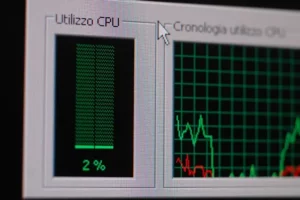
You may notice improvements in:
- Boot speed
- Desktop loading time
- Application responsiveness
- RAM usage
- CPU activity
You can revisit startup settings anytime and re-enable programs if necessary.
Other Ways To Manage Startup Programs
Windows Settings Startup Menu
You can also manage startup apps through Windows Settings.
To access it:
- Open Settings
- Select Apps
- Click Startup
This menu provides a simpler interface for beginners.
In-App Startup Settings
Some applications include their own startup options.
Examples include:
- Discord
- Spotify
- Steam
- OneDrive
Look in:
- Settings
- Preferences
- General options
Disabling startup directly inside the app may prevent it from re-enabling itself later.
Startup Programs Beginners Should Usually Leave Enabled
Not every startup application is bad.
You should usually leave enabled:
Antivirus Software
Security protection should start immediately when Windows loads.
Disabling antivirus startup can leave your system vulnerable.
Graphics Drivers
Software from companies like:
- NVIDIA
- AMD
- Intel
may include display or control panel features needed for proper hardware performance.
Audio Drivers
Audio management software may control:
- Sound enhancements
- Speaker switching
- Microphone settings
Disabling these can sometimes cause sound issues.
Cloud Sync Services You Use Frequently
Services like:
- OneDrive
- Google Drive
- Dropbox
may need startup access for automatic syncing.
Common Startup Program Mistakes Beginners Make
Disabling Everything
Turning off every startup item can cause:
- Missing features
- Hardware problems
- Security risks
Be selective instead.
Confusing Startup Apps With Viruses
Not every unfamiliar program is malware.
Research unknown items before removing or disabling them.
Ignoring Startup Impact
Programs with “Low Impact” ratings often have minimal performance effect.
Focus first on high-impact applications.
How Startup Programs Affect Gaming and Performance
Too many background applications can reduce available:
- RAM
- CPU resources
- Disk activity
This may impact:
- Gaming performance
- Streaming
- Video editing
- Multitasking
Reducing unnecessary startup apps can free up resources for the programs you actually use.
How Often Should You Review Startup Programs?
It’s smart to review startup apps every few months.
New software installations often add themselves automatically to startup without clearly asking permission.
Good times to check include:
- After installing new software
- When boot times slow down
- During regular PC maintenance
- After removing malware
Regular maintenance helps prevent startup clutter from building up.
Additional Tips To Speed Up Startup Times
Disabling startup programs is only one part of improving boot performance.
You can also:
- Upgrade to an SSD
- Keep Windows updated
- Remove temporary files
- Scan for malware
- Maintain free storage space
- Reduce unnecessary background apps
Combining multiple optimization steps produces the best results.
Final Thoughts
Learning how to disable startup programs on your PC is one of the simplest ways to improve performance and reduce slow boot times. Many computers gradually become cluttered with unnecessary startup applications over the years, especially after installing lots of software.
The process is beginner-friendly and completely reversible, making it an excellent first step for PC maintenance.
Remember to:
- Disable only unnecessary applications
- Keep security software enabled
- Focus on high-impact startup programs
- Review startup apps regularly
- Monitor performance improvements after changes
Small optimizations like this can make your computer feel noticeably faster and more responsive.
Continue learning here:
PC Maintenance for Beginners Hub Page