
Best Malware Removal Tools for Beginners
Malware can slow down your computer, steal personal information, display unwanted advertisements, or even lock you out of your own files. If your PC has been infected, having the right malware removal tool can make all the difference.
With so many security programs available, choosing one can feel overwhelming—especially if you’re new to computers. Fortunately, several trusted tools are easy to use and can help detect and remove malware without requiring advanced technical knowledge.
In this beginner-friendly guide, we’ll look at some of the best malware removal tools for beginners, explain what each one does well, and help you decide which option is right for your computer.
What Is a Malware Removal Tool?
A malware removal tool is software designed to detect, quarantine, and remove malicious programs from your computer.
These tools can help remove threats such as:
- Viruses
- Trojans
- Spyware
- Ransomware
- Adware
- Browser hijackers
- Potentially unwanted programs (PUPs)
Some tools provide real-time protection, while others are designed to scan your PC only when needed.
Related guide:
What Is Malware and How Does It Work
Do You Need a Separate Malware Removal Tool?
Many beginners wonder whether Windows Security is enough.
For many users, Microsoft Defender provides excellent day-to-day protection.
However, a second malware scanner can be useful if:
- Your PC appears infected
- Your antivirus missed something
- You want a second opinion
- You’re removing stubborn malware
Many security professionals recommend using an additional scanner alongside your primary antivirus when investigating a suspected infection.
Related article:
Best Free Antivirus Tools for Beginners
What To Look For in a Malware Removal Tool
Before choosing a tool, consider the following features.
Ease of Use
Beginners should look for software that offers:
- Simple installation
- Clear instructions
- Easy-to-read scan results
- Automatic threat removal
Detection Accuracy
A good malware removal tool should identify a wide variety of threats without producing excessive false alarms.
System Performance
Some scanners use more system resources than others.
Lightweight tools can scan your PC without causing major slowdowns.
Trusted Reputation
Always choose software from well-known developers with a history of reliable security products.
Avoid downloading unknown “PC cleaner” or “virus remover” programs.
Option 1: Microsoft Defender
Microsoft Defender is built directly into Windows and is an excellent starting point for beginners.
Pros
- Free
- Already installed
- Real-time protection
- Automatic updates
- Easy to use
Cons
- Fewer advanced features than some paid products
For many home users, Microsoft Defender provides all the protection they need.
Helpful guide:
How to Check Your PC Security Settings
Option 2: Malwarebytes Free
Malwarebytes is one of the most widely recommended malware removal tools.
Pros
- Excellent malware detection
- Easy interface
- Effective against adware and browser hijackers
- Great second-opinion scanner
Cons
- Free version does not provide continuous real-time protection
Malwarebytes is an excellent companion to Microsoft Defender when investigating suspicious activity.
Option 3: ESET Online Scanner
ESET Online Scanner is designed for one-time scans without requiring a permanent installation.
Pros
- Strong malware detection
- Easy to use
- No long-term installation required
Cons
- Requires internet access
- No ongoing protection
It’s a useful option when you want an additional opinion after running your primary antivirus.
Option 4: Bitdefender Antivirus Free
Bitdefender offers both antivirus protection and malware detection with very little impact on system performance.
Pros
- Excellent detection rates
- Lightweight
- Automatic threat handling
Cons
- Limited customization in the free version
This is a good option for users who prefer software that requires minimal attention.
Option 5: Microsoft Defender Offline Scan
Some malware hides while Windows is running.
Microsoft Defender Offline Scan restarts your PC and scans before Windows fully loads.
Pros
- Detects deeply embedded malware
- Built into Windows
- Easy to access
Cons
- Requires a restart
- Scan takes longer than a Quick Scan
Offline scans are especially helpful for stubborn infections.
Step 1: Update Your Security Software
Before running any malware scan:
- Open your antivirus software.
- Update the malware definitions.
- Install any available updates.
Updated databases help detect the latest threats.
Step 2: Run a Full Scan
Start with a Full Scan rather than a Quick Scan.
A Full Scan checks:
- System files
- Installed programs
- Downloads
- Startup locations
- Hidden folders
Be patient, as large drives may take some time to scan.
Related guide:
How to Scan Your PC for Viruses
Step 3: Review Scan Results Carefully
After the scan completes:
- Review detected threats.
- Read the recommended actions.
- Remove or quarantine malicious files.
Avoid restoring quarantined files unless you are certain they are safe.
Step 4: Run a Second Scanner
If your PC still behaves strangely:
- Install a trusted second-opinion scanner.
- Perform another Full Scan.
- Compare the results.
Using two reputable scanners often helps identify threats that one program may have missed.
Step 5: Restart and Monitor Your PC
After removing malware:
- Restart your computer.
- Watch for recurring symptoms.
- Run another scan if necessary.
If the malware returns, you may need a deeper scan or additional troubleshooting.
Related article:
What To Do If Your PC Has a Virus
Common Malware Removal Mistakes
Downloading Fake Security Software
Cybercriminals often create fake antivirus programs.
Only download security software from official developer websites.
Installing Multiple Real-Time Antivirus Programs
Running multiple antivirus programs simultaneously can:
- Slow your PC
- Cause software conflicts
- Reduce overall protection
Use one real-time antivirus and supplement it with on-demand scanners when needed.
Ignoring Scan Results
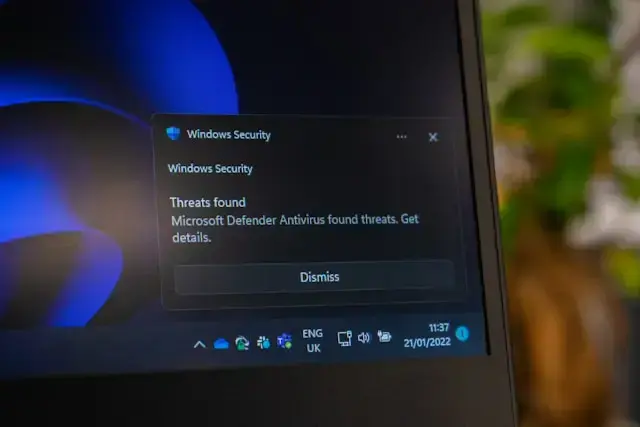
If your antivirus detects threats, don’t simply close the notification.
Review the findings and follow the recommended actions.
Forgetting To Update Windows
Windows updates often close security vulnerabilities that malware exploits.
Keeping Windows current is an important part of protecting your computer.
Related guide:
Why Windows Updates Matter
Additional Ways To Protect Your PC
Malware removal tools work best when combined with good security habits.
You should also:
- Keep Windows updated.
- Use strong passwords.
- Download software only from trusted websites.
- Avoid suspicious email attachments.
- Back up important files regularly.
- Perform regular malware scans.
Good security is built from multiple layers of protection.
Related guides:
When Should You Seek Professional Help?
Most malware infections can be removed using trusted security tools.
However, you may want professional assistance if:
- Your PC won’t boot.
- Malware keeps returning.
- Files become encrypted.
- Windows becomes unstable.
- Security tools refuse to run.
These situations may require more advanced troubleshooting.
Final Thoughts
Choosing a malware removal tool doesn’t have to be difficult. For most beginners, Microsoft Defender provides excellent protection, while tools like Malwarebytes and ESET Online Scanner make excellent second-opinion scanners when you suspect an infection.
Remember to:
- Keep your security software updated.
- Run regular Full Scans.
- Use trusted malware removal tools.
- Avoid fake security software.
- Practice safe browsing habits.
- Back up important files regularly.
With the right tools and a little knowledge, you can keep your computer protected and respond quickly if malware ever finds its way onto your system.
Continue learning here:
PC Maintenance for Beginners Hub Page