
How to Fix Windows Settings Not Opening
Have you ever tried opening Windows Settings, only to find that nothing happens?
Maybe you click the Settings icon and it doesn’t respond. Perhaps the window appears for a moment before closing, or you receive an error message when trying to change something on your computer.
This can be frustrating, especially when you need to adjust your display, manage devices, or change important Windows settings.
Fortunately, a Settings app that won’t open doesn’t necessarily mean your Windows installation is seriously damaged.
The problem could be caused by a temporary Windows glitch, a damaged Settings app, corrupted system files, or an issue with your Windows user account.
As a computer repair specialist, I recommend starting with the simplest solutions before trying more advanced repairs.
In this beginner-friendly guide, I’ll show you how to fix Windows Settings not opening in Windows 10 and Windows 11, one step at a time.
Common Signs That Windows Settings Isn’t Working
Before troubleshooting, identify what happens when you try to open Settings.
You might notice:
- Clicking Settings does nothing.
- The Settings window opens and immediately closes.
- Settings displays a blank window.
- Certain Settings pages won’t load.
- An error appears when opening Settings.
- Settings freezes when selecting an option.
- The Settings app works in one Windows account but not another.
These symptoms can have different causes, so it’s helpful to know exactly what you’re experiencing.
If several Windows features are malfunctioning, my Beginner’s Guide to Windows Troubleshooting covers other common problems.
Before You Start
Estimated time: 10–30 minutes for the basic troubleshooting steps. More advanced repairs may take longer.
What you’ll need:
- A computer running Windows 10 or Windows 11.
- Access to your keyboard.
- An administrator account for certain repair steps.
- An internet connection if Windows needs to download repair files.
Save any open documents before beginning.
You won’t need to download third-party repair programs or make risky changes to the Windows Registry.
Important: Follow the steps in order and test Settings after each one. If a step fixes the problem, you can stop troubleshooting.
Step 1: Try Opening Settings Another Way
Sometimes Settings itself isn’t broken. The shortcut you’re using may simply not be working.
Windows provides several ways to open Settings.
Method 1: Use a Keyboard Shortcut
- Press Windows Key + I.
- Wait a few seconds.
- Check whether the Settings window appears.
You should see: The Windows Settings home screen or the last Settings page you visited.
If it opens successfully, the problem may involve the original shortcut rather than the Settings app.
Method 2: Use the Run Window
If the keyboard shortcut doesn’t work, try this method.
- Press Windows Key + R.
- Type
ms-settings:. - Press Enter.
- Wait for Settings to open.
The ms-settings: command tells Windows to open the Settings application directly.
If neither method works, continue to the next step.
Step 2: Restart Your Computer
A temporary Windows problem can sometimes prevent Settings from launching.
Restarting your computer clears temporary process problems and gives Windows a fresh start.
If the Start menu is working:
- Click Start.
- Select Power.
- Choose Restart.
- Wait for Windows to restart.
- Press Windows Key + I to test Settings.
If the Start menu isn’t responding:
- Press Ctrl + Alt + Delete.
- Select the power icon.
- Choose Restart.
You should see: Windows restart normally, allowing you to try opening Settings again.
If Settings still won’t open, don’t keep restarting your computer repeatedly. Move on to the next solution.
If your Start menu is also experiencing problems, see my guide to fixing the Windows taskbar not working for related troubleshooting.
Step 3: Check Whether Only One Settings Page Is Affected
Sometimes the Settings app opens normally, but a particular page refuses to load.
For example, you might be able to open Display settings but not Bluetooth or Network settings.

Before assuming the entire application is damaged, check whether other pages work.
- Press Windows Key + I.
- Select a different Settings category.
- Check whether that page opens.
- Return to the page that originally caused the problem.
If only one page fails, the issue may be related to that Windows feature rather than the entire Settings app.
For example, if the problem occurs only when accessing Windows Update, see my guide to fixing Windows Update problems.
Quick tip: Write down which Settings page fails and whether Windows displays an error message. This information can help you identify the problem later.
Step 4: Check Whether Windows Settings Is Still Running
Occasionally, Settings may remain running in the background even though its window isn’t visible.
You can use Task Manager to check.
- Press Ctrl + Shift + Esc.
- Open the Processes section.
- Look for Settings.
- If Settings appears but isn’t responding, select it.
- Choose End task.
- Wait a few seconds.
- Press Windows Key + I to open Settings again.
You should see: A new Settings window appear.
Ending the Settings task won’t normally delete your files or change your saved Windows settings.
However, any unsaved changes inside Settings may be lost.
If Settings doesn’t appear in Task Manager, skip this step and continue.
Step 5: Reset the Windows Settings App
Windows 11 may provide a built-in option to reset the Settings application when it isn’t working correctly.
This can help if Settings opens briefly before closing, freezes, or behaves unexpectedly.
How to Reset Settings in Windows 11
- Open Start.
- Type Settings.
- Right-click Settings in the search results.
- Select App settings, if available.
- Scroll down to the Reset section.
- If a Repair option is available, try it first.
- If Repair isn’t available or doesn’t resolve the problem, select Reset.
- Read the confirmation message and select Reset again if you’re comfortable proceeding.
- Wait for Windows to finish.
- Try opening Settings again.
You should see: Windows complete the reset operation, allowing you to test whether Settings opens normally.
Resetting the Settings application isn’t the same as resetting your entire computer. However, it may clear application-specific data or preferences.
Important: These options may differ depending on your Windows version. If you don’t see App settings or Reset, skip this step and continue to the next solution.
Don’t download an unofficial Settings replacement or attempt to delete Windows system folders.
Step 6: Check for Damaged Windows System Files
Windows Settings depends on system components that can sometimes become damaged.
Windows includes a tool called System File Checker, or SFC, that can scan for and repair certain corrupted system files.
You can run this tool even when Settings won’t open.
How to Run System File Checker
- Press Windows Key + R.
- Type
cmd. - Press Ctrl + Shift + Enter.
- Select Yes if Windows asks for administrator permission.
- Type the following command:
sfc /scannow
- Press Enter.
- Wait for the scan to finish.
The scan may take several minutes.
Don’t close the Command Prompt window while the scan is running.
When the scan finishes, Windows will display a message explaining whether it found or repaired damaged files.
Restart your computer if repairs were made, then test Settings again.
You should see: A completed scan and a message reporting the results.
If Windows reports that it couldn’t repair some files, continue to the next step.
Step 7: Use DISM to Repair Windows Components
If System File Checker doesn’t resolve the problem, Windows includes another repair tool called Deployment Image Servicing and Management, or DISM.
DISM can repair problems with the Windows component store used by system repair operations.
You don’t need to understand the technical details to use it, but you should enter the command exactly as shown.
- Open Command Prompt as administrator using the previous instructions.
- Type:
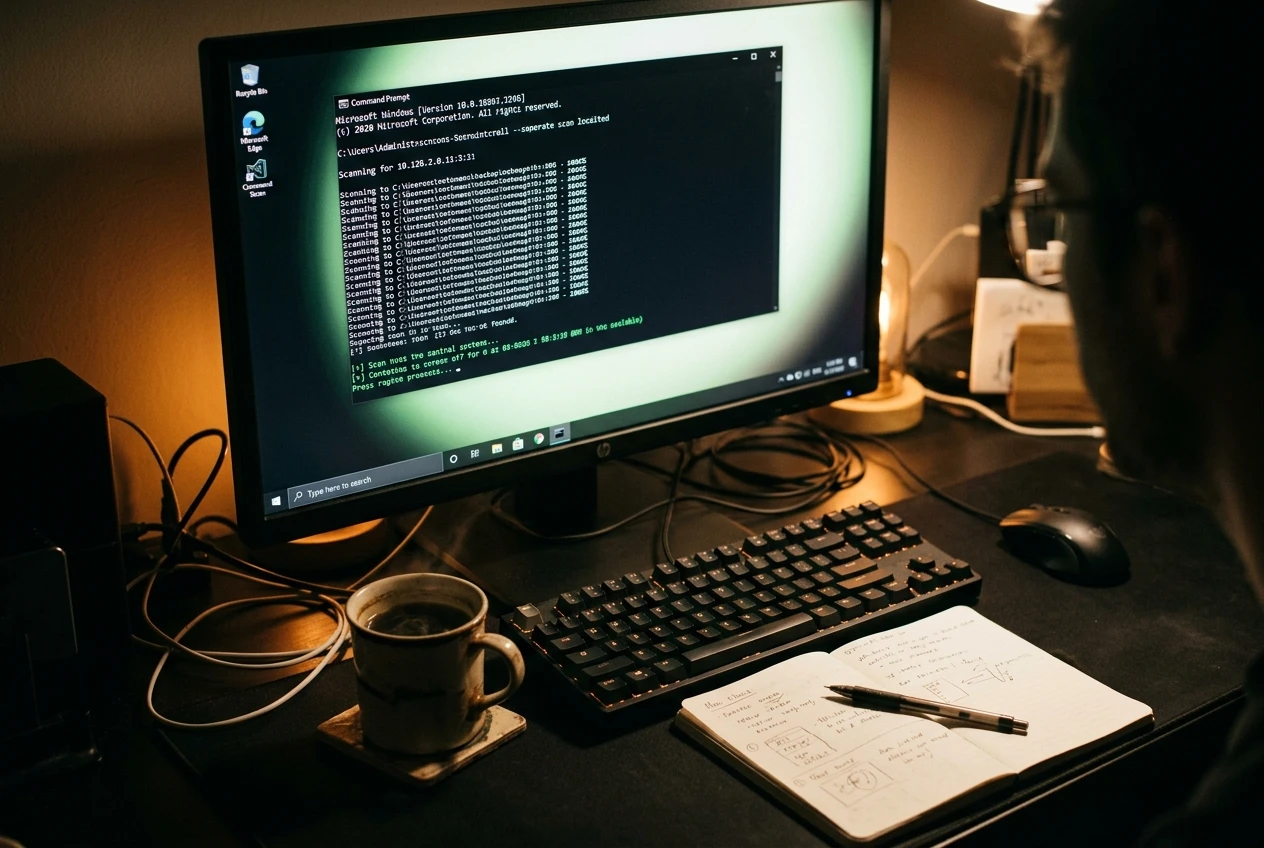
DISM /Online /Cleanup-Image /RestoreHealth
- Press Enter.
- Wait for the operation to finish.
DISM may take several minutes or longer.
The progress indicator can sometimes appear to pause. Avoid interrupting the operation.
An internet connection may be required to obtain repair files.
Once DISM finishes successfully, run System File Checker again:
sfc /scannow
Allow System File Checker to finish scanning. Once the scan is complete, restart your computer and try opening Settings again.
You should see: A completed repair operation, followed by the SFC scan results.
If Settings still won’t open, the problem may involve your Windows user profile or another application.
Step 8: Check Whether the Problem Affects Your Windows User Account
Sometimes Settings fails because something is wrong with a particular Windows user profile.
A useful way to investigate is to test Settings using another Windows account.
If your computer already has another account:
- Save your work.
- Open Start.
- Select your account icon.
- Choose Sign out.
- Sign in using the other account.
- Press Windows Key + I.
If the Start menu isn’t working, press Ctrl + Alt + Delete and select Sign out instead.
You should see: Settings open normally if the problem is limited to your original user account.
What the results mean: If Settings opens in the other account, the problem may be limited to your original Windows user profile. If Settings fails in both accounts, the issue may affect Windows more broadly.
Important: Don’t delete your original user account or move personal files without making a backup first.
If you don’t have another account available, skip this test rather than creating one through unfamiliar commands.
Step 9: Check Recently Installed Programs
Did Settings stop working shortly after installing a program?
Some third-party applications, especially system customization utilities, can interfere with Windows features.
Examples include programs that modify the Start menu, desktop appearance, or Windows interface.
You can review installed programs using Control Panel.
- Press Windows Key + R.
- Type
appwiz.cpl. - Press Enter.
- Review the installed programs.
- Look for software added around the time the problem began.
If you identify a program that may be responsible, check whether the developer provides an update or troubleshooting instructions.
Only uninstall software when you understand what it does and have a reasonable reason to suspect it.
Don’t remove unfamiliar Microsoft components or device drivers at random.
After making an appropriate change, restart Windows and test Settings.
Step 10: Consider System Restore
If Windows Settings worked normally until a recent software installation, driver change, or system update, System Restore may help.
System Restore allows Windows to return certain system settings, drivers, and installed programs to an earlier state.
It doesn’t normally remove personal documents, but it can affect programs and drivers installed after the selected restore point.
Before using it, make sure you understand what will change.
For complete instructions, see my guide to using System Restore in Windows.
Choose a restore point from before the Settings problem began, if one is available.
If you don’t have a suitable restore point, skip this option.
What If Windows Settings Still Won’t Open?
If you’ve completed the troubleshooting steps and Settings still doesn’t work, avoid making increasingly complicated changes without understanding the risks.
At this stage, you may be dealing with a damaged Windows installation, a user-profile problem, or a software conflict that requires additional investigation.
An experienced computer technician can help determine whether a Windows repair installation or another recovery method is appropriate.
A repair installation may preserve personal files and applications in supported circumstances, but you should always back up important information first.
Don’t jump straight to resetting Windows. A full reset can remove installed applications and, depending on the option selected, personal files.
Common Mistakes to Avoid
Downloading Random Windows Repair Programs
Some websites advertise tools that claim to fix every Windows problem automatically.
These programs may be unnecessary, unreliable, or potentially unsafe.
Use Microsoft’s built-in repair tools before considering third-party software.
Changing the Windows Registry Without Guidance
You may find online instructions recommending complicated Registry changes.
For beginners, I don’t recommend editing the Registry to fix Settings unless you’re following carefully verified instructions for a specific problem.
Incorrect changes can create additional Windows issues.
Resetting Your Computer Too Quickly
A Settings problem doesn’t automatically mean Windows needs to be reinstalled.
Start with simpler solutions and work toward advanced repairs only when necessary.
Ignoring Other Windows Problems
If Settings isn’t working and several other Windows features are also malfunctioning, there may be a broader system problem.
For additional troubleshooting, see How to Troubleshoot Common Windows Problems.
Frequently Asked Questions
Why Won’t Windows Settings Open?
Windows Settings may fail because of a temporary software problem, damaged system files, application corruption, or an issue with your Windows user account.
Start by trying Windows Key + I and restarting your computer.
How Do I Open Settings Without the Start Menu?
Press Windows Key + I.
You can also press Windows Key + R, type ms-settings:, and press Enter.
Why Does Windows Settings Open and Immediately Close?
This can happen when the Settings app or a Windows component isn’t working correctly.
Try ending the Settings task, repairing the app if that option is available, and checking Windows system files.
Will Resetting the Settings App Delete My Personal Files?
Resetting the Settings application isn’t the same as resetting Windows.
It shouldn’t delete your personal documents, although application-specific data or preferences may be cleared.
Can I Fix Windows Settings Without Reinstalling Windows?
Yes. Many Settings problems can be resolved by restarting Windows, using an alternative opening method, repairing the application, or running built-in system repair tools.
A Windows reinstall should not be your first troubleshooting step.
Final Thoughts
When Windows Settings refuses to open, it can make even simple computer tasks difficult.
Fortunately, you don’t need advanced computer knowledge to try the most common fixes.
Start by opening Settings with a keyboard shortcut or the Run window. If that doesn’t work, restart your computer and check whether the Settings application is stuck.
For more persistent problems, use the built-in Windows repair tools and investigate whether the issue affects only your user account.
Remember these important points:
- Try alternative ways to open Settings.
- Restart Windows before attempting advanced repairs.
- Check whether the problem affects one Settings page or the entire application.
- Use built-in repair tools when necessary.
- Be cautious when uninstalling software or changing Windows components.
- Avoid questionable repair programs.
- Back up important files before major recovery operations.
As a computer repair specialist, my advice is simple: troubleshoot one problem at a time and don’t make unnecessary changes.
With patience and the right steps, you may be able to restore Windows Settings without resetting your computer.
For more beginner-friendly solutions, visit my Beginner’s Guide to Windows Troubleshooting.
Have you experienced a Windows Settings problem? Share what happened and which troubleshooting step helped you in the comments.