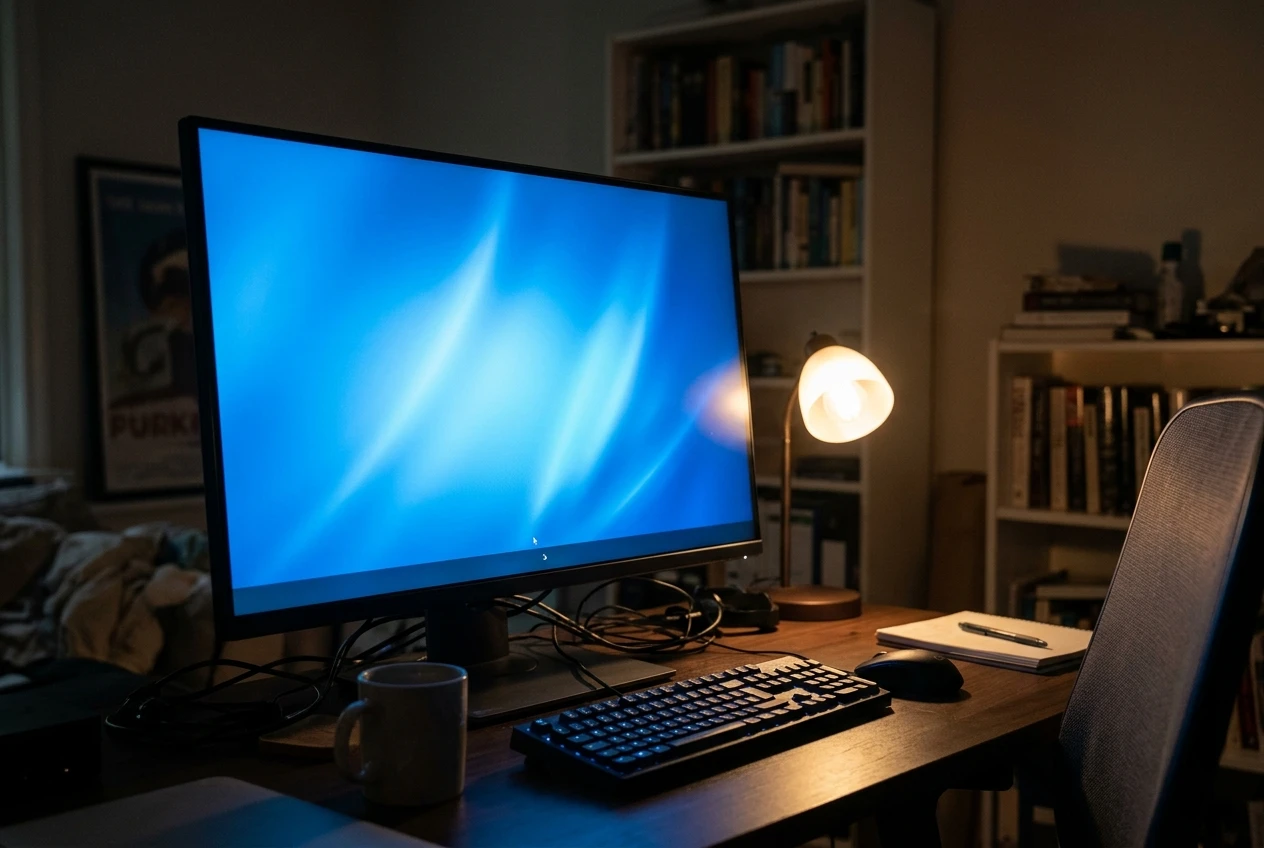
Have you ever turned on your computer, clicked the Windows taskbar, and found that nothing happens?
Maybe the Start button won’t open, the search box isn’t responding, or the taskbar has completely frozen. You might even notice that your taskbar has disappeared from the bottom of the screen.
These problems can be frustrating, especially when you rely on the taskbar to open programs, switch between windows, and access important Windows features.
Fortunately, a taskbar that isn’t working doesn’t necessarily mean something is seriously wrong with your computer.
The problem could be caused by a temporary Windows glitch, a frozen Windows Explorer process, incorrect taskbar settings, or a damaged system component.
As a computer repair specialist, I recommend starting with the simplest solutions and working your way through the troubleshooting steps.
In this beginner-friendly guide, I’ll show you how to fix common Windows taskbar problems without making unnecessary changes to your computer.
Common Windows Taskbar Problems
Before troubleshooting, it helps to identify what’s happening.
You might experience one or more of these problems:
- The taskbar is completely frozen.
- Clicking the Start button does nothing.
- The search box won’t respond.
- Taskbar icons are missing.
- The taskbar disappears unexpectedly.
- The clock or notification area isn’t working.
- Pinned applications won’t open.
- The taskbar keeps restarting or flashing.
- The taskbar stops responding after signing into Windows.
Some problems affect the entire taskbar, while others involve only one feature.
If you’re experiencing several different Windows problems, you may also want to read my broader guide:
Beginner’s Guide to Windows Troubleshooting
Before You Start
Before making changes, save any open documents and close programs if possible.
It’s also helpful to know whether you’re using Windows 10 or Windows 11. Some settings and menu names are different between the two versions.
If the taskbar is completely unresponsive, don’t worry. Several of the troubleshooting steps below can be performed using your keyboard.
Step 1: Restart Your Computer
Start with the simplest solution: restart Windows.
A temporary Windows problem or frozen background process can sometimes prevent the taskbar from responding.
If the taskbar is working well enough, restart your computer normally:
- Click Start.
- Select Power.
- Click Restart.
- Wait for Windows to start again.
- Test the taskbar.
If the Start button isn’t responding, you can use your keyboard instead.
- Press Ctrl + Alt + Delete.
- Select the power icon in the lower-right corner.
- Choose Restart.
Once Windows starts again, check whether the taskbar works normally.
A simple restart may be all that’s needed.
Step 2: Restart Windows Explorer
Windows Explorer is an important Windows process that manages File Explorer and several parts of the Windows desktop, including the taskbar.
If Windows Explorer becomes stuck, the taskbar may stop responding.
Restarting it can often fix the problem.
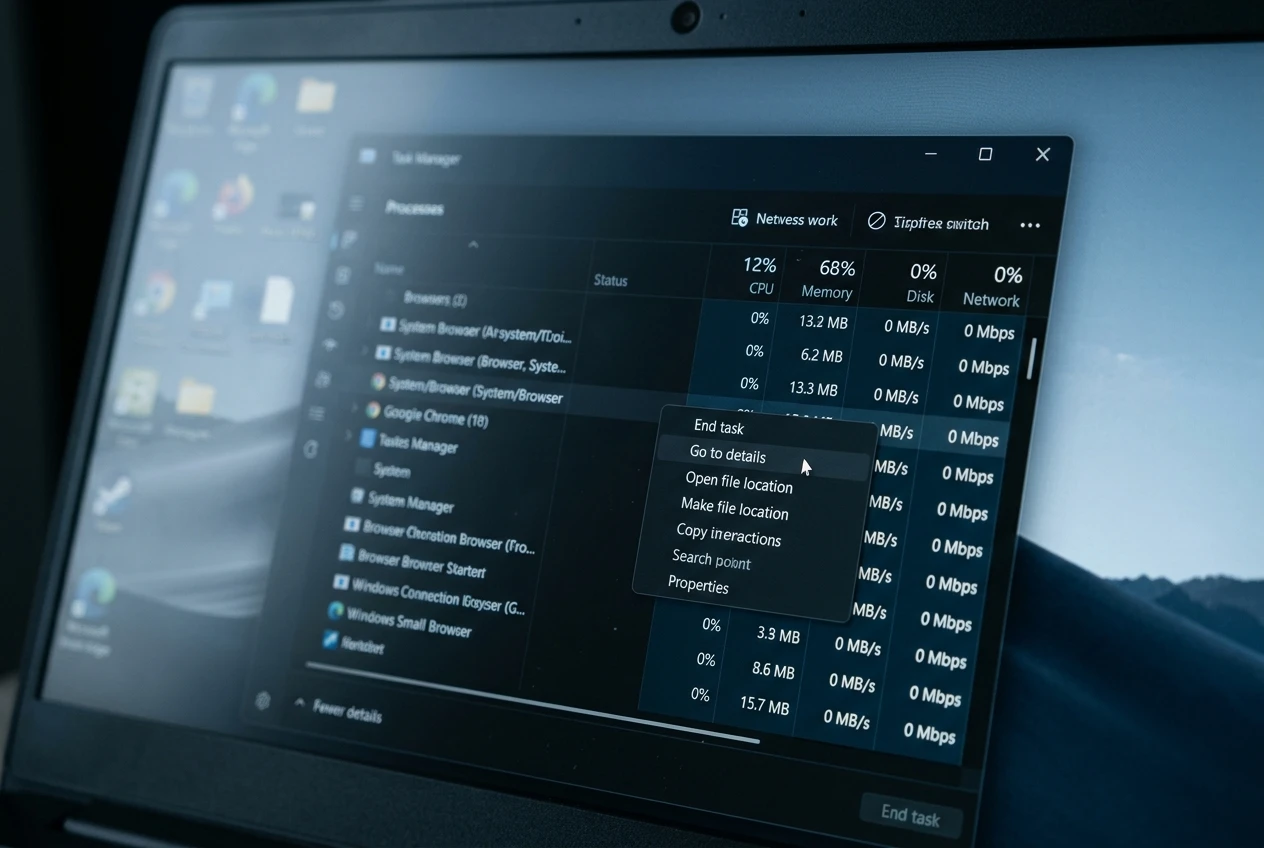
Here’s how:
- Press Ctrl + Shift + Esc to open Task Manager.
- If Task Manager opens in a simplified view, select More details.
- Find Windows Explorer in the list of processes.
- Select it.
- Right-click and choose Restart.
Your taskbar and desktop may disappear briefly.
Don’t panic. This is normal while Windows Explorer restarts.
Wait a few seconds for the desktop and taskbar to return.
Try clicking the Start button and opening a program.
Quick tip: If you don’t see Windows Explorer in the list, continue to the next step.
Step 3: Start Windows Explorer Manually
Sometimes Windows Explorer stops running completely.
If you can’t find it in Task Manager, you can try starting it manually.
Depending on your Windows version, you may find Run new task in the Task Manager menu or near the top of the window.
- Press Ctrl + Shift + Esc.
- Select Run new task in Task Manager.
- Type
explorer.exein the box. - Click OK.
- Wait for Windows to load the desktop and taskbar.
If the taskbar reappears, try using it normally.
If Windows Explorer was simply not running, this may resolve the problem.
Step 4: Check Your Taskbar Settings
Sometimes the taskbar isn’t broken at all. A setting may simply be causing it to behave differently than expected.
For example, Windows can automatically hide the taskbar when you’re not using it.
To check your settings:
Windows 11:
- Open Settings.
- Select Personalization.
- Select Taskbar.
- Expand Taskbar behaviors.
- Review the available settings.
Windows 10:
- Open Settings.
- Select Personalization.
- Select Taskbar.
- Review the taskbar settings.
Look for options related to automatically hiding the taskbar.
If automatic hiding is enabled and you don’t want that behavior, turn it off.
You can also check whether the taskbar is positioned where you expect it to be, depending on your Windows version.
Close Settings and see whether the taskbar behaves normally.
Step 5: Check Whether the Taskbar Is Appearing on the Wrong Display
If you use more than one monitor, the taskbar may be appearing on a different display than expected.
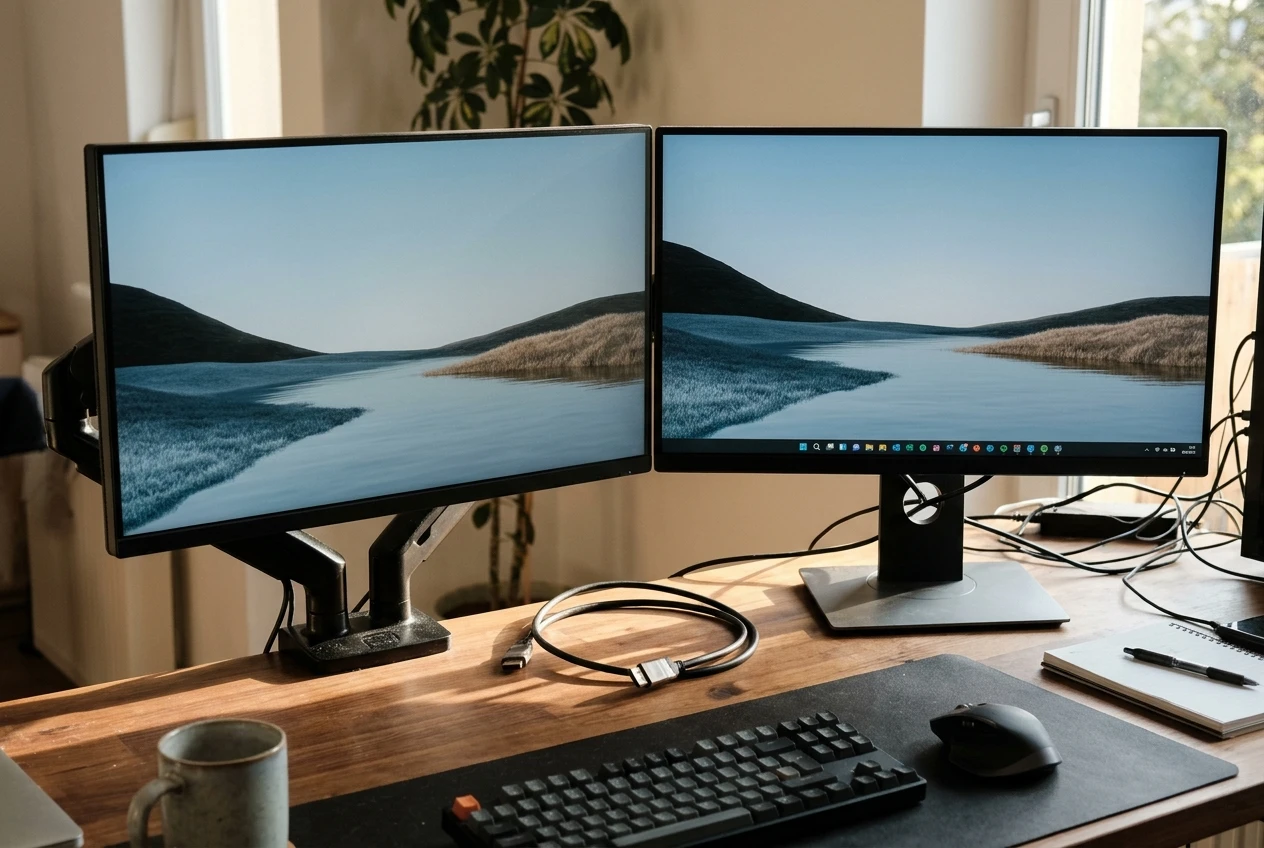
This can happen when display settings change or an external monitor is disconnected.
Try the following:
- Press Windows Key + P.
- Review the available display options.
- Select the option that matches how you want to use your monitors.
- Check whether the taskbar appears where you expect it.
Windows 11:
- Open Settings.
- Select Personalization.
- Select Taskbar.
- Expand Taskbar behaviors.
- Review the option for showing the taskbar on all displays.
Windows 10:
- Open Settings.
- Select Personalization.
- Select Taskbar.
- Find the Multiple displays section.
- Review the option for showing the taskbar on all displays.
You can also open Settings, select System, and then select Display to review your monitor configuration.
If you’re using only one monitor, disconnecting unnecessary display adapters or docks may help eliminate a connection problem.
Step 6: Check for Windows Updates
An outdated or problematic Windows installation can sometimes cause taskbar issues.
Windows updates include security improvements, bug fixes, and other system changes that may resolve problems.
As of October 14, 2025, Windows 10’s standard support ended, although eligible devices can receive updates through the Extended Security Updates program.
To check for updates:
- Open Settings.
- Select Windows Update.
- Click Check for updates.
- Install available updates.
- Restart your computer if Windows requests it.
After updating, check whether the taskbar is working properly.
If Windows Update itself isn’t working, see my guide:
How to Fix Windows Update Problems
Step 7: Run the DISM Repair Tool
Windows includes a built-in repair tool called DISM. It can help repair the Windows component store that System File Checker uses when repairing system files.
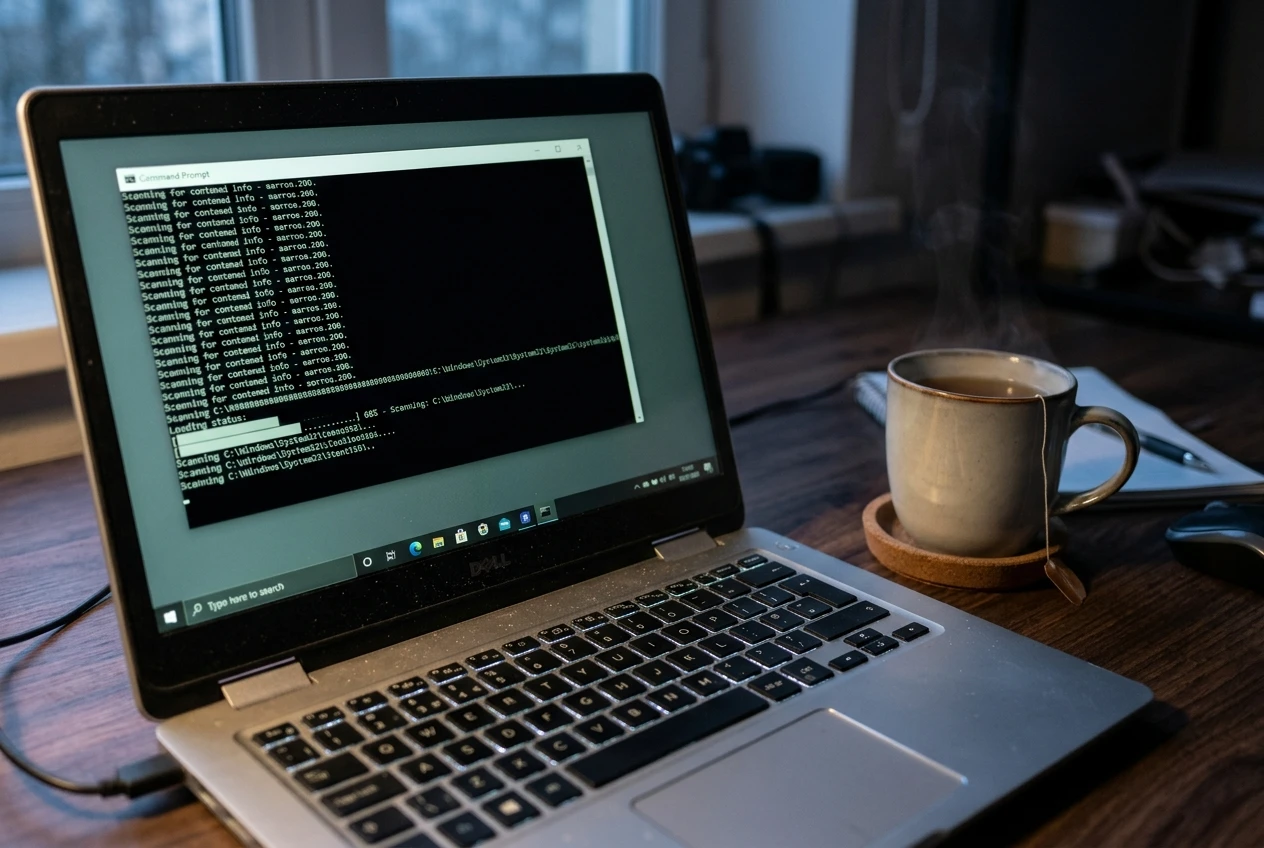
To run it:
- Open Start.
- Type Command Prompt.
- Right-click Command Prompt in the search results.
- Select Run as administrator.
- Select Yes if Windows asks for permission.
- Type the following command:
DISM /Online /Cleanup-Image /RestoreHealth - Press Enter.
- Wait for the operation to complete.
DISM may need an active internet connection to download replacement files from Windows Update when repairing damaged Windows components.
This process can take some time, and the progress indicator may appear to pause.
Give it time to finish.
Once DISM completes successfully, continue to the next step and run System File Checker.
Check whether the taskbar is working normally.
Step 8: Run System File Checker (SFC)
After DISM finishes, run System File Checker (SFC) to scan for and repair damaged Windows system files. You can use the same administrator Command Prompt window from the previous step.
If the taskbar continues to freeze or behave strangely, damaged Windows system files may be contributing to the problem.
For beginners, I recommend following these instructions carefully.
- Type the following command:
sfc /scannow - Press Enter.
- Wait for the scan to finish.
The scan may take several minutes.
Don’t close the window while the scan is running.
Windows will display a message when the process is complete.
If it finds and repairs damaged system files, restart your computer and test the taskbar again.
Important: Don’t interrupt the scan or close the Command Prompt window before it finishes.
Step 9: Check for Recently Installed Software
Sometimes taskbar problems begin after installing a new program or making changes to Windows.
If the problem started shortly after installing software, consider whether that program could be involved.
Start by checking recently installed applications:
- Open Settings.
- Select Apps.
- Select Installed apps in Windows 11 or Apps & features in Windows 10.
- Review recently installed programs.
- Look for software installed around the time the taskbar problem began.
If you recognize a program that may be causing the problem, check the developer’s website for updates or troubleshooting information.
Don’t uninstall unfamiliar Windows components or system software just because you don’t recognize the name.
If you’re unsure whether a program is safe to remove, get help before making changes.
Step 10: Use System Restore If the Problem Started After a Major Change
If the taskbar worked normally until you installed a driver, program, or made another major system change, System Restore may be worth considering.
System Restore can return certain Windows system settings, drivers, and installed programs to an earlier state.
It isn’t a replacement for backing up your personal files, and it shouldn’t be your first troubleshooting step.
Before proceeding, review my beginner-friendly guide:
How to Use System Restore in Windows
If you decide to use System Restore, choose a restore point from before the taskbar problem began.
Review the programs that may be affected before confirming the restoration.
Common Windows Taskbar Problems and What to Try
The Start Button Won’t Open
Try:
- Restarting your computer.
- Restarting Windows Explorer.
- Checking for Windows updates.
- Running the SFC scan.
The Taskbar Disappears
Try:
- Checking the automatic hiding setting.
- Reviewing your display configuration.
- Restarting Windows Explorer.
- Restarting your computer.
Taskbar Icons Won’t Respond
Try:
- Restarting Windows Explorer.
- Checking whether the affected application is running.
- Updating the application.
- Restarting Windows.
If the problem affects several applications, you may also find this guide helpful:
How to Fix Windows Apps That Won’t Open
The Taskbar Freezes After Signing In
Try:
- Restarting your computer.
- Restarting Windows Explorer.
- Checking recently installed software.
- Running the SFC scan.
Common Mistakes to Avoid
Randomly Ending Windows Processes
Task Manager is useful, but don’t end processes simply because you don’t recognize them.
Only restart Windows Explorer or close programs you understand.
Downloading Random Taskbar Repair Tools
Be cautious of websites offering special programs that claim to repair every Windows taskbar problem.
You usually don’t need additional software.
Start with Windows’ built-in troubleshooting tools.
Making Too Many Changes at Once
Don’t change several Windows settings, uninstall programs, and run repair tools all at the same time.
Work through the steps individually so you can identify what fixes the problem.
Resetting Windows Too Quickly
A Windows reset is a much bigger step than restarting Explorer or checking system files.
Don’t reset your computer just because the taskbar temporarily stops responding.
Try the simpler solutions first.
When Should You Get Professional Help?
Most common taskbar problems can be addressed with basic troubleshooting.
However, consider getting professional help if:
- The taskbar repeatedly freezes after troubleshooting.
- Several Windows features stop responding.
- Windows repeatedly crashes or restarts.
- Your computer won’t start normally.
- You receive repeated system errors.
- You suspect malware or a hardware problem.
- You’re uncomfortable running system repair commands.
There’s no reason to keep making changes if you’re unsure what they do.
A qualified technician can investigate the underlying problem and help prevent further damage.
Frequently Asked Questions
Why Is My Windows Taskbar Not Responding?
There are several possible causes, including a frozen Windows Explorer process, temporary Windows problems, incorrect settings, outdated software, or damaged system files.
Start by restarting your computer and Windows Explorer.
How Do I Restart the Taskbar Without Restarting My Computer?
Open Task Manager by pressing Ctrl + Shift + Esc.
Find Windows Explorer, select it, and click Restart.
The taskbar should disappear briefly and then return.
Why Did My Windows Taskbar Disappear?
The taskbar may be set to hide automatically, or Windows Explorer may have stopped responding.
Check your taskbar settings and try restarting Windows Explorer.
Will Restarting Windows Explorer Delete My Files?
No. Restarting Windows Explorer does not normally delete your personal files.
It simply restarts the Windows process responsible for managing the desktop and File Explorer.
Should I Reset Windows If My Taskbar Doesn’t Work?
Not usually.
Try restarting Windows Explorer, checking taskbar settings, installing updates, and running the built-in repair tools first.
A Windows reset should be considered only after simpler troubleshooting options have been explored.
Final Thoughts
A Windows taskbar that freezes, disappears, or stops responding can make your computer frustrating to use.
Fortunately, you don’t necessarily need to reset Windows or take your computer to a repair shop.
Start with the basics. Restart your computer, restart Windows Explorer, and check your taskbar settings.
If the problem continues, work through the remaining troubleshooting steps carefully.
Remember:
- Start with the simplest solution.
- Restart Windows Explorer if the taskbar freezes.
- Check automatic hiding and display settings.
- Keep Windows updated.
- Use SFC and DISM when necessary.
- Avoid downloading questionable repair tools.
- Don’t make several changes at once.
- Get professional help if Windows continues having problems.
With a little patience, many Windows taskbar problems can be fixed without advanced computer knowledge.
Continue learning here: