
How To Check Hard Drive Health: Step-by-Step for Beginners
Your hard drive or SSD stores everything on your computer, including Windows, programs, games, photos, and important files. If your storage drive begins to fail, it can lead to crashes, corrupted files, slow performance, and even permanent data loss.
The good news is that Windows includes tools that help you monitor drive health before serious problems occur. Learning how to check hard drive health is an important part of regular PC maintenance and can help you catch problems early.
In this beginner-friendly guide, you’ll learn how to check hard drive health step by step, recognize warning signs of drive failure, and protect your important data.
Why Hard Drive Health Matters
Storage drives wear down over time.
Traditional hard drives (HDDs) contain moving parts that can fail mechanically, while solid-state drives (SSDs) slowly wear out through repeated data writes.
A failing drive can cause:
- Slow boot times
- Crashes
- Corrupted files
- Missing data
- Freezing
- Blue screen errors
- Windows installation problems
Checking drive health regularly helps reduce the risk of unexpected failure.
Related guide:
Beginner’s Guide to PC Maintenance
HDD vs SSD: What’s the Difference?
Before checking drive health, it helps to understand what type of storage your PC uses.
Hard Disk Drives (HDDs)
HDDs use spinning magnetic disks and moving read/write heads.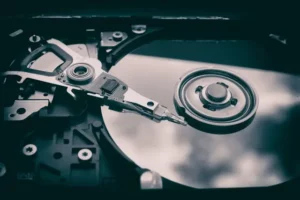
They are:
- Usually cheaper
- Slower than SSDs
- More vulnerable to physical wear
Common warning signs include clicking or grinding noises.
Solid-State Drives (SSDs)
SSDs use flash memory with no moving parts.
They are:
- Faster
- Quieter
- More shock resistant
However, SSDs still have a limited lifespan based on write cycles.
Signs Your Hard Drive May Be Failing
You may have a failing drive if you notice:
- Slow file loading
- Programs freezing
- Frequent crashes
- Corrupted files
- Missing data
- Clicking sounds from HDDs
- Windows boot problems
- Blue screen errors
- Files taking unusually long to open
These symptoms do not always mean failure is certain, but they should never be ignored.
Step 1: Back Up Important Files First
Before testing a suspicious drive, protect your important data.
Back up:
- Photos
- Documents
- Videos
- Game saves
- Work files
Use:
- External drives
- Cloud storage
- Backup software
If a drive is actively failing, data loss can happen quickly.
Step 2: Use Windows Drive Health Monitoring
Modern versions of Windows include built-in storage health monitoring.
To check drive health in Windows:
- Open Settings
- Go to System
- Select Storage
- Click Advanced Storage Settings
- Choose Disks & Volumes
Some systems will display basic drive health information here.
Windows may warn you if a drive is nearing failure.
Step 3: Run CHKDSK in Windows
CHKDSK is a built-in Windows tool that scans drives for file system errors and bad sectors.
To run it:
- Open the Start Menu
- Type Command Prompt
- Right-click it
- Select Run as Administrator
Then type:
chkdsk /fPress Enter.
If Windows says the drive is in use, type:
YThen restart your PC to begin the scan.
CHKDSK can:
- Repair file system errors
- Detect bad sectors
- Improve drive stability
Step 4: Check SMART Drive Data
Most modern drives include SMART data (Self-Monitoring, Analysis, and Reporting Technology).
SMART tracks:
- Error rates
- Drive temperature
- Reallocated sectors
- Overall health
You can view SMART data using tools like:
- CrystalDiskInfo
- Hard Disk Sentinel
- Manufacturer drive utilities
These tools often provide easy-to-read health ratings.
Step 5: Monitor Drive Temperatures
Excessive heat can shorten drive lifespan.
Typical safe ranges are:
- HDDs: around 30–50°C
- SSDs: around 30–70°C depending on the model
High temperatures may indicate:
- Poor airflow
- Dust buildup
- Heavy workloads
- Cooling problems
Keeping your PC clean helps maintain safer drive temperatures.
Related guide:
How to Clean Dust From Your PC
Step 6: Listen for Unusual HDD Noises
This mainly applies to traditional hard drives.
Warning sounds include:
- Clicking
- Grinding
- Repetitive ticking
- Loud spinning noises
These noises can indicate mechanical failure.
If you hear unusual sounds:
- Back up data immediately
- Reduce drive usage
- Prepare for replacement
SSDs usually fail silently without mechanical noises.
Step 7: Check Available Drive Space
Drives with extremely low free space may experience slower performance.
Try to maintain:
- At least 10–20% free space
Low storage space can affect:
- Windows updates
- Virtual memory
- File performance
- SSD lifespan
To check storage usage:
- Open Settings
- Go to Storage
You may also enjoy:
How to Free Up Disk Space
Step 8: Scan for Corrupted System Files
Sometimes drive-related problems actually come from corrupted Windows files.
You can run System File Checker:
- Open Command Prompt as Administrator
- Type:
sfc /scannow- Press Enter
This tool scans and repairs damaged Windows system files.
Step 9: Defragment HDDs (But Not SSDs)
Traditional hard drives benefit from occasional defragmentation.
To optimize an HDD:
- Search for Defragment and Optimize Drives
- Open the tool
- Select the HDD
- Click Optimize
Do not manually defragment SSDs repeatedly because SSDs work differently than HDDs.
Modern Windows versions automatically optimize SSDs appropriately.
Step 10: Know When To Replace a Drive
No drive lasts forever.
You should consider replacement if you experience:
- Frequent SMART warnings
- Repeated crashes
- Bad sectors
- Severe slowdowns
- Data corruption
- Boot failures
Replacing a failing drive early is safer than waiting for complete failure.
SSDs often provide a major performance upgrade for older systems.
Common Hard Drive Health Mistakes Beginners Make
Ignoring Warning Signs
Small issues often become larger problems over time.
Never ignore:
- Clicking noises
- Corrupted files
- Frequent crashes
Waiting Too Long To Back Up Files
Many users wait until a drive is already failing badly.
Backups should happen before problems appear.
Confusing Slow Performance With Drive Failure
Slow PCs can also result from:
- Malware
- Low RAM
- Too many startup programs
- Overheating
Drive health is only one part of overall system maintenance.
Tips To Extend Drive Lifespan
You can help your drives last longer by:
- Keeping your PC cool
- Avoiding physical shocks
- Maintaining free storage space
- Running regular maintenance
- Keeping Windows updated
- Using surge protection
- Cleaning dust regularly
Good maintenance habits improve both performance and reliability.
Final Thoughts
Learning how to check hard drive health is an important skill for beginner PC users. Storage problems can lead to frustrating crashes and data loss, but regular monitoring helps you catch warning signs early.
The key things to remember are:
- Back up important files regularly
- Monitor SMART health data
- Watch for unusual noises
- Keep drives cool
- Run Windows maintenance tools
- Replace failing drives before complete failure
Regular drive health checks can help keep your computer stable, reliable, and protected for years to come.
Continue learning here:
PC Maintenance for Beginners Hub Page