
PC Maintenance for Beginners: Complete Step-by-Step Guide
Introduction
If you’re new to computers, the idea of “PC maintenance” might sound complicated—but it really doesn’t have to be.
In fact, keeping your computer running smoothly is mostly about doing a few simple tasks on a regular basis. Things like cleaning dust, scanning for viruses, and checking your storage can make a huge difference in how your PC performs.
In this guide, I’ll walk you through the PC Maintenance for Beginners Series, where each topic is broken down into easy, step-by-step instructions. You don’t need any technical experience, and I’ll keep everything clear and beginner-friendly.
This page will act as your main hub, so you can quickly find the exact guide you need.
Why PC Maintenance Matters
Just like anything else, your computer needs a little care to stay in good shape.
Regular maintenance helps:
- Keep your PC running fast
- Prevent crashes and errors
- Protect against viruses and malware
- Extend the life of your hardware
The best part? Most of these tasks take less than 30 minutes.
What You’ll Learn in This Series
This beginner-friendly series focuses on the most important areas of PC maintenance:
🧹 Cleaning and Physical Care
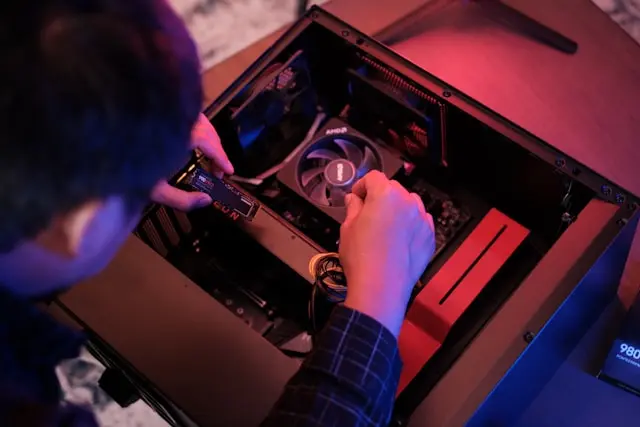
Learn how to safely clean dust from your computer to prevent overheating and improve airflow. How to clean and maintain your computer is an essential skill for beginners.
🛡️ Security and Protection
Understand how to scan for viruses and remove malware to keep your system safe.
⚡ Performance Optimization
Discover how to speed up your PC by managing startup programs and reducing unnecessary load.
💾 Hardware Health
Check the condition of your hard drive to avoid data loss and keep everything running smoothly.
Step-by-Step PC Maintenance Guides
Here are the guides included in this series. Each one is written for beginners and walks you through the process step by step.
🧼 How to Clean Dust From Your PC
Dust buildup can cause overheating and slow performance. In this guide, you’ll learn how to safely clean your PC using simple tools and avoid damaging components.
👉Read the full guide here:How To Clean Dust From Your PC
🦠 How to Scan Your PC for Viruses
Running regular virus scans helps catch problems early. This guide shows you how to check your PC for threats using built-in tools or free antivirus software.
👉Read the full guide here: How To Scan Your PC For Viruses Step By Step
🚫 How to Remove Malware From Your PC
If your computer is acting strange, malware could be the cause. This step-by-step guide helps you safely remove harmful software and restore your system.
👉 Read the full guide here: How To Remove Malware From Your PC
🚀 How to Disable Startup Programs
Too many startup programs can slow your computer down. Learn how to control what runs when your PC starts to improve speed and performance.
👉 Read the full guide here: How to Disable Startup Programs
💽 How to Check Hard Drive Health
Your storage drive is one of the most important parts of your PC. This guide shows you how to check its health and spot potential problems early.
👉 Read the full guide here: How To Check Hard Drive Health
How to Use This Series
If you’re not sure where to start, here’s a simple path you can follow:
- Start with cleaning your PC
- Run a virus scan
- Remove any malware found
- Improve speed by managing startup programs
- Check your hard drive health
👉 You can follow these in order or jump to the one you need most.
How Often Should You Do PC Maintenance?
Here’s a simple schedule you can follow:
- Weekly: Run a virus scan
- Monthly: Check for malware and clean files
- Every 3–6 months: Clean dust from your PC
- Occasionally: Check hard drive health
Sticking to a routine like this helps prevent problems before they start.
Beginner Tips for Keeping Your PC Running Smoothly
✅ Keep It Simple
You don’t need advanced tools—basic maintenance goes a long way.
🔄 Stay Consistent
Doing small tasks regularly is better than waiting for problems.
🔒 Stay Safe Online
Avoid suspicious downloads and keep your antivirus updated.
⚠️ Don’t Ignore Warning Signs
Slow performance, pop-ups, or strange behavior are signs to act early.
Final Thoughts
Taking care of your computer doesn’t have to be complicated or time-consuming. With just a little effort, you can keep your PC running smoothly, safely, and efficiently.
This PC Maintenance for Beginners Series is designed to give you the confidence to handle these tasks yourself—even if you’ve never done them before.
If you ever feel unsure, just follow the step-by-step guides and take it one step at a time.
Join the Conversation
Have questions about PC maintenance?
Ran into an issue while following one of the guides?
Or just want to share your experience?
Feel free to leave a comment—I’d love to hear from you and help out however I can!