
Introduction
Few things are more frustrating than sitting down to watch a video, join a meeting, or listen to music and discovering that your computer has no sound.
Windows audio problems can have many causes. The volume may be muted, Windows may be sending sound to the wrong device, an app may have its own volume setting, or an audio driver may need attention.
The good news is that many common audio problems are relatively easy to fix.
This guide walks you through the most common Windows audio problems step by step. You don’t need to be a computer expert. Start with the simple checks and work your way through the guide until you find the problem.
Start Here: What Audio Problem Are You Having?
Before changing anything, identify what you’re experiencing.
If You Have No Sound At All
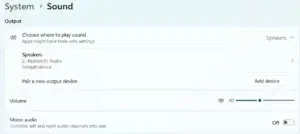
Start with:
- Check the volume and mute settings.
- Make sure the correct output device is selected.
- Check your speakers or headphones.
- Try another app.
- Run the Windows audio troubleshooter.
- Check the audio driver if the problem continues.
Continue with Step 1 below.
If You Hear Sound From the Wrong Device
For example, sound is coming from your monitor instead of your headphones.
Go directly to Step 3: Check the Output Device.
If Only One App Has No Sound
If YouTube, a game, or another application has no sound while other apps work normally, go to Step 5: Check the App’s Volume.
If Your Microphone Doesn’t Work
This is an input problem rather than a speaker problem.
Skip to Step 9: Troubleshoot Your Microphone.
If Sound Is Distorted, Crackling, or Cutting Out
Start with your cables, headphones, or speakers. Then continue through the driver and Windows troubleshooting steps if the problem continues.
If Audio Stopped Working After an Update
Pay particular attention to:
- Step 7: Check the Audio Driver
- Step 8: Try Windows Troubleshooting
- Step 10: Check for Recent Windows Changes
Starting with the step that matches your problem can save you time.
Before You Start
Before troubleshooting Windows audio, check a few simple things:
- Make sure your speakers or headphones are connected.
- If you’re using Bluetooth headphones, make sure they are connected.
- Check that the speaker or headphone power is turned on.
- If you’re using external speakers, make sure they are receiving power.
- Check the physical volume control on your speakers or headphones.
- If possible, test another pair of headphones or speakers.
These checks may sound obvious, but they can quickly identify a hardware or connection problem.
Step 1: Check the Windows Volume
Start with the simplest possibility: Windows may be muted or the volume may be turned down.
- Select the speaker icon on the Windows taskbar.
- Make sure the volume isn’t muted.
- Move the volume slider higher.
- Play some audio and see whether you hear anything.
If you hear sound, you’re done.
If Windows still has no sound, continue to the next step.
Step 2: Check Your Speakers or Headphones
If Windows appears to be producing sound but you can’t hear it, check the device itself.
For wired headphones or speakers:
- Make sure the cable is connected securely.
- Check whether the device has its own volume control.
- If you’re using desktop speakers, make sure they are powered on.
- Try another audio port if your computer has one.
- Test the headphones or speakers on another device if possible.
For Bluetooth headphones or speakers:
- Make sure the device is powered on.
- Make sure Bluetooth is enabled.
- Confirm that the device is connected to your PC.
- Check that the headphones haven’t automatically connected to another device nearby.
If another pair of headphones or speakers works, your original device may be the problem.
Step 3: Check the Output Device
One of the most common Windows audio problems is having the wrong output device selected.
For example, Windows may be sending audio to:
- Your monitor
- Built-in laptop speakers
- Wired headphones
- Bluetooth headphones
- USB speakers
- Another connected audio device
To check the output device:
- Select the speaker icon on the Windows taskbar.
- Look for the current audio output device.
- Select the device you actually want to use.
- Play some audio.
If sound starts working, Windows was simply sending audio to the wrong device.
Step 4: Restart the App and Test Another Source
Sometimes the problem isn’t Windows itself. An individual app may have stopped producing sound correctly.
First, close the app you’re using.
Then:
- Open the app again.
- Play some audio.
- If there is still no sound, try a different app.
For example, if a YouTube video has no sound, try playing a Windows system sound or another video.
If other apps have sound, the problem may be limited to the original application.
Step 5: Check the App’s Volume
Windows can control the volume of individual applications separately.
This means your overall Windows volume may be turned up while one app is muted or turned down.
To check:
- Open the Windows volume mixer.
- Find the application you’re having trouble with.
- Make sure its volume isn’t muted.
- Increase its volume if necessary.
- Test the application again.
This is especially useful when music or system sounds work but one particular app remains silent.
Step 6: Restart Your Computer
If the basic audio checks haven’t helped, restart Windows.
Select:
Start \u2192 Power \u2192 Restart
After Windows restarts, test your audio again.
A restart can clear temporary problems with Windows audio services, applications, or connected devices.
If the problem remains, continue troubleshooting.
Step 7: Check the Audio Driver
Windows uses an audio driver to communicate with your computer’s sound hardware.
If the driver is missing, damaged, disabled, or incompatible, you may lose sound or experience other audio problems.
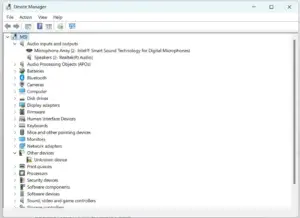
To check the driver:
- Right-click the Start button.
- Open Device Manager.
- Find Sound, video and game controllers.
- Expand the category.
- Look for your audio device.
- Check whether Windows shows a warning symbol.
If the device is disabled or Windows reports a driver problem, you may need to enable, update, reinstall, or roll back the driver.
Be careful when downloading drivers. Whenever possible, use Windows Update or the computer or hardware manufacturer’s official website rather than random driver-download sites.
For more help with drivers:
Complete Guide to Installing and Updating Drivers
Step 8: Use Windows Audio Troubleshooting
Windows includes built-in troubleshooting tools that can check for some common audio problems.
Open Windows settings and look for the Sound troubleshooting options.
Depending on your version of Windows, the exact location and wording may vary.
Follow the instructions Windows provides and allow it to check your audio configuration.
If Windows identifies a problem, apply the recommended fix and test your audio again.
If the troubleshooter doesn’t solve the problem, continue with the remaining steps.
Step 9: Troubleshoot Your Microphone
If your speakers work but your microphone doesn’t, the problem is usually related to the input device or microphone permissions rather than your speakers.
Start by checking:
- Is the microphone connected?
- Is it muted?
- Is the correct microphone selected in Windows?
- Does the app have permission to use the microphone?
- Does the microphone work in another application?
To check Windows microphone settings:
- Open Settings.
- Select System.
- Select Sound.
- Find the Input section.
- Select your microphone.
- Test the microphone using the available input controls.
If the microphone works in Windows but not in one particular application, check that application’s audio and microphone settings.
Step 10: Check for Recent Windows Changes
Think about when the audio problem started.
Did you recently:
- Install a Windows update?
- Install or update an audio driver?
- Connect a new monitor?
- Connect Bluetooth headphones?
- Install new software?
- Change sound settings?
If the problem started immediately after one of these changes, that change may be related.
For example, connecting a monitor through HDMI or DisplayPort can cause Windows to switch the audio output to the monitor.
If the problem began after a Windows update or driver change, you may need to reverse the change or troubleshoot the update or driver.
For Windows Update problems:
How To Fix Windows Update Problems
Step 11: Check Audio Enhancements
Windows may offer audio enhancements that change how your speakers or headphones sound.
In some situations, an enhancement can cause distortion, crackling, or other unexpected audio problems.
If you’re experiencing poor sound quality rather than completely missing audio, check the audio device’s settings for available enhancements.
Try disabling an enhancement temporarily and test the audio again.
If the sound improves, you may have identified the source of the problem.
Step 12: Test Another Audio Device
If you’re still having problems, connect another pair of headphones or speakers if one is available.
This is a useful troubleshooting test because it helps determine whether the problem is with Windows or the original audio device.
For example:
- New headphones work: the original headphones may have a problem.
- Neither device works: Windows, the driver, or the computer’s audio hardware may be involved.
- Bluetooth works but wired audio doesn’t: the wired connection or audio port may need attention.
Testing another device can save you from changing Windows settings unnecessarily.
Common Windows Audio Problems and What To Check
No Sound From Speakers
Check:
- Windows volume
- Mute settings
- Output device
- Speaker power
- Speaker connections
- Audio driver
Headphones Aren’t Working
Check:
- Headphone connection
- Selected output device
- Headphone volume
- Bluetooth connection if applicable
- Another pair of headphones
Bluetooth Headphones Have No Sound
Check:
- Bluetooth is enabled
- Headphones are connected
- Headphones are selected as the output device
- Headphones aren’t connected to another device
- Bluetooth headphones have sufficient battery power
Only One App Has No Sound
Check:
- The app’s volume
- Windows volume mixer
- The app’s own audio settings
- Whether other apps produce sound
Sound Is Crackling or Distorted
Check:
- Cables and connections
- Another audio device
- Audio enhancements
- Driver problems
- Recent Windows or driver changes
The Microphone Doesn’t Work
Check:
- Microphone connection
- Mute button
- Windows input device
- Microphone permissions
- The application’s microphone settings
Common Mistakes To Avoid
When troubleshooting Windows audio, avoid making several changes at once.
Common mistakes include:
- Assuming the speakers are broken before checking the output device
- Installing random audio drivers from third-party websites
- Changing advanced Windows settings without knowing what they do
- Forgetting to check the app’s individual volume
- Assuming Bluetooth headphones are connected just because Bluetooth is enabled
- Replacing hardware before testing another device
Start with the simple checks first.
When Should You Get Professional Help?
Most basic Windows audio problems can be investigated at home, but professional help may be appropriate if:
- Multiple known-good audio devices don’t work.
- Windows cannot detect the computer’s audio hardware.
- The computer has suffered liquid or physical damage.
- The audio hardware appears to be failing.
- The problem continues after driver and Windows troubleshooting.
- You aren’t comfortable changing drivers or hardware.
- The problem occurs alongside other hardware failures.
If the computer has recently suffered physical or liquid damage, stop using it if continued use could cause additional damage.
Frequently Asked Questions
Why does my computer have no sound?
Common causes include muted volume, the wrong output device, an application-specific volume setting, a driver problem, a disconnected device, or a Windows configuration issue.
Why does sound work in one app but not another?
The individual application may be muted or have its volume turned down in the Windows volume mixer. The app may also have its own audio settings.
Why is Windows playing sound through my monitor?
If your monitor is connected through HDMI or DisplayPort, Windows may recognize it as an available audio output and select it.
Check your Windows output device and select your speakers or headphones instead.
Why do my Bluetooth headphones connect but have no sound?
Bluetooth can be connected while Windows is still using another audio output device.
Check your Windows sound output and make sure your Bluetooth headphones are selected.
Should I reinstall my audio driver?
Reinstalling a driver can sometimes fix audio problems, but it shouldn’t be the first thing you try.
Start with volume, output-device, connection, application, and Windows troubleshooting before changing drivers.
Why is my microphone not working?
The microphone may be muted, disconnected, incorrectly selected, blocked by Windows privacy settings, or unavailable to the application you’re using.
What if none of these steps fixes my audio problem?
If you’ve worked through the troubleshooting steps and multiple known-good audio devices still don’t work, the problem may involve the audio hardware or a deeper Windows issue.
At that point, professional help may save you time and prevent accidental changes that make the problem worse.
Final Thoughts
Windows audio problems can seem complicated, but many are caused by something simple.
Start by checking the volume, connections, and selected output device. Then test another application and another audio device before moving on to drivers and more advanced troubleshooting.
Remember:
- Check the basics first.
- Make sure Windows is using the correct audio device.
- Check individual application volume.
- Restart Windows.
- Check the audio driver.
- Use Windows’ built-in troubleshooting tools.
- Test another pair of headphones or speakers when possible.
- Think about recent updates or changes.
- Avoid random driver downloads and unnecessary advanced settings.
If you’re still having trouble, don’t assume your computer needs expensive repairs. A systematic troubleshooting process can often identify the cause.
For more help troubleshooting Windows problems, visit: