
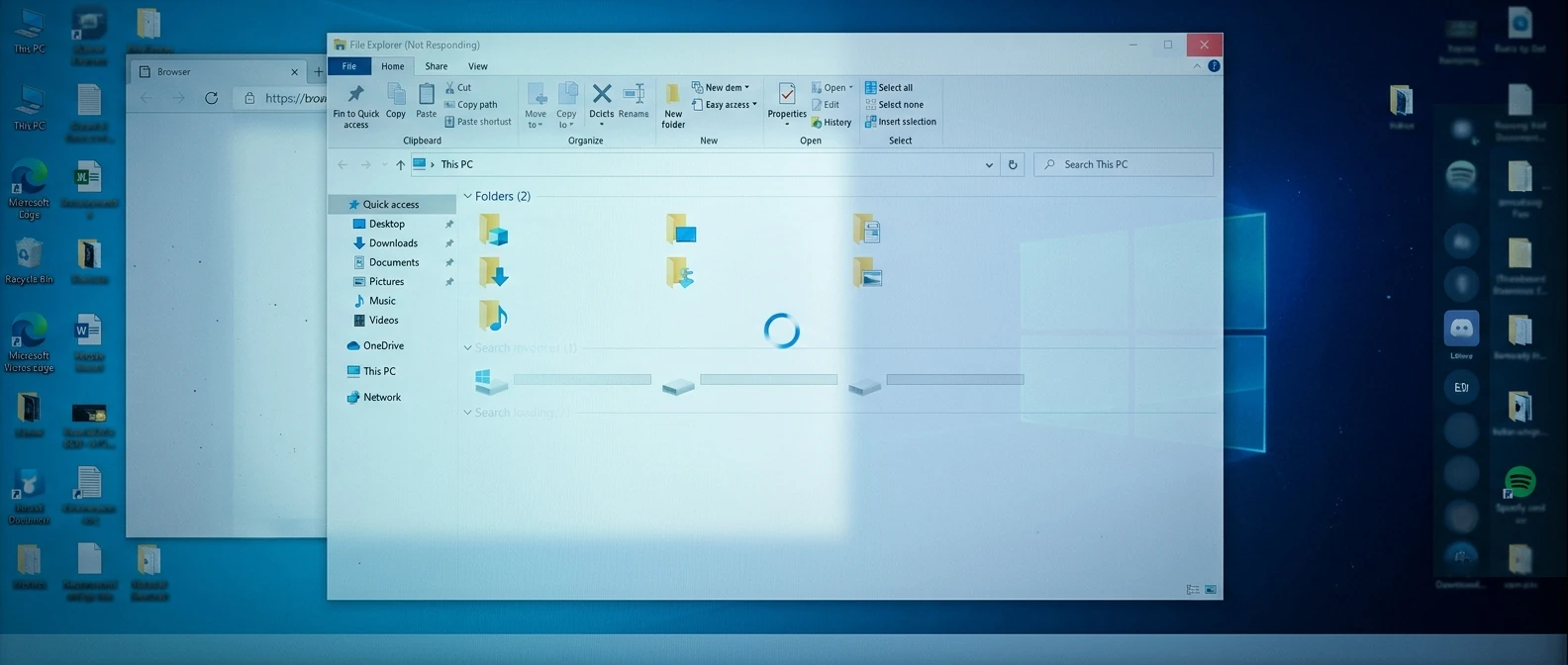
Have you ever opened File Explorer to find a document or picture, only to have the window freeze or display a “Not Responding” message? Maybe your folders take forever to open, File Explorer keeps closing, or the taskbar briefly disappears when you try to access your files.
These problems can be frustrating, especially when you’re trying to get something done.
As a computer repair specialist, I’ve found that File Explorer problems don’t always mean something serious is wrong with your computer. Sometimes, restarting File Explorer or clearing its history is enough to get things working again.
In this beginner-friendly guide, I’ll walk you through practical ways to fix Windows File Explorer when it freezes, crashes, or stops responding. We’ll start with the easiest solutions before moving on to more advanced troubleshooting.
Start Here: What Is File Explorer Doing?
Before making changes, identify the problem you’re experiencing.
- File Explorer freezes or displays “Not Responding”: Start with Step 1.
- File Explorer won’t open: Try Steps 1–3.
- Folders take a long time to load: Focus on Steps 4 and 5.
- File Explorer crashes when opening a particular folder: Check Steps 5 and 6.
- File Explorer stopped working after an update: Go to Step 7.
- The taskbar or desktop disappears temporarily: Start with Step 1.
If File Explorer is the only application having problems, you may be dealing with a specific Windows Explorer issue. However, if other programs are also freezing or crashing, the problem could involve Windows itself.
For broader troubleshooting advice, see How to Troubleshoot Common Windows Problems.
Before You Begin
Take a few minutes to prepare before troubleshooting.
- Save your work in any applications that are still responding.
- Close unnecessary programs.
- Disconnect external storage devices you aren’t using.
- Make sure Windows isn’t installing updates or performing another major operation.
- Think about whether the problem started after installing software, an update, or a new device.
Important: If you notice files disappearing, unusual drive noises, or repeated errors when opening or saving files, back up important data as soon as it is safe to do so. These symptoms may indicate a storage problem. If you suspect a drive is failing, prioritize backing up important files and getting the drive checked before running lengthy repair operations.
Step 1: Restart Windows Explorer Using Task Manager
Estimated time: 2–5 minutes
One of the easiest ways to fix File Explorer is to restart its Windows process.
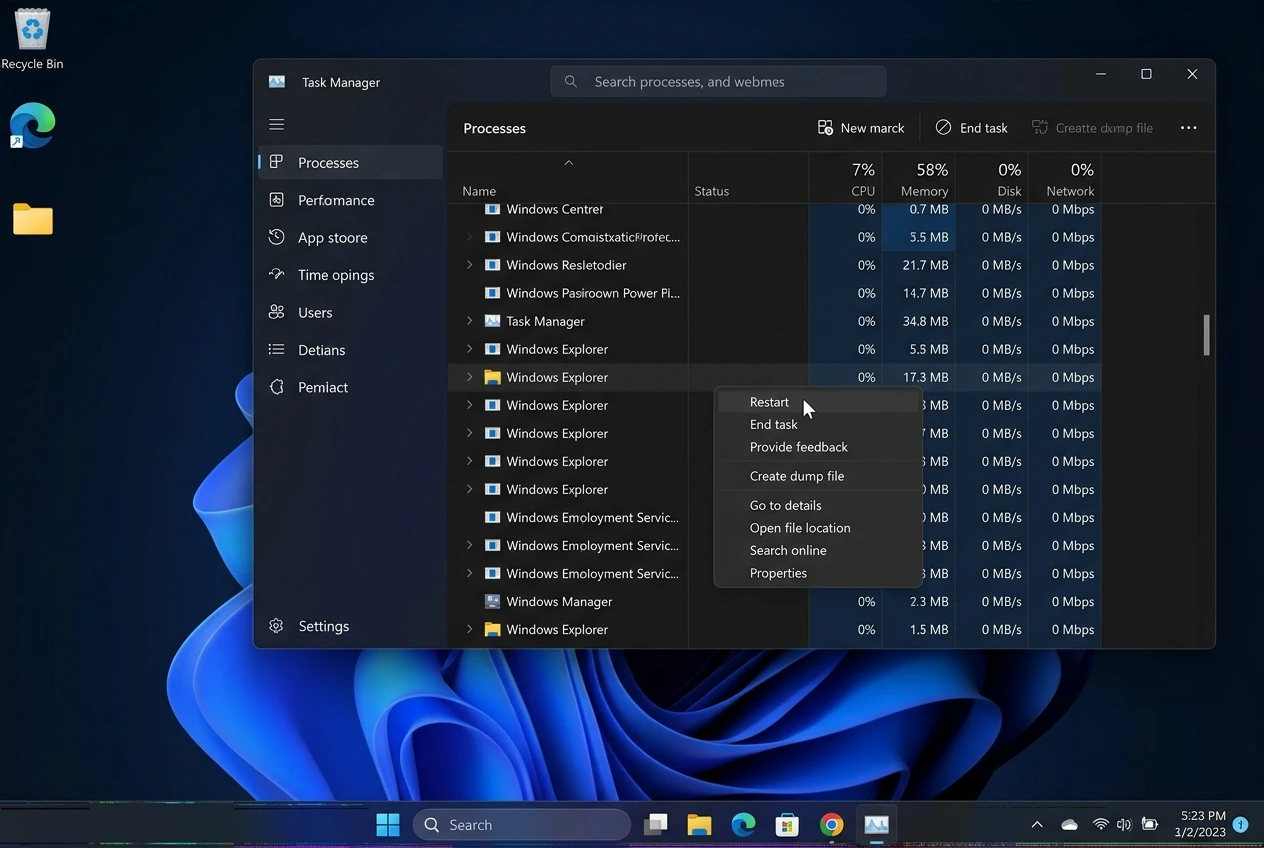
Windows Explorer manages more than file browsing. It also handles parts of the Windows desktop, including the taskbar.
- Press Ctrl + Shift + Esc to open Task Manager.
- If you’re using Windows 10 and see a simplified window, select More details.
- Under Processes, look for Windows Explorer. If you don’t see it immediately, scroll through the list to find it. Right-click Windows Explorer.
- Select Restart.
- Wait a few seconds for the desktop and taskbar to refresh.
- Press Windows + E to open File Explorer again.
You should see: File Explorer opening normally and responding when you navigate between folders.
Your taskbar or desktop icons may briefly disappear during the restart. This is normal.
If the problem continues, move to Step 2.
Step 2: Restart Your Computer
Estimated time: 3–5 minutes
If restarting Windows Explorer doesn’t help, restarting your computer may clear temporary problems affecting Windows.
- Save any open work.
- Close your applications.
- Open the Start menu.
- Select Power.
- Choose Restart.
- After Windows loads, open File Explorer again.
You should see: File Explorer opening and allowing you to browse files without freezing.
If File Explorer still stops responding, continue to the next step.
Step 3: Clear File Explorer History
Estimated time: 5 minutes
File Explorer keeps a history of recently accessed files and frequently used locations. Occasionally, problems involving recent items or unavailable locations can make File Explorer slow or unresponsive.
Clearing this history is a reasonable troubleshooting step.
- Press Windows + R to open the Run dialog.
- Type
control.exe foldersand press Enter. - The File Explorer Options window should appear.
- Open the General tab if it isn’t already selected.
- Find the Privacy section.
- Select Clear next to the option for clearing File Explorer history.
- Select OK.
- Open File Explorer again.
You should see: File Explorer opening without relying on its previous recent-item history.
Clearing File Explorer history does not delete your personal documents, pictures, or other saved files.
If the problem continues, try Step 4.
Step 4: Change File Explorer’s Opening Location
Estimated time: 3–5 minutes
File Explorer may open to Home, Quick access, or another starting location, depending on your Windows version.
If that location contains references to unavailable files, folders, or network resources, File Explorer may appear slow or unresponsive.
You can try opening File Explorer directly to This PC instead.
- Press Windows + R.
- Type
control.exe foldersand press Enter. - Under the General tab, find Open File Explorer to.
- Select This PC from the dropdown menu.
- Select Apply, then OK.
- Close File Explorer and open it again.
You should see: File Explorer opening to This PC instead of your recent files or frequently used folders.
If File Explorer now works normally, the previous opening location or one of its referenced items may have contributed to the problem.
Step 5: Check Whether a Specific Folder Is Causing the Problem
Estimated time: 5–10 minutes
Sometimes File Explorer works normally until you open a particular folder.
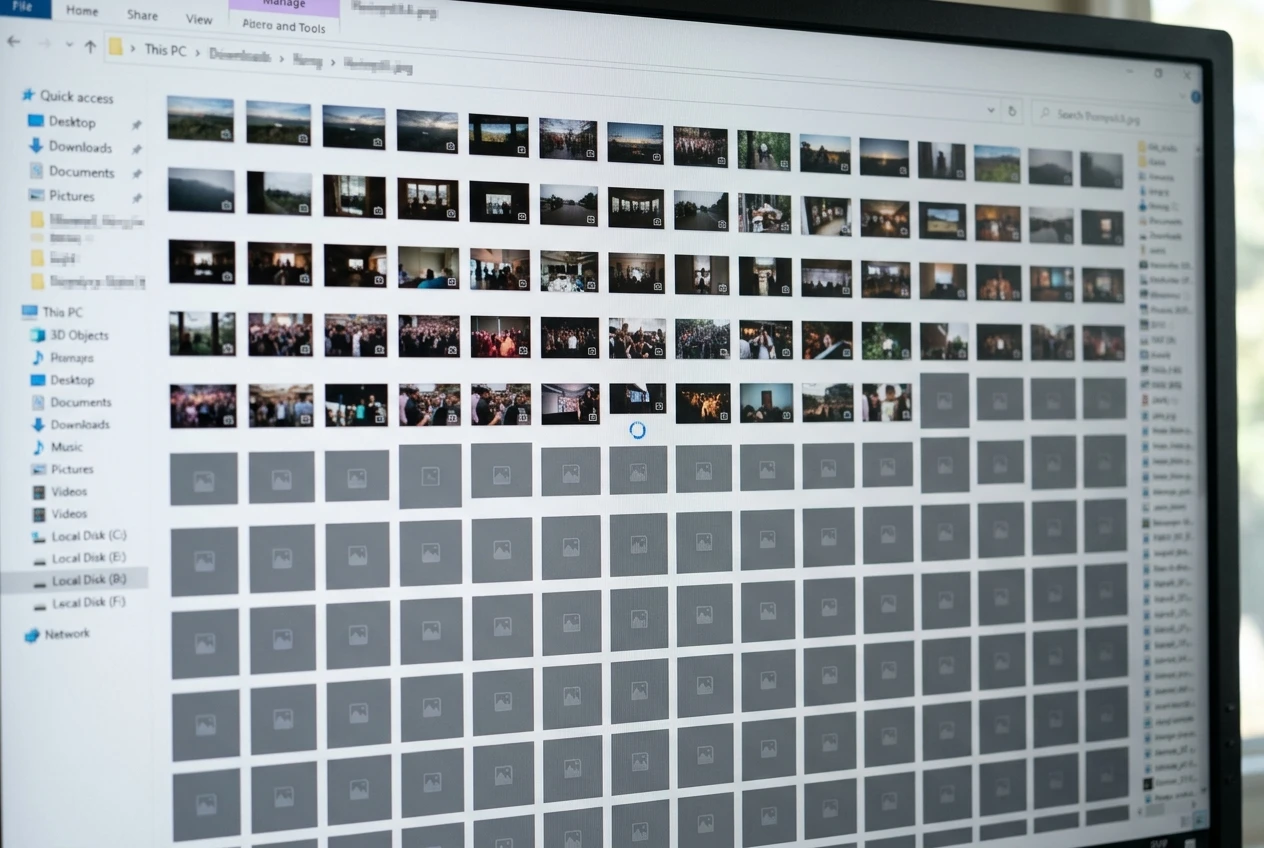
For example, a folder containing many pictures, videos, or damaged files may take longer to load because Windows is generating previews or reading file information.
Try these checks:
- Open File Explorer.
- Navigate to a folder that usually works, such as Documents.
- Open the folder where the problem occurs.
- Notice whether File Explorer freezes only in that location.
- If the folder contains many pictures or videos, try switching to a simpler view, such as Details.
- Wait briefly to see whether the folder finishes loading.
If the problem occurs only with an external drive or network folder, check whether that device or connection is available.
You should see: The folder opening and displaying its contents.
If File Explorer freezes whenever you access a particular drive, avoid repeatedly forcing access to it, especially if you suspect the drive may be failing.
Step 6: Check for Conflicting Software
Estimated time: 10–15 minutes
Some applications add features to File Explorer, such as right-click menu options, cloud storage integration, or file previews.
Occasionally, these features can cause File Explorer to freeze or crash.
Think about whether the problem began after installing:
- File compression software
- Cloud storage applications
- File management utilities
- Programs that add right-click menu options
- Recently installed security or system utilities
If you suspect a recently installed application:
- Open Settings.
- Select Apps.
- Open Installed apps in Windows 11, or Apps & features in Windows 10.
- Find the application you suspect is causing the problem.
- If the problem began immediately after installing the application, check whether an update or the application’s own settings can resolve it. If the evidence points to the application and you no longer need it, consider uninstalling it.
- Restart Windows and test File Explorer.
Don’t uninstall unfamiliar programs or Windows components simply because you don’t recognize their names.
If the problem continues, move on to Step 7.
Step 7: Check for Windows Updates
Estimated time: 10–30 minutes or longer
Windows updates can fix bugs, improve compatibility, and repair problems affecting built-in features such as File Explorer.
- Open Settings.
- Select Windows Update. In Windows 10, you may need to open Update & Security first.
- Select Check for updates.
- Install appropriate available updates.
- Restart your computer if requested.
- Open File Explorer and check whether the problem has been resolved.
If File Explorer stopped responding immediately after an update, review the update history before making further changes.
Avoid uninstalling updates at random, especially security updates.
For more help, see How To Fix Windows Update Problems.
Note: Windows 10 reached end of support on October 14, 2025. Eligible devices enrolled in the Extended Security Updates program may still receive security updates. If you’re using Windows 10, check Microsoft’s current support guidance for your device.
Step 8: Repair Windows System Files
Estimated time: 15–30 minutes or longer
If File Explorer continues to freeze or crash, damaged Windows system files may be contributing to the problem.
Windows includes two built-in repair tools: Deployment Image Servicing and Management (DISM) and System File Checker (SFC).
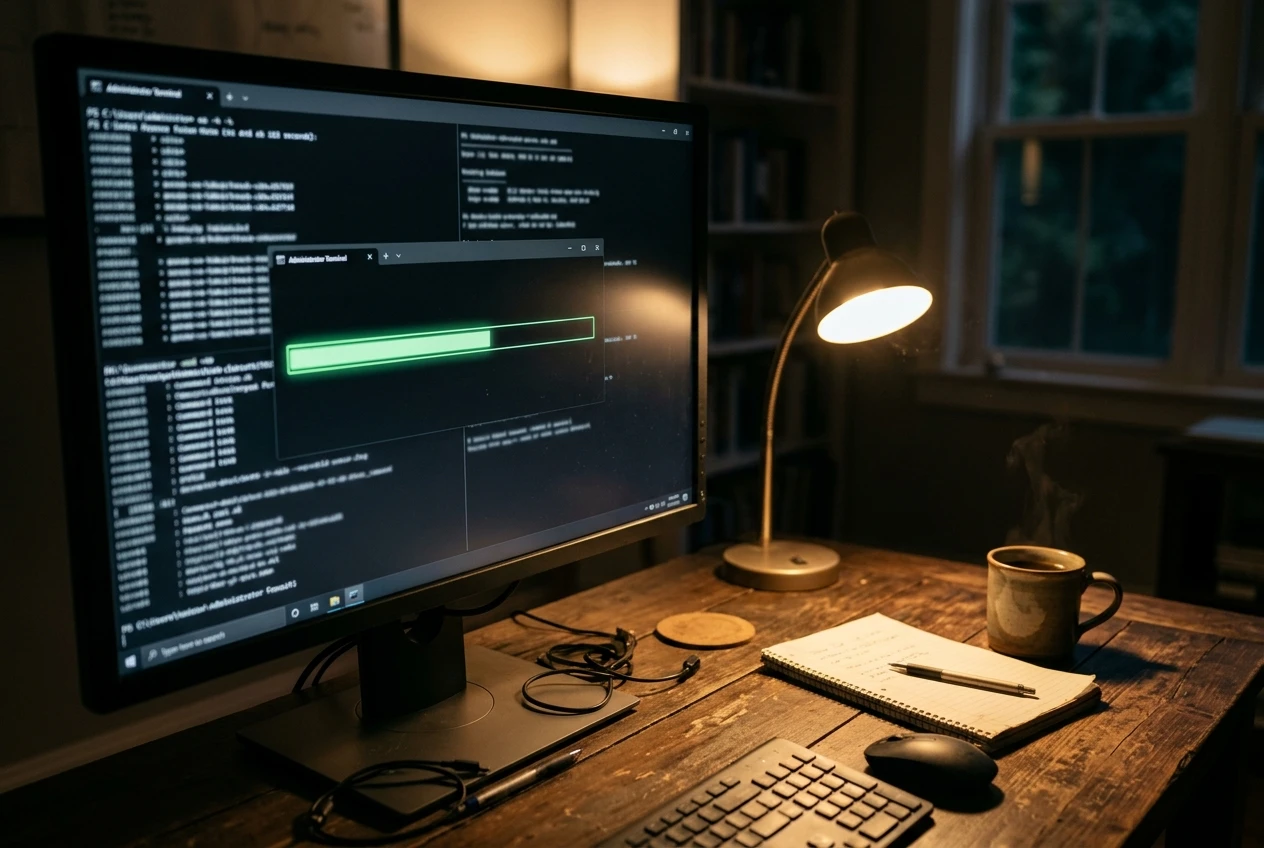
Here’s how to use them.
- Right-click the Start button.
- Select Terminal (Admin) or Command Prompt (Admin).
- Approve the permission prompt if it appears.
- Enter the following command:
DISM /Online /Cleanup-Image /RestoreHealth - Press Enter and wait for the process to finish.
- When it completes, enter:
sfc /scannow - Press Enter and wait for the scan to complete.
- Restart your computer.
- Open File Explorer and test it again.
You should see a message indicating whether Windows found and repaired problems. If SFC reports that it couldn’t repair some files, note the message rather than assuming the issue has been fixed.
DISM checks and repairs the Windows component store used for system repairs. SFC checks protected Windows system files and attempts to replace damaged versions.
These tools don’t guarantee a fix for every File Explorer problem. If they report errors they cannot repair, record the message before attempting anything more advanced.
Keep the administrator terminal open while each command runs. Wait for DISM to finish before entering the SFC command, and allow the SFC scan to reach 100% before closing the terminal.
Step 9: Try Safe Mode
Safe Mode starts Windows with a limited set of drivers and services. If File Explorer works normally in Safe Mode, a third-party application, driver, or background service may be contributing to the problem.
Before you begin: Save your work and close any open applications.
- Open Windows Settings.
- Windows 11: Select Settings → System → Recovery.
- Windows 10: Select Settings → Update & Security → Recovery.
- Under Advanced startup, select Restart now.
- After Windows restarts to the recovery screen, select Troubleshoot → Advanced options → Startup Settings → Restart.
- When the Startup Settings menu appears, press 4 or F4 to start Safe Mode. If you need internet access to troubleshoot, press 5 or F5 for Safe Mode with Networking.
- Once Windows starts, open File Explorer and check whether it responds normally. Try opening a few folders and navigating between locations.
- Restart your computer normally to exit Safe Mode.
What the results mean:
- File Explorer works normally: A third-party program, driver, or service may be contributing to the issue. Consider recently installed software or drivers and investigate them one at a time.
- File Explorer still freezes: The cause may involve Windows itself, a user profile, a drive, or another underlying issue. Continue to the next troubleshooting option if you have not already tried it.
Important: If you cannot access the recovery options or are unsure which option to select, stop rather than changing unfamiliar recovery settings. The available options may vary slightly depending on your Windows version and device configuration. Depending on your computer’s configuration, Windows may request a BitLocker recovery key when you enter the recovery environment. If device encryption is enabled, make sure you can access the key before proceeding.
For additional instructions, see How To Boot Windows Into Safe Mode.
What If File Explorer Still Isn’t Responding?
If you’ve completed the appropriate steps and File Explorer continues to freeze, consider whether the problem began after a recent system change.
If it did, System Restore may help return Windows system settings to an earlier working state.
System Restore does not normally delete personal documents, but it can affect applications, drivers, and updates installed after the selected restore point.
Save your work and review the list of affected programs before confirming the restoration.
For detailed instructions, see How To Use System Restore in Windows.
If File Explorer freezes alongside other applications, or you experience drive errors, the problem may require broader troubleshooting.
Avoid resetting or reinstalling Windows until you’ve backed up important files and investigated the likely cause.
Common File Explorer Problems and What to Check
File Explorer Won’t Open
Try restarting Windows Explorer through Task Manager, then restart the computer if necessary. If it still won’t open, check for Windows updates and system file problems.
File Explorer Keeps Crashing
Look for recently installed software or drivers. If crashes happen only when opening a particular folder, investigate that location first.
File Explorer Is Very Slow
Check whether the problem involves a folder containing many files, an unavailable external drive, or a network location. Clearing File Explorer history and changing the opening location may also help.
File Explorer Freezes When Right-Clicking
A third-party program that adds options to the right-click menu may be involved. Consider recently installed applications and whether the problem began after one was added.
Common Mistakes to Avoid
When troubleshooting File Explorer, avoid these mistakes:
- Restarting the computer repeatedly without investigating: If the problem keeps returning, move on to the next appropriate troubleshooting step.
- Deleting files to fix a freeze: Don’t remove personal or Windows system files unless you know exactly what they are.
- Installing unknown repair utilities: Stick with built-in Windows tools and trustworthy software sources.
- Changing several settings at once: Make one change and test File Explorer before continuing.
- Ignoring possible drive problems: Repeated errors when accessing a drive may require a backup and hardware diagnostics.
When Should You Get Professional Help?
Consider contacting a qualified computer repair technician if:
- File Explorer repeatedly crashes despite troubleshooting.
- Windows freezes in other applications as well.
- You cannot access important personal files.
- Your hard drive or SSD shows signs of failure.
- System repair tools cannot complete their repairs.
- You are uncomfortable performing more advanced Windows troubleshooting.
A technician can help determine whether the problem involves software, storage hardware, or another Windows component.
Frequently Asked Questions
Why does File Explorer say “Not Responding”?
File Explorer may stop responding because of a temporary Windows problem, an unavailable folder or drive, conflicting software, or damaged system files.
Will restarting Windows Explorer delete my files?
No. Restarting Windows Explorer does not normally delete saved personal files. However, it can interrupt file operations or close open File Explorer windows, so avoid restarting it during a file transfer.
Why does File Explorer freeze when opening a folder?
The folder may contain many files, damaged content, or an unavailable location. Try opening other folders to determine whether the problem is limited to one location.
Can Windows updates fix File Explorer problems?
Yes. Updates sometimes include fixes for Windows bugs and compatibility issues. However, an update won’t solve every File Explorer problem.
Should I reinstall Windows if File Explorer keeps crashing?
Not immediately. Try the simpler troubleshooting steps first. Reinstalling Windows is a major repair and should generally be considered only after you’ve investigated the cause and backed up important data.
Final Thoughts
When Windows File Explorer stops responding, start with the simplest solutions. Restart Windows Explorer, reboot your computer, and clear File Explorer history before moving on to more advanced troubleshooting.
If the problem continues, check whether it involves a specific folder, recently installed software, Windows updates, or damaged system files.
Remember to make one change at a time and test File Explorer afterward. This makes it easier to identify what caused the problem and which solution worked.
For more beginner-friendly guides covering Windows errors, startup problems, updates, and everyday troubleshooting, visit the Beginner’s Guide to Windows Troubleshooting.
Have you experienced File Explorer freezing or crashing? Let me know what happened and which troubleshooting step helped in the comments below. Your experience might help another reader solve the same problem!