
Signs Your Computer May Have a Virus
Has your computer suddenly become slow, started displaying strange pop-ups, or begun behaving in unusual ways? While these problems can have several causes, they may also be signs that your PC has been infected with a virus.
Computer viruses can affect everything from your system’s performance to the security of your personal information. The sooner you recognize the warning signs, the sooner you can take action to remove the infection and prevent further damage.
In this beginner-friendly guide, you’ll learn the most common signs your computer may have a virus, what causes virus infections, and the steps you should take if you suspect your PC has been compromised.
What Is a Computer Virus?
A computer virus is a type of malware that attaches itself to files or programs and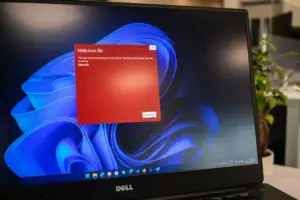 spreads when those files are opened or shared.
Once active, a virus may:
- Damage files
- Slow your computer
- Corrupt software
- Spread to other files
- Install additional malware
- Compromise personal information
Although all viruses are malware, not all malware is a virus. Other threats include spyware, ransomware, Trojans, and browser hijackers.
Related guide:
What Is Malware and How Does It Work
Why Recognizing Virus Symptoms Early Matters
The earlier you detect a virus, the easier it is usually to remove.
Early action can help prevent:
- File corruption
- Identity theft
- Data loss
- Stolen passwords
- System instability
- Additional malware infections
Ignoring warning signs can allow a virus to spread and create more serious problems.
Sign #1: Your Computer Suddenly Runs Much Slower
One of the first symptoms many users notice is a significant drop in performance.
You may experience:
- Slow startup times
- Programs taking longer to load
- Lag while browsing
- Delayed responses
- Frequent freezing
Viruses often use system resources in the background, leaving fewer resources available for normal tasks.
Keep in mind that slow performance can also be caused by startup programs, overheating, or insufficient storage space.
Sign #2: Your Computer Crashes Frequently
Random crashes may indicate a virus interfering with Windows or important software.
You may notice:
- Programs closing unexpectedly
- Blue screen errors
- Random restarts
- Frozen screens
Although crashes have many possible causes, repeated instability deserves investigation.
Sign #3: Pop-Up Messages Appear Constantly
Frequent pop-up windows can be a sign of malicious software.
Watch for:
- Fake antivirus warnings
- Security alerts from unknown sources
- Pop-up advertisements
- Messages urging you to install software immediately
Legitimate Windows security notifications typically come from Windows Security, not random web pages.
Never click suspicious pop-ups claiming your computer is infected.
Related article:
How to Remove Malware From Your PC
Sign #4: Your Browser Behaves Differently
Viruses and other malware often target web browsers.
Common symptoms include:
- Homepage changes
- Search engine changes
- Browser redirects
- Unknown extensions
- New toolbars
These problems are frequently caused by browser hijackers.
Helpful resource:
How to Remove Browser Hijackers
Sign #5: Unknown Programs Appear
If you notice software you don’t remember installing, it deserves attention.
Look for:
- Fake antivirus software
- Unknown utilities
- Suspicious applications
- Unexpected browser extensions
Some viruses install additional software without asking for permission.
Regularly reviewing installed programs can help you spot suspicious activity.
Sign #6: Antivirus Software Stops Working
Some advanced viruses attempt to disable security software.
You may notice:
- Antivirus protection turned off
- Updates failing
- Scans refusing to run
- Windows Security reporting errors
If your antivirus suddenly stops functioning, investigate immediately.
Helpful resource:
How to Check Your PC Security Settings
Sign #7: High CPU or Disk Usage While Idle
Viruses often run hidden processes that consume system resources.
Symptoms include:
- Fans running constantly
- High CPU usage
- Excessive disk activity
- Reduced battery life on laptops
You can use Task Manager to identify unusually high resource usage.
Sign #8: Files Become Corrupted or Missing
Viruses sometimes modify or damage files.
You may notice:
- Documents that won’t open
- Missing files
- Corrupted photos
- Programs failing to launch
Always investigate unexpected file problems, especially if they occur alongside other symptoms.
Sign #9: Emails or Messages Are Sent Without Your Knowledge
Some viruses attempt to spread by accessing email or messaging accounts.
Friends or family may report:
- Strange emails from your address
- Unexpected attachments
- Spam messages
- Suspicious social media posts
If this happens, change your passwords immediately after cleaning your computer.
Sign #10: Windows Security Displays Virus Warnings
One of the clearest signs of a possible infection is a legitimate security alert.
Windows Security may detect:
- Viruses
- Trojans
- Spyware
- Suspicious downloads
Do not ignore these warnings.
Running a full scan promptly can often stop an infection before it spreads.
Helpful guide:
How to Scan Your PC for Viruses
What To Do If You Think Your Computer Has a Virus
If several of these warning signs sound familiar, don’t panic.
Take these steps:
- Disconnect from the internet.
- Run a full antivirus scan.
- Update your antivirus software.
- Remove detected threats.
- Restart your computer.
- Monitor for recurring symptoms.
- Change important passwords if necessary.
Acting quickly gives you the best chance of removing the virus successfully.
How Viruses Commonly Infect Computers
Understanding how viruses spread can help you avoid them.
Common infection methods include:
- Downloading software from untrusted websites
- Opening infected email attachments
- Clicking malicious links
- Installing pirated software
- Connecting infected USB drives
- Visiting compromised websites
Safe browsing habits significantly reduce your risk.
How To Help Prevent Virus Infections
Preventing viruses is much easier than removing them.
Keep Windows Updated
Security updates patch vulnerabilities that viruses may exploit.
Use Antivirus Software
Always keep real-time protection enabled.
Related guide:
Best Free Antivirus Tools for Beginners
Download Software Carefully
Only install software from trusted developers and official websites.
Be Careful With Email Attachments
Verify unexpected attachments before opening them.
Perform Regular Security Scans
Routine scans help detect threats before they become serious.
Back Up Important Files
Backups can help protect your data if a virus damages your system.
Common Virus Myths
“Only Older Computers Get Viruses”
Any computer connected to the internet can become infected.
“I Have Antivirus, So I Can’t Get a Virus”
Antivirus software greatly reduces your risk, but no security program catches every threat.
Safe browsing habits still matter.
“Viruses Always Cause Obvious Problems”
Some viruses remain hidden while collecting information or spreading quietly.
“Macs Never Get Viruses”
Although Windows is a more common target, no operating system is completely immune.
Final Thoughts
Recognizing the signs of a computer virus early can help you protect your files, personal information, and Windows installation before the infection becomes more serious.
If you notice multiple warning signs—such as slow performance, frequent crashes, browser redirects, pop-ups, or disabled security software—it’s important to investigate as soon as possible.
Remember to:
- Watch for unusual behavior
- Run regular antivirus scans
- Keep Windows updated
- Practice safe browsing habits
- Back up important files regularly
A little awareness goes a long way toward keeping your PC secure and running smoothly.
Continue learning here:
PC Maintenance for Beginners Hub Page