
How To Use Task Manager To Speed Up Your PC
If your computer feels slow, Task Manager is a good place to start.
Task Manager is a built-in Windows tool that shows you which programs and processes are using your computer’s resources. You can use it to check CPU, memory, and disk usage and find programs that may be contributing to poor performance.
You don’t need to be a computer expert to use it. In this guide, I’ll show you how to use Task Manager to find and safely close programs that may be slowing down your PC.
This guide is part of my Speed Up Your PC series. For a complete list of ways to improve your computer’s performance, see How To Speed Up Your PC.
Who This Guide Is For
This guide is for:
- Beginners who have never used Task Manager
- Anyone with a slow or sluggish PC
- People who want to see which programs are using system resources
- Anyone who needs to close a frozen program
You don’t need to install anything. Task Manager is already included with Windows.
What You’ll Need
Before you begin, you’ll need:
- A Windows PC
- About 10–15 minutes
- Your keyboard and mouse
- Any important work saved
Important: Don’t end a process simply because you don’t recognize it. Some processes are required by Windows or other software.
Step-by-Step Instructions
1. Open Task Manager
Press:
Ctrl + Shift + Esc
all at the same time.
Task Manager should open.
You can also right-click the Start button and select Task Manager.
2. Open the Processes tab
The Processes section shows programs and processes currently running on your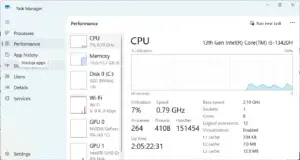 computer.
You’ll see columns such as:
- CPU
- Memory
- Disk
- Network
These numbers show how much of your computer’s resources each program is currently using.
For this guide, we’ll mainly focus on CPU, Memory, and Disk.
3. Check CPU usage
The CPU column shows how much of your processor is being used.
Click the CPU heading to sort the list by CPU usage. Programs using the most CPU should move toward the top.
High CPU usage isn’t necessarily a problem. A program might temporarily use a lot of CPU while performing a demanding task, such as installing software or processing a video.
Look for programs that are using a large amount of CPU and that you recognize as something you don’t currently need.
4. Check Memory usage
Next, check the Memory column.
Memory refers to your computer’s RAM. Windows and your applications use RAM while they’re running.
Click Memory to sort the list by memory usage.
If you have several programs open, you may find that a browser, game, or other application is using a large amount of memory.
If you’re finished with a program, closing it can free up memory.
For additional ways to reduce unnecessary resource usage, see How To Reduce Background App.
5. Check Disk usage
The Disk column shows how much activity your storage drive is handling.
Disk usage can increase while Windows is:
- Installing updates
- Opening programs
- Copying files
- Scanning for malware
- Loading large applications
Click Disk to sort the list by disk activity.
Don’t immediately end a program just because disk usage is high. Give Windows or the program some time to finish what it’s doing.
If your storage drive is nearly full, freeing up space may also help. See How To Free Up Disk Space for more information.
6. Close programs you aren’t using
Before using Task Manager to end a program, try closing it normally.
For example:
- Switch to the program.
- Save your work.
- Click the X to close it.
- Wait for it to shut down.
Closing programs normally is safer than immediately ending their tasks through Task Manager.
Task Manager is most useful when a program is frozen, unresponsive, or won’t close normally.
7. End an unresponsive task
If a program won’t close normally, Task Manager can force it to close.
To do this:
- Select the unresponsive program under Processes.
- Click End task.
- Wait for Windows to close the program.
Warning: Ending a program can cause you to lose unsaved work.
Only end a program when you’re confident you know what it is and that you don’t need it running.
8. Don’t end unfamiliar Windows processes
Task Manager can contain a long list of processes you may not recognize.
Don’t end a process simply because it is using CPU, Memory, or Disk.
Some processes are necessary for:
- Windows
- Security software
- Hardware drivers
- Other important system functions
If you don’t know what a process does, leave it alone.
You don’t need to understand every process in Task Manager to use the tool effectively.
9. Check your startup apps
Task Manager can also show which programs automatically start when you sign in to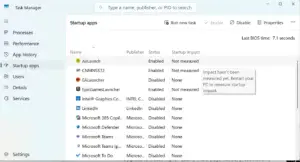 Windows.
Select Startup apps from the left side of Task Manager.
You’ll see programs that can launch automatically when Windows starts.
Too many startup programs can increase the time it takes for your PC to become ready after startup.
If you find programs you don’t need starting automatically, you can disable them.
For detailed instructions, see How To Disable Startup Programs On Your PC.
10. Restart your computer
After closing unnecessary programs or making changes to startup apps, restart your PC.
A restart gives Windows a fresh start and can clear temporary problems.
After restarting, see whether your computer:
- Starts more quickly
- Opens programs faster
- Feels more responsive
- Still has unusually high resource usage
If your PC is still slow, don’t keep ending random processes. There may be another cause that needs attention.
For additional troubleshooting, see How To Speed Up a Slow Computer.
What to Expect
Task Manager doesn’t automatically make your computer faster.
Instead, it helps you identify what’s using your PC’s resources.
You might discover that:
- A program is using excessive CPU
- Several applications are using a lot of memory
- A program has stopped responding
- Too many programs are starting with Windows
- Another task is temporarily using your disk
Once you know what’s happening, you can take the appropriate action.
Sometimes closing one unnecessary program is all that’s needed. Other times, you’ll need to investigate storage, malware, startup programs, or other causes of poor performance.
Common Problems and Easy Fixes
Task Manager shows high CPU usage
Try this:
- Sort the list by CPU.
- Look for programs you recognize.
- Give programs time to finish demanding tasks.
- Close applications you’re finished using.
- Don’t end unfamiliar Windows processes.
Memory usage is very high
Try this:
- Close programs you’re no longer using.
- Reduce the number of browser tabs open.
- Check for unnecessary background applications.
- Restart your PC if it has been running for a long time.
See How To Reduce Background Apps for additional help.
Disk usage stays high
Try this:
- Give Windows time to finish its current task.
- Check which program is using the disk.
- Close applications you’re finished using.
- Check how much free storage space remains.
If your drive is nearly full, see How To Free Up Disk Space.
I don’t know what a process does
Don’t end it.
If you’re unsure about a process, leave it running. Ending an important Windows process can cause problems.
End Task didn’t solve the slowdown
Task Manager may not be the cause of the problem.
Your PC could also be affected by:
- Too many startup programs
- Low storage space
- Malware
- Too many background applications
- Windows updates
- Aging hardware
Continue with How To Speed Up a Slow Computer to troubleshoot other common causes of slow performance.
Quick Tips for Beginners
- Save your work before using End task.
- Close programs normally whenever possible.
- Sort CPU, Memory, or Disk to find resource-heavy programs.
- Don’t end unfamiliar Windows processes.
- Check Startup apps if your PC takes a long time to start.
- Restart your computer after making changes.
- When you’re unsure about a process, leave it alone.
When Task Manager Isn’t Enough
Task Manager is useful for finding programs that are using system resources, but it can’t fix every performance problem.
If your PC is still slow, you may need to:
- Free up storage space
- Remove programs you no longer use
- Reduce background applications
- Check for malware
- Install Windows updates
- Consider whether your hardware needs an upgrade
For a complete troubleshooting process, see How To Speed Up a Slow Computer.
You can also visit the PC Maintenance for Beginners hub for guides covering broader PC maintenance and troubleshooting tasks.
Continue Improving Your PC
Once you’re comfortable using Task Manager, continue with these related guides:
- How To Speed Up a Slow Computer
- How To Reduce Background Apps
- How To Disable Startup Programs On Your PC
- How To Free Up Disk Space
- How To Remove Unnecessary Programs
For general computer maintenance, visit the PC Maintenance for Beginners hub.
Conclusion
Task Manager is a useful Windows tool for finding programs that may be contributing to poor PC performance.
By checking CPU, Memory, and Disk usage, you can get a better idea of what’s happening when your computer feels slow.
Remember to:
- Close programs you’re finished using
- Save your work before ending a task
- Avoid ending unfamiliar processes
- Check your startup apps
- Restart your PC after making changes
If your computer is still running slowly, continue with How To Speed Up a Slow Computer for more beginner-friendly solutions.
Join the Conversation
Has Task Manager helped you find a program that was slowing down your PC?
Share your experience or questions in the comments. Your question might help another beginner.