

What Is Malware and How Does It Work?
If you’ve spent any time using a computer, you’ve probably heard the term “malware.” It’s one of the most common cybersecurity threats facing computer users today, yet many beginners aren’t entirely sure what malware actually is or how it infects a computer.
Understanding malware is one of the best ways to protect yourself online. When you know how malware works and how it spreads, you’ll be better prepared to avoid infections and recognize warning signs before serious damage occurs.
In this beginner-friendly guide, you’ll learn what malware is, how it works, the different types of malware, and the steps you can take to keep your computer safe.
What Is Malware?
Malware is short for malicious software.
It is any software intentionally designed to:
- Damage a computer
- Steal information
- Spy on users
- Disrupt normal operations
- Gain unauthorized access to systems
Cybercriminals create malware for many reasons, including:
- Financial gain
- Identity theft
- Data collection
- Extortion
- System disruption
Not all malware behaves the same way, which is why understanding the different types is important.
Related guide:
Signs Your Computer May Have Malware
How Does Malware Work?
At its core, malware works by getting onto your computer and performing actions you did not authorize.
The basic process often looks like this:
- Malware enters your system.
- It installs itself.
- It attempts to avoid detection.
- It performs malicious actions.
- It may spread to other systems.
Some malware works immediately, while other threats remain hidden for weeks or months.
The longer malware remains undetected, the more damage it can potentially cause.
How Malware Gets Onto Your Computer
Understanding how infections happen is one of the best ways to avoid them.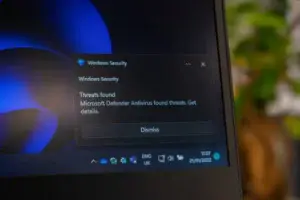
Common infection methods include:
- Downloading unsafe software
- Clicking malicious links
- Opening infected email attachments
- Visiting compromised websites
- Using outdated software
- Installing pirated programs
- Connecting infected USB devices
Many infections occur because attackers trick users into allowing the malware to install.
Helpful resource:
How to Install Software Safely on Windows
Common Types of Malware
Not all malware behaves the same way. Different types are designed to achieve different goals.
Let’s look at the most common categories.
Type 1: Viruses
A computer virus attaches itself to legitimate files or programs.
When the infected file runs, the virus activates and may:
- Corrupt files
- Damage software
- Spread to other files
- Slow system performance
Viruses often require some form of user action to spread.
Related guide:
What To Do If Your PC Has a Virus
Type 2: Trojans
A Trojan disguises itself as legitimate software.
Users often install Trojans accidentally because they appear safe.
Once installed, a Trojan may:
- Steal information
- Download additional malware
- Create security vulnerabilities
- Allow remote access
Unlike viruses, Trojans typically do not self-replicate.
Type 3: Spyware
Spyware secretly monitors user activity.
It may collect:
- Passwords
- Browsing history
- Personal information
- Financial data
Spyware often operates quietly in the background without obvious symptoms.
Type 4: Ransomware
Ransomware is one of the most dangerous malware types.
It can:
- Encrypt files
- Lock systems
- Demand payment for recovery
Victims may lose access to important documents, photos, and business data.
Regular backups are one of the best defenses against ransomware.
Type 5: Adware
Adware focuses on displaying advertisements.
Common symptoms include:
- Excessive pop-ups
- Browser redirects
- Unwanted advertisements
- Slower browsing performance
While some adware is relatively harmless, certain versions collect user data or install additional threats.
Type 6: Browser Hijackers
Browser hijackers modify browser settings without permission.
You may notice:
- Homepages changing automatically
- Different search engines
- New toolbars
- Frequent redirects
Browser hijackers often generate advertising revenue for attackers.
Type 7: Keyloggers
Keyloggers record keyboard activity.
Attackers may use them to steal:
- Passwords
- Banking credentials
- Personal information
- Login details
Because keyloggers operate silently, they can be difficult to detect without security software.
Warning Signs of a Malware Infection
Malware often leaves clues that something is wrong.
Common symptoms include:
- Slow performance
- Pop-up ads
- Browser redirects
- Frequent crashes
- Unusual network activity
- High CPU usage
- Missing files
- Disabled security software
One symptom alone doesn’t guarantee malware, but multiple symptoms should raise concern.
Related article:
Signs Your Computer May Have Malware
What Malware Does After Infection
Once installed, malware may attempt to:
Steal Information
Many threats target:
- Passwords
- Financial information
- Personal documents
Install Additional Malware
Some infections download other malicious programs automatically.
One infection can quickly become several.
Spy on User Activity
Certain malware tracks:
- Websites visited
- Keystrokes
- Files accessed
Generate Advertising Revenue
Adware and browser hijackers often display ads for profit.
Damage Files or Systems
Some malware intentionally corrupts:
- Files
- Windows components
- Applications
How To Protect Yourself From Malware
Fortunately, there are several simple ways to reduce your risk.
Step 1: Use Antivirus Software
Reliable antivirus software helps detect and remove threats.
Many users are well protected by:
- Microsoft Defender
- Other trusted antivirus solutions
Step 2: Keep Windows Updated
Security updates fix vulnerabilities that attackers may exploit.
Regular updates are one of the easiest ways to improve security.
Step 3: Download Software Carefully
Only download software from:
- Official websites
- Trusted developers
Avoid:
- Pirated software
- Unverified download sites
Step 4: Be Careful With Email Attachments
Never open unexpected attachments without verifying the sender.
Email remains one of the most common malware delivery methods.
Step 5: Use Strong Passwords
Strong passwords help reduce the damage if malware steals credentials.
Consider:
- Unique passwords
- Password managers
- Multi-factor authentication
Step 6: Run Regular Security Scans
Regular scans help identify threats before they become serious.
Schedule scans periodically and review security alerts carefully.
Related article:
How to Scan Your PC for Viruses
What To Do If You Suspect Malware
If you believe your computer may be infected:
- Disconnect from the internet.
- Run a full antivirus scan.
- Remove detected threats.
- Update Windows.
- Change important passwords.
- Monitor the system for unusual behavior.
The faster you respond, the easier malware is often to remove.
Helpful resource:
How to Remove Malware From Your PC
Common Malware Myths
“I Only Visit Safe Websites”
Even trusted websites can occasionally become compromised.
“Macs and PCs Can’t Get Malware”
Any device connected to the internet can potentially become infected.
“I Have Antivirus, So I’m Completely Safe”
Antivirus software is important, but safe browsing habits are equally important.
“Malware Always Makes It Obvious”
Many modern threats are specifically designed to remain hidden.
Final Thoughts
Malware is one of the most common security threats facing computer users today. Whether it’s a virus, Trojan, spyware, ransomware, or browser hijacker, malware can cause serious problems if left unchecked.
Fortunately, understanding how malware works is the first step toward protecting yourself.
Remember to:
- Use antivirus software
- Keep Windows updated
- Download software carefully
- Be cautious with email attachments
- Run regular security scans
- Watch for warning signs
A little awareness and good security habits can go a long way toward keeping your computer safe.
Continue learning here:
PC Maintenance for Beginners Hub Page