
What Is Electronic Email? A Beginner’s Guide
If you’re new to computers, you’ve probably heard the term email tossed around constantly. It’s one of the most common ways people communicate online, and it has become just as essential as phone calls or text messages. But if you’ve never really used it before—or only scratched the surface—you might be wondering: What exactly is electronic email, and how do I use it?
Don’t worry. In this guide, we’ll break it down step by step, cover the different ways you can access email, and show you the basics of getting started. By the end, you’ll feel much more confident about using email for both personal and professional communication.
Email Client or Web-Based Email
There are two main ways to access your email: through an email client or through web-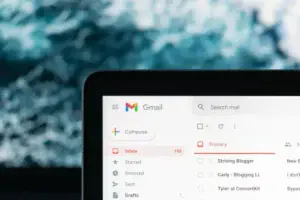 based email. Both serve the same purpose—helping you send, receive, and manage messages—but they work a little differently.
Think of it like getting your mail at home. Some people go to the post office (web-based email), while others have a mailbox right outside their house (email client). The end result is the same: you get your messages, but the method you use depends on your needs and preferences.
Email Client
An email client is a program you install on your computer or phone that downloads and manages your messages for you.
Some common examples include:
- Microsoft Outlook
- Apple Mail
- Mozilla Thunderbird
Pros of an Email Client:
- You can read and compose messages even when you’re offline.
- All your messages can be stored locally on your device.
- They often include powerful tools like calendars, contact lists, and advanced search features.
Cons of an Email Client:
- You need to install and sometimes configure them, which can feel intimidating if you’re not very techy.
- If you’re away from your main device, you won’t be able to see your messages unless you set up syncing with the cloud.
Email clients are great for people who want everything in one place—especially if you’re handling a lot of messages every day.
Web-Based Email
Web-based email is the most popular option for casual users. Instead of installing a program, you simply open a web browser like Chrome or Edge, log in, and access your email through a website.
Examples include:
- Gmail (by Google)
- Yahoo Mail
- Outlook.com (the web version)
Pros of Web-Based Email:
- You can log in from any computer or phone with internet access.
- Nothing to install or configure.
- Your messages are stored online, so you don’t lose them if your device crashes.
Cons of Web-Based Email:
- You need an internet connection to access it.
- Sometimes features are more limited compared to full email clients.
For most new users, web-based email is the easiest and most straightforward way to start.
How Do I Use Web-Based Email?
Using web-based email is simpler than you might think. Here’s a step-by-step guide to get started:
- Choose a Provider – Pick a service like Gmail, Yahoo, or Outlook.com.
- Create an Account – You’ll need to sign up with some basic information, such as your name, a desired username, and a password.
- Log In – Go to the provider’s website, enter your email address and password, and you’ll be taken to your inbox.
- Understand the Inbox – This is where all incoming messages appear. Click on a message to read it.
- Send a Message – Look for a button labeled “Compose” or “New Mail.” Enter the recipient’s email address, type your message, and hit send.
- Stay Organized – Use folders, labels, or search tools to keep your inbox manageable.
That’s really all there is to it. Once you’ve logged in a few times and sent a couple of emails, it will start to feel as natural as texting.
Using Your New Email
Now that you know how to access and use email, here are some tips to make the most of it:
- Check regularly. Important messages from friends, family, or services you use often
 arrive by email.
 - Use a strong password. Since your email is tied to many of your online accounts, it’s vital to keep it secure.
- Don’t open suspicious messages. If you get an email from someone you don’t know, or it looks strange, it’s better to delete it. Learn how to protect yourself with anti-virus protection.
- Practice good etiquette. Reply promptly, keep messages polite, and remember that tone can sometimes be misread in writing.
- Explore features. Most email services let you attach files, create contact lists, and even schedule messages. Make use of your web browser for more options.
Helpful Guide:
[Placeholder link – Beginner’s Guide to Web Browsers]
The more you use email, the more comfortable you’ll become. Before long, you’ll be sending and receiving messages like a pro.
Common Email Mistakes Beginners Make
As a computer repair tech I sometimes see people make some beginner mistakes when it comes to email.
Reusing Weak Passwords
One of the things I see people do is reuse weak passwords. Think of a password as a key to a lock. If you make it too weak a hacker using software can discover what it is and get into your account. Instead, create a password or passphrase that’s at least 12 characters long. A combination of several random words is often easier to remember and harder to crack than a short, complicated password. If remembering multiple passwords is difficult, consider using a password manager to store them securely.
Related Guide:
Review of the Best Password Managers
Whenever possible, turn on two-factor authentication (2FA). This adds a second layer of protection by requiring a code from your phone before anyone can sign into your account.
Related Guide:
[Placeholder – How to Protect Your Online Accounts]
Replying to Phishing Emails
I get questions all the time regarding emails from companies. One of the first things I tell people is if you’re unsure whether an email is legitimate, don’t click anything. Instead, visit the company’s website by typing the address into your browser yourself. If you are not expecting any emails from a company it is usually best to leave it alone and not answer. It could be from someone who is posing as the company. Some of the tip-offs to watch out for are poor spelling or grammar, or the web address may be slightly different. Web addresses that are even slightly different could belong to a hacker trying to gain access to your computer.
Related Guide:
[Placeholder link – How to Spot Phishing Emails]
Forgetting to Log Out on Public Computers
This is a security issue that everyone should be aware of, not just beginners. If you can avoid using a public computer to check your email, it’s usually best to do so. If you do log on to a public computer, you want to make sure you log off when you are done. If you don’t, the next person that comes along can access your accounts or sensitive information.
Clicking Suspicious Links
This is another issue that beginners need to be aware of. If you receive an unexpected email or you don’t recognize the sender, don’t click on any of the links. Those links may take you to a website that tries to download malware to your computer.
Related Guides:
What Is Malware and How Does It Work
How to Scan Your PC for Viruses
Email Safety Checklist
- Verify the sender
- Never send passwords through email
- Enable two-factor authentication
- Be cautious with attachments
- Watch for fake invoices
- Don’t click unexpected links
Example: Resetting Your Microsoft Account Password
Imagine you try to sign in to your Microsoft Account but you forgot your password. We’ve all been there, myself included. Fortunately there is a way to reset your password so that you can get back into your account. After clicking Forgot Password?, Microsoft will ask you to verify your identity before you will be allowed to create a new password.
A typical password reset email may look something like this:
Sample Password Reset Email (Illustration)
Subject: Reset Your Microsoft Account Password
Hello,
We received a request to reset the password for your Microsoft account associated with yourname@hotmail.com.
If you requested this password reset, click the button below to create a new password.
Reset Password
This link will expire in 60 minutes for your security.
If you didn’t request a password reset, you can safely ignore this email. No changes will be made to your account unless this link is used.
Thank you,
Microsoft Account Team
What You Will Notice
- The email does not include your current password.
- It explains why you are receiving the email.
- It contains one clear button to reset your password.
- It mentions how long the link will be valid.
- It reassures you that nothing will happen if you didn’t request it.
Beginner Tip
Always make sure you’re expecting a password reset email before you click any links. If you’re unsure, open a new browser window and go directly to the service’s official sign-on page instead of clicking the link in the email.
Conclusion
Email might seem a little overwhelming at first, but once you know the basics, it’s actually one of the simplest and most effective tools you’ll ever use on a computer. Whether you choose an email client for more control or stick with a web-based option for convenience, the key is to find what works best for you.
So go ahead—set up that new account, send your first message, and start exploring the possibilities of electronic communication.
👉 Have you recently set up your first email, or do you remember the first time you used one? Share your experience in the comments—I’d love to hear your story!