
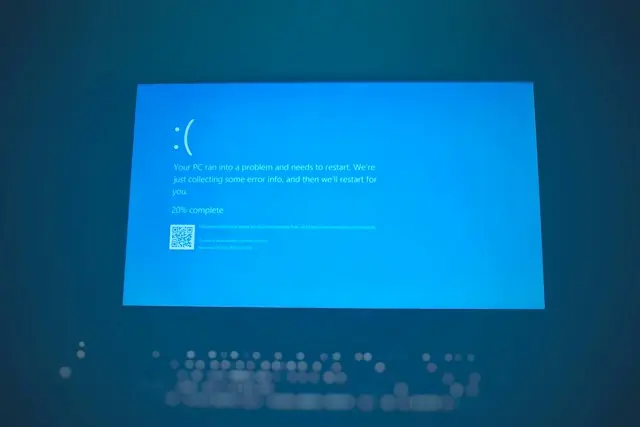
How To Fix Startup Failures And Boot Problems
Introduction
Few computer problems are more frustrating than pressing the power button and discovering that Windows won’t start normally.
Maybe your computer gets stuck on the Windows logo, shows a black screen, repeatedly restarts, displays an error message, or opens Automatic Repair without successfully starting Windows.
The good news is that a startup failure doesn’t always mean your computer has a serious hardware problem. Windows updates, damaged system files, drivers, software, and other changes can prevent Windows from starting correctly.
This guide gives you a simple path to follow so you don’t have to guess which troubleshooting step to try next.
Important: If your computer doesn’t turn on at all—no lights, fans, sounds, or other signs of power—you may be dealing with a power or hardware problem rather than a Windows startup problem.
Start Here: What Happens When You Turn On Your PC?
The easiest way to troubleshoot a startup problem is to identify where the startup process stops.
If Nothing Happens
If you press the power button and get no lights, fans, sounds, or display:
- Check that the power cable is connected securely.
- Make sure a power strip or surge protector is turned on.
- If you’re using a laptop, make sure the charger is connected.
- If you recently moved or worked on the computer, check for loose connections if you’re comfortable doing so.
If the computer still shows no signs of power, the problem may be hardware-related rather than a Windows problem.
If the Computer Turns On but Nothing Appears on the Screen
First, check whether you see the computer manufacturer’s logo.
No logo appears:
- Make sure the monitor is turned on.
- Check that the monitor is set to the correct input.
- Check the display cable.
- If possible, try another display or cable.
If you still get no picture, the problem may occur before Windows even begins loading.
The manufacturer’s logo appears, but the screen becomes black when Windows should load:
Continue with the Windows troubleshooting steps below.
If You See the Windows Logo but Windows Won’t Start
If Windows reaches the logo but never gets to the sign-in screen, continue with Step 4: Access the Windows Recovery Environment.
If the Computer Keeps Restarting
If the computer repeatedly starts, fails to load Windows, and restarts, you have a boot loop.
Continue with Step 4: Access the Windows Recovery Environment.
If You See Automatic Repair
If you see messages such as Preparing Automatic Repair, Diagnosing your PC, or Automatic Repair, allow Windows to finish its initial recovery attempt.
If Windows cannot repair the problem, continue with Step 5: Run Startup Repair.
If You See “No Bootable Device”
Skip ahead to What If You See “No Bootable Device”?
This message can point to a storage drive, boot configuration, or hardware problem and needs a slightly different approach.
If You See a Blue Screen
Write down the error message or stop code if possible, then continue to Step 10: Check for Blue Screen Errors.
If the Problem Started After an Update, Driver, or Program
Pay particular attention to:
- Step 7: Undo a Recent Change
- Step 8: Try System Restore
- Step 9: Check for a Recent Windows Update
You may be able to reverse the change that caused the startup problem.
If none of these situations matches what you’re seeing, continue through the steps below in order.
Before You Start
Before trying repairs:
- Disconnect unnecessary USB devices, external drives, memory cards, and printers.
- Leave your keyboard, mouse, and monitor connected.
- Don’t repeatedly force the computer off while Windows is updating or performing recovery.
- Write down any error messages or codes you see.
These simple precautions can prevent you from making the problem harder to diagnose.
Step 1: Give Windows Time to Start
Sometimes Windows takes longer than usual to start, especially after an update, driver change, or other system change.
If Windows appears to be actively working, give it some time to finish. If the screen remains stuck for an unusually long time with no progress, continue to the next step.
If Windows eventually reaches the sign-in screen or desktop, the problem may have been temporary.
If Windows remains stuck, continue to the next step.
Step 2: Restart the Computer
If Windows is still responding, perform a normal restart:
- Select Start.
- Select Power.
- Select Restart.
Restarting can clear a temporary startup problem.
If you cannot reach the Windows desktop or sign-in screen, continue to the recovery steps below.
Step 3: Check for a Display or Connection Problem
If the computer appears to be running but the screen is blank, make sure the problem isn’t simply the monitor or display connection.
Check:
- Is the monitor turned on?
- Is the correct input selected?
- Is the display cable connected securely?
- Does another monitor or cable work?
If you never see the manufacturer’s logo, the problem may involve the display, graphics hardware, or another component that operates before Windows starts.
If you see the manufacturer’s logo and then the screen goes black when Windows should load, continue with Windows recovery.
Step 4: Access the Windows Recovery Environment
Windows may automatically enter the Windows Recovery Environment after several unsuccessful startup attempts.
Important: If your device is encrypted with BitLocker, Windows may ask for your BitLocker recovery key when you use certain recovery options. Keep the recovery key available before continuing.
You may see messages such as:
- Preparing Automatic Repair
- Diagnosing your PC
- Automatic Repair
- Advanced options
Allow the initial recovery process to finish.
If you see Advanced options, select it to access Windows recovery tools.
If Windows does not enter recovery automatically, you may need Windows installation or recovery media to access additional recovery options.
Step 5: Run Startup Repair
Startup Repair is a built-in Windows recovery tool designed to fix certain problems that prevent Windows from starting.
From the Windows Recovery Environment:
- Select Troubleshoot.
- Select Advanced options.
- Select Startup Repair.
- Follow the instructions on the screen.
- Allow the repair process to finish.
The exact screens may vary depending on your version of Windows.
If Startup Repair fixes the problem, Windows should start normally.
If it doesn’t, don’t keep running the same repair repeatedly. Move to the next troubleshooting option.
Step 6: Try Safe Mode

Safe Mode starts Windows with a limited set of drivers and services. This can help determine whether a recently installed program, driver, or other software is interfering with normal startup.
From the Windows Recovery Environment:
- Select Troubleshoot.
- Select Advanced options.
- Select Startup Settings.
- Select Restart.
- Choose Safe Mode.
You may see several Safe Mode options. For most beginners, regular Safe Mode is the best place to start.
What To Do If Safe Mode Starts
Don’t simply restart the computer and hope the problem disappears. Use Safe Mode to look for a likely cause.
Start by thinking about what changed shortly before the startup problem began.
For example:
- Did you install a new program?
- Did you install or update a driver?
- Did Windows install an update?
- Did you connect or install new hardware?
- Did you change an important Windows setting?
Then work through the most likely recent change.
If you recently installed a program:
Consider uninstalling that program while you’re in Safe Mode if it may be causing the problem.
If you recently installed or updated a driver:
Look for the recently changed driver and consider rolling it back or uninstalling the related device or driver if appropriate.
If the problem started after a Windows update:
Continue to Step 9: Check for a Recent Windows Update.
If you aren’t sure what caused the problem:
Don’t start removing random programs or Windows components. Instead, continue to Step 8: Try System Restore if a suitable restore point is available.
After making one reasonable change, restart Windows normally and see whether the problem is fixed.
If Windows starts normally, you’ve learned something important: the problem may be related to something that loads during a normal Windows startup rather than Windows being completely unable to boot.
If Safe Mode starts but normal Windows startup still fails, continue troubleshooting rather than repeatedly restarting into Safe Mode.
Detailed guide: How To Boot Windows Into Safe Mode
If Safe Mode Doesn’t Start
If Safe Mode also fails to start, return to the Windows Recovery Environment and continue with the other recovery options in this guide.
Step 7: Undo a Recent Change
Think about what changed immediately before the startup problem appeared.
Common examples include:
- A new program
- A driver update
- A Windows update
- Newly installed hardware
- An important system setting
If the problem began immediately afterward, that change may be related.
If Safe Mode works, you may be able to remove or reverse the recent change from there.
If you’re unsure what caused the problem, avoid making several unrelated changes at once. Continue with System Restore instead.
Step 8: Try System Restore
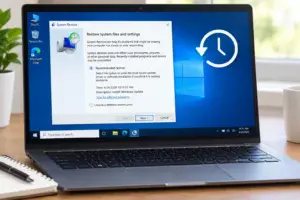
If Windows has a restore point from before the problem started, System Restore may allow you to return certain Windows system settings, drivers, and other system changes to an earlier state.
System Restore can be particularly useful when the problem began after installing software, a driver, or another system change.
Before using it, review the available restore point and the programs or drivers that may be affected.
Detailed guide: How To Use System Restore In Windows
System Restore is designed to leave your personal documents and pictures alone, but you should still review the information Windows provides before confirming the restoration.
If System Restore doesn’t solve the problem, continue to the next recovery option.
Step 9: Check for a Recent Windows Update
If the startup problem began shortly after a Windows update, you may be able to remove the most recent update through Windows Recovery.
From the Windows Recovery Environment:
- Select Troubleshoot.
- Select Advanced options.
- Select Uninstall Updates.
- Choose the available update-removal option that matches your situation.
- Follow the instructions provided by Windows.
The available options can vary depending on the update and your Windows installation.
Don’t remove updates randomly. Consider whether the timing of the update matches when the startup problem began.
If Windows starts normally but you’re having trouble with Windows Update itself, see:
How To Fix Windows Update Problems
Step 10: Check for Blue Screen Errors
A blue screen can occur when Windows encounters a serious system problem.
If you can, write down the error message or stop code displayed on the screen.
Look for patterns such as:
- The same error appearing repeatedly
- The problem beginning after a driver update
- The problem beginning after new hardware was installed
- The blue screen appearing during a particular activity
If the problem began after a driver or software change, return to Step 7: Undo a Recent Change.
If you aren’t sure what caused the blue screen, avoid making several changes at once.
Step 11: Check for Malware If There Are Other Warning Signs
Malware isn’t the cause of every startup problem, so don’t assume that a boot failure automatically means your computer has a virus.
However, malware may be worth investigating if you have also noticed:
- Unexpected pop-ups
- Browser redirects
- Unknown programs
- Disabled security features
- Unusual computer behavior
- Other unexplained problems
If Windows or Safe Mode starts, run a scan using a trusted security tool.
How To Scan Your PC for Viruses
You can also learn more about warning signs here:
Signs Your Computer May Have Malware
Avoid downloading random “PC repair” programs that claim they can instantly fix startup problems.
What If You See “No Bootable Device”?
A No Bootable Device message means the computer may not be finding the drive or boot information it needs to start Windows.
Possible causes include:
- A storage drive connection problem
- A failing storage drive
- Incorrect boot settings
- Damaged boot information
- Another hardware problem
If you recently installed or replaced a storage drive, its connection may be worth checking.
However, if you’re not comfortable opening your computer or changing BIOS/UEFI settings, professional help may be the safer choice.
Don’t randomly change BIOS/UEFI settings because doing so can create additional startup problems.
What If the Computer Is Stuck in a Boot Loop?
A boot loop happens when the computer starts, fails to load Windows, and then restarts repeatedly.
You don’t need a completely separate troubleshooting procedure for every boot loop.
Use the decision path at the beginning of this guide:
Access the Windows Recovery Environment → Startup Repair → Safe Mode → investigate recent changes → System Restore or update recovery when appropriate.
If the computer continues returning to the same recovery screen after you’ve tried the appropriate options, move to What If Windows Still Won’t Start?
What If Windows Still Won’t Start?
If the recovery options above don’t solve the problem, you may need more advanced troubleshooting.
Depending on the situation, this could include:
- Additional Windows Recovery tools
- Hardware diagnostics
- Resetting Windows
- Reinstalling Windows
- Checking the storage drive
- Professional computer repair
Don’t immediately reset or reinstall Windows.
Those options can have significant consequences for your applications, settings, and potentially your files.
If you have important files that aren’t backed up and Windows won’t start, consider professional help before performing a reset or reinstall.
Common Mistakes To Avoid
When Windows won’t start, it’s easy to panic and start trying everything at once. Avoid these common mistakes:
- Repeatedly forcing the computer off
- Randomly changing BIOS/UEFI settings
- Immediately reinstalling Windows
- Deleting unfamiliar Windows files
- Installing random repair programs
- Trying several fixes at the same time
Work through the troubleshooting path one step at a time. That makes it easier to determine what actually helped.
When Should You Get Professional Help?
Consider getting professional help if:
- Windows still won’t start after the available recovery options have been tried.
- Your storage drive may be failing.
- You hear unusual mechanical noises from a traditional hard drive.
- The computer repeatedly crashes or shuts down.
- You see a persistent boot-device error.
- You aren’t comfortable working with BIOS/UEFI or recovery tools.
- You need to recover important files before attempting repairs.
- You suspect a serious hardware problem.
If important files aren’t backed up, don’t keep trying increasingly advanced repairs without considering the risk to those files.
Frequently Asked Questions
Why won’t my computer boot?
Windows may fail to start because of an update, damaged system files, a driver problem, software, storage problems, or hardware issues.
Start by identifying where the startup process stops and then follow the matching troubleshooting path.
What’s the difference between a slow startup and a startup failure?
A slow startup eventually reaches Windows, while a startup failure prevents Windows from completing the startup process.
This guide focuses on situations where Windows cannot start normally.
Is Startup Repair safe to use?
Startup Repair is a built-in Windows recovery tool designed to address certain startup problems. Follow the instructions provided by Windows and allow the process to finish.
Will System Restore delete my personal files?
System Restore is designed to restore certain system settings, drivers, and system changes rather than your personal documents and pictures.
Review the information Windows provides before confirming a restore.
Should I reset Windows if nothing else works?
Resetting Windows is a more significant step and shouldn’t be the first thing you try.
Work through the simpler recovery options first and make sure you understand the effect a reset could have on your applications, settings, and files.
What if nothing fixes the startup problem?
If Windows still won’t start after the available recovery options have been tried, you may need advanced troubleshooting, hardware diagnostics, or professional repair.
If important files aren’t backed up, consider getting help before resetting or reinstalling Windows.
Final Thoughts
A computer that won’t start can look like a major problem, but the first thing to do is figure out where the startup process stops.
Remember these basic paths:
- No power: investigate power and hardware.
- No manufacturer’s logo: check the display and hardware connections.
- Windows logo appears but Windows won’t load: use Windows Recovery.
- Automatic Repair appears: allow it to finish, then use the recovery options.
- Safe Mode works: use it to investigate recent programs, drivers, updates, or other changes.
- A recent update caused the problem: consider the Windows update recovery options.
- A recent software or driver change caused the problem: consider reversing that change or using System Restore.
- No Bootable Device appears: investigate storage and boot configuration rather than treating it like an ordinary Windows startup problem.
Most importantly, don’t try everything at once. Follow the path that matches what you’re seeing, make one change at a time, and protect your important files before attempting major repairs.
For more Windows troubleshooting help, see: