

How to Fix Windows Search Not Working
Have you ever clicked the Windows Search box, typed what you were looking for, and watched nothing happen? Maybe the search box is missing, the Start menu won’t find your apps, or File Explorer can’t locate a document you know is on your computer.
When Windows Search stops working, even simple tasks can become frustrating. Fortunately, you can often fix the problem without reinstalling Windows or taking your computer to a repair shop.
Windows Search problems can be caused by a temporary glitch, a background service that isn’t working correctly, damaged system files, or an indexing problem. In this beginner-friendly guide, you’ll learn how to identify the issue and work through practical fixes, one step at a time.
Start Here: What Is Windows Search Doing?
First, identify the problem you’re experiencing. This helps you choose the right troubleshooting steps.
- The Search box won’t open or accept typing: Start with Steps 1–3.
- Search opens, but no results appear: Try Steps 4–6.
- File Explorer can’t find your documents: Pay particular attention to Step 6.
- Search stopped working after a Windows update: Try Step 7.
- Search freezes, crashes, or keeps closing: Work through the steps in order.
You don’t need to try every fix immediately. Start with the simplest solutions and move on if the problem continues.
Before You Begin
Take a moment to prepare:
- Save any open documents.
- Make sure your keyboard works in another application.
- Check whether you can open Settings and other Windows applications.
- If the problem started recently, think about any updates or software changes that happened around the same time.
If other parts of Windows are also freezing or crashing, the problem may be broader than Search. In that case, you may also find How to Troubleshoot Common Windows Problems helpful.
Step 1: Restart Your Computer
Estimated time: 2–5 minutes
A temporary Windows glitch can sometimes stop Search from responding. Restarting gives Windows a chance to reload the components it needs.
- Save your work and close open applications.
- Open the Start menu.
- Select the Power button.
- Choose Restart.
- After Windows loads, click Search and try entering a familiar word, such as Notepad.
You should see: Search opening normally and displaying relevant results.
If Search still doesn’t work, continue to Step 2.
Step 2: Check the Search Box and Keyboard
Estimated time: 2–5 minutes
Before changing Windows settings, make sure the problem isn’t related to the keyboard or the way you’re opening Search.
- Click the Search icon or box on the taskbar.
- Type a short word or the name of an installed application.
- If nothing appears, open Notepad and test whether your keyboard can type there.
- If your keyboard works in Notepad, try opening Search with the Windows key + S keyboard shortcut.
- If the shortcut doesn’t work, open the Start menu and look for its search field.
The exact Search layout can vary between Windows 10 and Windows 11 and may depend on your taskbar settings.
You should see: A Search field that accepts your typing.
If typing works elsewhere but Search doesn’t respond, continue to Step 3.
Step 3: Restart Windows Search
Estimated time: 3–5 minutes
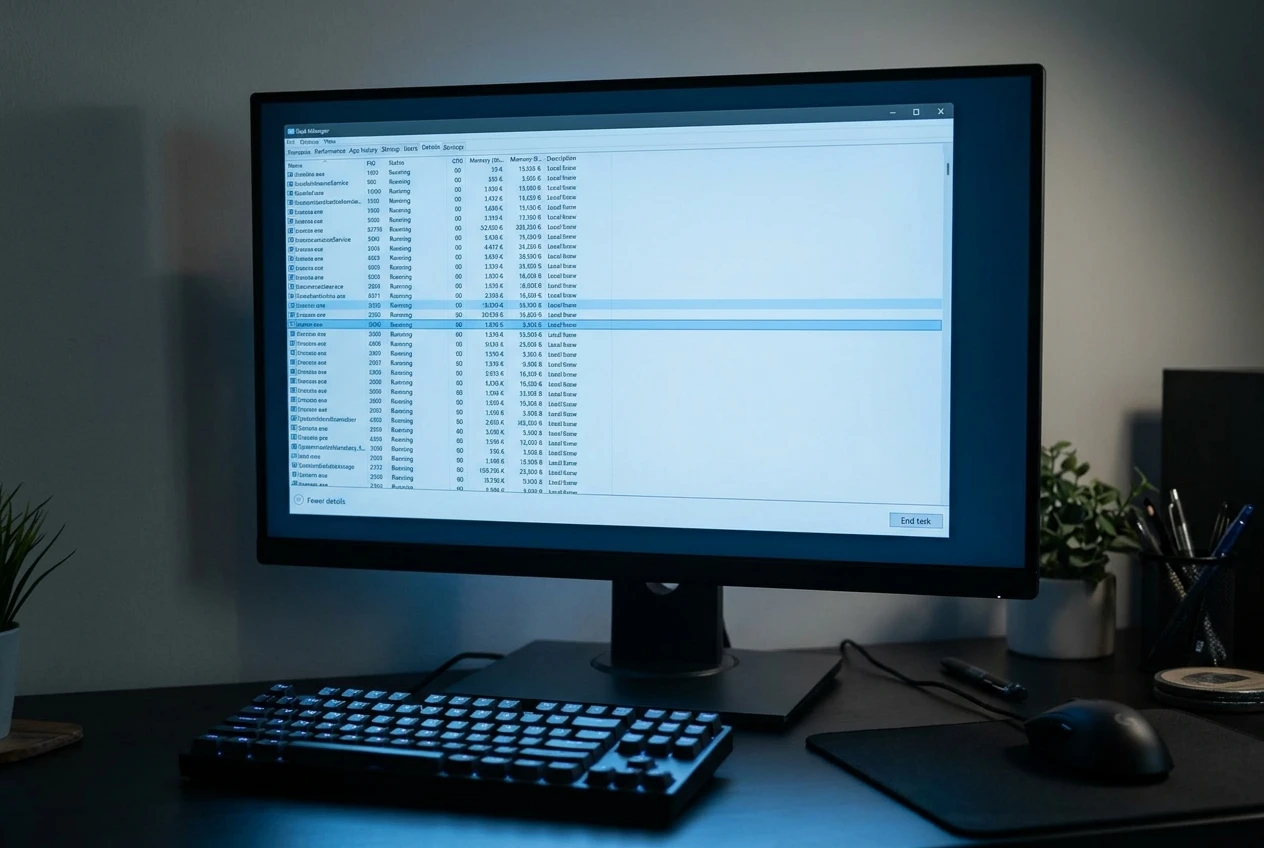
Windows uses background components to provide Search. Restarting the relevant process may resolve a temporary problem without changing your personal files.
- Press Ctrl + Shift + Esc to open Task Manager.
- If Task Manager opens in a simplified view, select the option to show more details.
- Select the Details tab.
- Look for SearchHost.exe (commonly used in Windows 11) or SearchApp.exe (used in some Windows 10 versions).
- If you find the appropriate process, right-click it and select End task.
- Close Task Manager and try opening Windows Search again.
Windows should automatically restart the Search process when needed.
Important: Don’t end unfamiliar processes just because their names look related to Windows. If you can’t find either process or aren’t sure which one to select, skip this step rather than guessing.
If Search still doesn’t respond, try the next fix.
Step 4: Check the Windows Search Service
Estimated time: 5–10 minutes
Windows includes a background service that supports search indexing. If the service isn’t running properly, search results may be delayed or missing.
- Press Windows + R to open the Run dialog.
- Type
services.mscand press Enter. - Find Windows Search in the list.
- Double-click it to open its properties.
- Check the service status.
If the service is stopped and the Start option is available, select Start. If it is already running, you can try selecting Restart, if available.
Leave the startup type at its existing setting unless you have a specific reason to change it. On some systems, organizational policies or Windows configuration may affect the available options.
Close the Services window and test Search again.
If the service displays an error or won’t start, make a note of the message. It may help identify a deeper Windows problem.
Step 5: Check Windows Search Permissions and Settings
Estimated time: 5–10 minutes
Sometimes Search works, but it cannot find certain files because of the way Windows is configured to search.
- Press Windows + I to open Settings.
- Open the Windows Search settings for your version of Windows:
- Windows 11: Select Privacy & security → Searching Windows.
- Windows 10: Select Search → Searching Windows.
- Review the available search options to see which folders Windows includes in its search index.
- If you’re looking for personal documents, check whether their folders are included in the indexed locations.
- If necessary, review the available options for adding locations or expanding where Windows searches.
You should see: Settings that allow you to review where Windows searches for files and whether certain folders are excluded.
Windows versions offer different search options, including settings that affect whether more locations are indexed.
For example, if your documents are stored in a folder that isn’t being indexed, a search may not return them as quickly or consistently as expected. You may need to adjust the indexing locations rather than repair the Search box itself.
Test Search again after making any relevant change.
Step 6: Rebuild the Windows Search Index
Estimated time: 10–30 minutes or longer
If Search opens but misses files or returns incomplete results, the search index may need to be rebuilt.

The index is a catalog Windows uses to find information more quickly. Rebuilding it can help when the catalog is damaged or incomplete. It does not normally delete your documents, but indexing may take time to finish.
- Open the Start menu and search for Indexing Options. If Search itself isn’t working, open Control Panel and look for Indexing Options there.
- Open Indexing Options.
- Select Advanced, if available.
- Under the troubleshooting section, select Rebuild.
- Confirm your choice if Windows asks you to do so.
- Allow Windows time to rebuild the index.
The number of files and the speed of your computer affect how long this takes. Search results may remain incomplete while indexing is in progress.
You should see: Search gradually returning more complete results as Windows finishes rebuilding the index.
If the issue involves only the Start menu or Search interface, rebuilding the index may not solve it. Continue to the next step if the problem persists.
Step 7: Check for Windows Updates
Estimated time: 10–30 minutes or longer
An update can sometimes fix a Windows bug or address a compatibility problem affecting Search.
- Open Settings.
- Select Windows Update.
- Choose Check for updates.
- Review the available updates and install appropriate updates.
- Restart your computer if Windows requests it.
- Test Search again.
If Search stopped working immediately after a particular update, don’t start uninstalling updates at random. First review your update history and consider whether the timing points to a specific update.
For more detailed instructions, see How To Fix Windows Update Problems.
Step 8: Repair Windows System Files
Estimated time: 15–30 minutes
If Search still doesn’t work, damaged Windows system files may be contributing to the problem. Windows includes built-in tools that can scan for and repair certain types of system file damage.
Use these commands only if you can open an administrator terminal and Windows is stable enough to complete the process.

- Right-click the Start button.
- Select Terminal (Admin) or Command Prompt (Admin), depending on your Windows version.
- Approve the permission prompt if it appears.
- Enter this command and press Enter:
DISM /Online /Cleanup-Image /RestoreHealth - Wait for the command to finish. It may take several minutes.
- Enter the following command and press Enter:
sfc /scannow - Wait for the scan to complete, then restart your computer.
- Test Windows Search again.
DISM checks and repairs the Windows component store used for system repairs. System File Checker checks protected Windows system files and attempts to repair damaged versions.
Important: While DISM is running, the progress percentage may appear to stop moving for several minutes. This doesn’t necessarily mean the repair has frozen. Give the tool time to finish, and avoid closing the terminal or restarting your computer while the repair is still running. Depending on your computer and the condition of Windows, the process may take longer than expected.
If a command reports that it could not complete the repair, note the message rather than repeatedly running commands without understanding the result.
What If Windows Search Still Doesn’t Work?
If you’ve tried the relevant steps and Search remains broken, avoid repeating the same fixes over and over.
Instead, narrow down the problem:
- If Search is the only feature that doesn’t work, the issue may be limited to Search settings, indexing, or its related components.
- If the Start menu and other Windows features also fail, a wider Windows problem may be involved.
- If the problem began after a recent system change, consider whether that change can be safely reversed.
- If Windows is unstable or several features are failing, back up important files before attempting more advanced repairs.
If the issue started after a major system change and other fixes have failed, How To Use System Restore in Windows explains how to return Windows system settings to an earlier restore point, when one is available.
System Restore is not a guaranteed fix, and it may affect applications, drivers, or updates installed after the selected restore point. Review the implications before proceeding.
Common Mistakes to Avoid
When fixing Windows Search, keep these common mistakes in mind:
- Rebuilding the index too soon: Start with simpler checks if Search won’t even open.
- Changing several settings at once: Make one change, then test Search so you can tell what helped.
- Ending unfamiliar processes: Only restart processes you can identify confidently.
- Downloading unofficial repair tools: Avoid unknown utilities that promise to fix every Windows problem.
- Interrupting indexing: Give Windows time to finish rebuilding the index before judging the result.
- Resetting Windows unnecessarily: A reset is a much bigger step and can remove applications or affect personal files, depending on the option selected.
When Should You Get Professional Help?
Most basic Search problems are worth troubleshooting yourself. However, consider getting help if:
- Search and the Start menu both remain unresponsive.
- Windows repeatedly freezes or crashes.
- System repair tools report errors that you cannot resolve.
- Search fails alongside other signs of serious system corruption.
- You are uncomfortable using administrator tools or changing Windows settings.
A technician can investigate whether the cause is related to Windows, a damaged user profile, software conflicts, or a more extensive system problem.
Frequently Asked Questions
Why does Windows Search open but show no results?
Possible causes include incomplete indexing, search settings, or a problem with a Windows Search component. Check the search locations and consider rebuilding the index if files are missing from results.
Will rebuilding the search index delete my files?
No. Rebuilding the index normally recreates Windows’ catalog of searchable information rather than deleting the original documents. Search results may be incomplete until indexing finishes.
Why does Windows Search stop working after an update?
An update may introduce a temporary bug or compatibility issue, although the timing alone doesn’t prove that the update caused the problem. Restart Windows, check for further updates, and review the update history if the issue continues.
Can I use Windows without Search?
Yes. You can still open applications through the Start menu, taskbar, File Explorer, or other available shortcuts. However, fixing Search can make everyday tasks much easier.
Final Thoughts
When Windows Search stops working, begin with the simple fixes: restart your computer, check your keyboard, and see whether the Search process or service needs attention. If Search opens but cannot find files, review the search settings and indexing options. If the problem continues, Windows updates and system repair tools may help.
Work through the steps one at a time, and don’t make major changes unless you understand what they do. With a little patience, you may be able to restore Search without resetting Windows or losing your installed applications.
For more help with common Windows problems, visit the Beginner’s Guide to Windows Troubleshooting.