
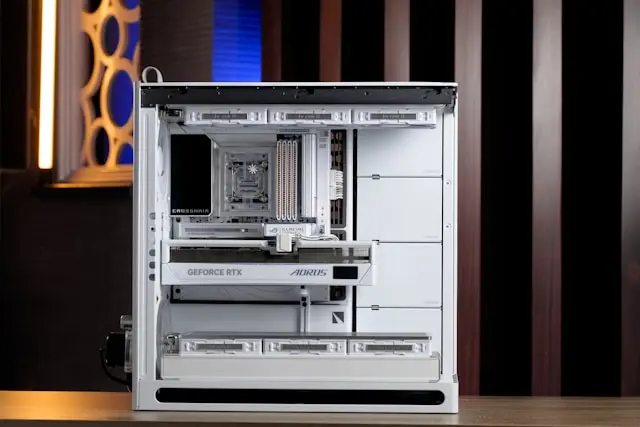
Upgrading Your Graphics Card: What You Need to Know
Introduction
Upgrading your graphics card (GPU) is one of the most exciting upgrades you can make to your PC. It’s often the single change that delivers the biggest performance boost—especially for video editing, 3D design, and even everyday tasks like running multiple high-resolution monitors.
At the same time, GPU upgrades can feel overwhelming. There are countless models, confusing specs, rising prices, and concerns about compatibility. The good news? You don’t need to be a hardware expert to make a smart upgrade decision.
This guide walks you through when it’s time to upgrade, how to choose the right graphics card, how to install and configure it properly, and how to get the most performance out of your new GPU—without unnecessary stress or technical jargon.
When Is It Time to Upgrade Your GPU?
Not every performance issue means you need a new graphics card, but there are clear signs when an upgrade makes sense.
One of the most obvious signs is poor gaming performance. If modern games struggle to run smoothly even on low settings, your GPU may no longer be keeping up. Frequent stuttering, low frame rates, or long loading times are common indicators.
Another sign is limited support for newer features. Older GPUs may not support technologies like ray tracing, DLSS, or modern video codecs. This can affect both gaming visuals and productivity tasks like video playback or streaming.
You might also consider upgrading if you’re moving to a higher-resolution display. A GPU that handled 1080p gaming well may struggle at 1440p or 4K. Higher resolutions demand significantly more graphical power.
For non-gamers, signs include slow performance in creative apps, lag during video editing, or poor rendering speeds. Even casual users may benefit from an upgrade if they rely on multiple monitors or hardware-accelerated applications.
If your GPU is several generations old and no longer receiving driver updates, that’s another strong reason to consider upgrading. Driver support helps with performance, stability, and security.
Choosing the Right Graphics Card for Your Needs
Choosing the right GPU starts with understanding how you actually use your PC. The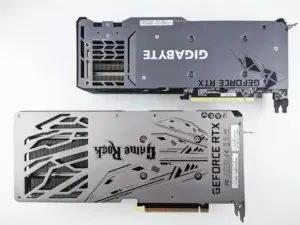 “best” graphics card isn’t always the most expensive one—it’s the one that fits your needs and budget.
For casual gamers or everyday users, mid-range GPUs are often more than enough. These cards handle popular games at 1080p or 1440p smoothly and offer excellent value.
For enthusiast gamers, higher-end GPUs provide better performance at high resolutions and enable advanced features like ray tracing. These cards are ideal for ultra settings and high refresh rate monitors.
Content creators should look at GPUs with strong performance in rendering, encoding, and software acceleration. VRAM capacity matters here—more memory helps with large projects and textures.
Compatibility is just as important as performance. Make sure your power supply can handle the new GPU’s wattage requirements. Many modern GPUs need additional power connectors and a higher-quality PSU.
Also check physical size. Some graphics cards are quite large and may not fit in smaller cases. Measure your case clearance before buying.
Finally, set a realistic budget. GPU prices can vary widely, and diminishing returns are real. Spending more doesn’t always mean dramatically better performance for your use case.
Installing and Configuring Your New GPU
Installing a new graphics card is usually straightforward, even for beginners, as long as you take your time.
Before starting, power off your PC, unplug it, and ground yourself to avoid static damage. Remove the side panel and locate your current GPU.
If you’re replacing an old card, disconnect the power cables, release the PCIe slot latch,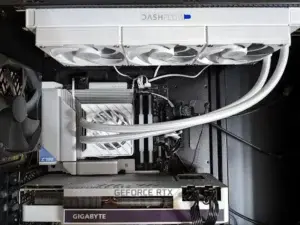 and gently remove it. Then insert the new GPU firmly into the slot until it clicks into place.
Connect the required power cables and secure the card to the case. Double-check that everything is seated properly before closing the case.
Once powered on, install the latest drivers directly from the manufacturer’s website. Avoid using generic drivers when possible—they often lack performance optimizations.
After installation, check display settings to ensure your monitor is running at the correct resolution and refresh rate. Many users forget this step and miss out on smoother performance.
If you encounter issues like no display or crashes, recheck cable connections and ensure your PSU is sufficient for the new GPU.
Maximizing the Performance of Your New GPU
Getting a new GPU is exciting—but there are a few extra steps you can take to make sure you’re getting the most out of it.
Start by keeping drivers up to date. Manufacturers regularly release updates that improve performance, fix bugs, and optimize new games.
Adjust in-game settings instead of maxing everything out. Balancing settings like shadows, textures, and anti-aliasing often delivers better performance with minimal visual difference.
Monitor temperatures and airflow. A GPU that runs too hot may throttle performance. Good case airflow and clean fans make a noticeable difference.
Enable performance-enhancing features like DLSS or FSR when available. These technologies boost frame rates without sacrificing image quality.
For advanced users, light overclocking can provide extra performance, but it’s optional. Stability and cooling should always come first.
Finally, make sure the rest of your system isn’t holding you back. A powerful GPU paired with an outdated CPU or slow memory can create bottlenecks that limit performance gains.
Conclusion
Upgrading your graphics card is one of the most impactful ways to improve your PC’s performance, whether you’re gaming, creating content, or just enjoying a smoother everyday experience.
By understanding when an upgrade makes sense, choosing the right GPU for your needs, installing it correctly, and optimizing performance afterward, you can avoid common pitfalls and get real value from your investment.
Have you recently upgraded your GPU—or are you thinking about it? Share your experience, questions, or tips in the comments below. Let’s help each other build better, faster PCs!