

How to Install Free Antivirus Software (Step-by-Step Guide)
Introduction
If you’re new to computers, installing antivirus software might sound a little intimidating—but don’t worry, it’s actually one of the easiest and safest things you can do to protect your PC.
In this guide, I’ll walk you through exactly how to install free antivirus software step by step, using simple instructions that anyone can follow. You don’t need any technical experience, and I’ll point out what to expect along the way so nothing catches you off guard.
This guide is perfect for:
- Beginners with little or no computer experience
- Anyone setting up a new PC
- Anyone who wants basic protection without paying
By the end, your computer will be protected and you’ll feel much more confident doing it yourself.
What You’ll Need
Before we start, here’s everything you’ll need:
- A computer with an internet connection
- A web browser (like Chrome or Edge)
- About 10–15 minutes of time
👉 That’s it—no special tools required.
Step-by-Step Instructions
1. Open your web browser
Click on your browser icon (such as Chrome, Edge, or Firefox).
2. Go to the official antivirus website
In the address bar, type the name of a free antivirus like “Avast Free Antivirus” or “AVG Free Antivirus” and open the official website.
👉 Make sure it says “official site” to avoid fake downloads.
3. Click the free download button
Look for a button that says something like “Free Download” and click it.
👉 Your download should start automatically.
4. Wait for the file to finish downloading
Give it a minute or two depending on your internet speed.
👉 You should see the file appear at the bottom of your browser or in your Downloads folder.
5. Open the downloaded file
Click the downloaded file to start the installer.
👉 You may see a security prompt—this is normal.
6. Click “Yes” on the security prompt
If a window pops up asking “Do you want to allow this app to make changes?”, click Yes.
7. Follow the installation prompts
Click Install or Next when prompted.
👉 Keep it simple—default settings are fine for beginners.
8. Wait for the installation to complete
The software will install automatically.
👉 Your screen may flicker or pause briefly—this is normal.
9. Launch the antivirus program
Once installed, the program should open automatically.
👉 If not, you can find it in your Start menu.
10. Run your first scan
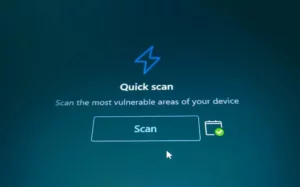
Click the option for a Smart Scan or Full Scan.
👉 You should see a progress bar as it checks your computer.
What to Expect
Here’s what you’ll likely notice during the process:
- A download bar appearing in your browser
- A pop-up asking for permission to install
- The installer window guiding you through setup
- A scan that may take a few minutes
👉 During the scan, your computer might slow down slightly—that’s normal.
Common Problems and Easy Fixes
Problem: Download won’t start
Fix:
- Check your internet connection
- Refresh the page and try again
Problem: “Blocked download” warning
Fix:
- Make sure you’re on the official website
- Click “Keep” or “Allow” if you trust the source
Problem: Installation won’t open
Fix:
- Double-click the file again
- Restart your computer and try again
Problem: Antivirus won’t install
Fix:
- You may already have antivirus installed
- Uninstall the old one first, then try again
Problem: Scan is taking too long
Fix:
- This is normal for the first scan
- Let it finish for best results
Quick Tips for Beginners
✅ Performance Tips
- Run scans when you’re not using your computer
- Avoid installing multiple antivirus programs (it can slow things down)
🔒 Safety Tips
- Only download antivirus from official websites
- Keep your antivirus updated regularly
- Run scans at least once a week
⚠️ Common Mistakes to Avoid
- Clicking ads instead of the real download button
- Installing more than one antivirus program
- Skipping updates after installation
Conclusion
That’s it—you’ve just installed free antivirus software on your computer!
You:
- Downloaded a trusted antivirus program
- Installed it step by step
- Ran your first scan
- Took an important step toward protecting your PC
That’s a big win, especially if you’re just getting started.
If you have any questions, ran into issues, or want to share your experience, feel free to reach out or leave a comment. I’d love to hear how it went for you!