

How To Perform Browser Maintenance
A Beginner-Friendly Guide to Keeping Your Browser Fast and Secure
Your web browser is one of the most used programs on your computer. From checking email and paying bills to watching videos and working online, it does a lot of heavy lifting every day. Over time, though, browsers can slow down, act strangely, or become less secure if they aren’t properly maintained.
The good news is that browser maintenance is simple and doesn’t require technical skills. Let’s walk through the most important steps you can take to keep your browser running smoothly.
1. Why Browser Maintenance Matters
Most people install a browser and never think about it again. While that works for a while, small issues slowly build up in the background.
Browsers store temporary files, website data, and preferences every time you visit a site. Over time, this can lead to slower load times, freezing tabs, and higher memory usage. You might also notice websites not displaying correctly or crashing more often.
Security is another major reason to perform browser maintenance. Outdated browsers and extensions can contain vulnerabilities that put your personal data at risk. Regular maintenance helps protect your privacy and keeps your browser performing at its best.
2. Cleaning Up Your Browser: Cache, Cookies, and Extensions
One of the most effective ways to improve browser performance is by cleaning out stored
data.
Cached files help websites load faster, but when they pile up or become outdated, they can actually cause problems. Clearing cache can fix broken websites and improve speed.
Cookies store login details and site preferences. Clearing them occasionally can remove clutter, though you may need to log back into some websites afterward.
Extensions are useful, but too many can slow your browser down or create security risks. Review your extensions regularly and remove anything you don’t use or recognize. If an extension asks for excessive permissions, it’s best to uninstall it.
3. Keeping Your Browser Secure and Up to Date
Browser updates are often ignored, but they are critical for both security and performance.
Updates typically include:
- Security patches
- Bug fixes
- Performance improvements
Most browsers update automatically, but it’s still smart to check occasionally to make sure updates are enabled.
You should also review your browser’s security and privacy settings. Look at which websites have access to your camera, microphone, and location, and remove permissions you no longer need. Enabling built-in protection against phishing and malicious websites adds another layer of safety.
4. Optimizing Browser Performance for Everyday Use
Your browsing habits play a big role in how well your browser performs.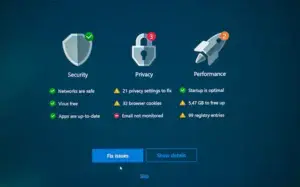
Having too many tabs open at once can use a lot of memory and slow down your entire system. Closing unused tabs and limiting what opens automatically at startup can noticeably improve speed.
If your browser continues to behave poorly even after basic maintenance, resetting it to default settings may help. A reset removes harmful settings, disables problematic extensions, and restores performance. This should be used as a last resort, but it can be very effective.
5. How to Clear Navigation History
Your browser keeps a record of websites you visit, known as navigation or browsing history. While this helps with autofill and quick access, it can also slow things down and raise privacy concerns over time.
Clearing navigation history can:
- Improve browser responsiveness
- Clean up address bar suggestions
- Protect privacy on shared computers
Most users only need to clear history once a month or when troubleshooting website issues. If you don’t want history saved at all, private or incognito browsing modes are a great alternative for temporary sessions.
Final Thoughts — Let’s Talk About It
Browser maintenance doesn’t have to be complicated. Clearing cache and cookies, managing extensions, keeping your browser updated, optimizing daily usage, and cleaning up navigation history can all make a big difference with very little effort.
Now I’d love to hear from you:
- Which browser do you use most?
- How often do you perform browser maintenance?
- Have you noticed better performance after doing a cleanup?
Leave a comment and join the discussion — your experience might help someone else keep their browser running smoothly and securely.