
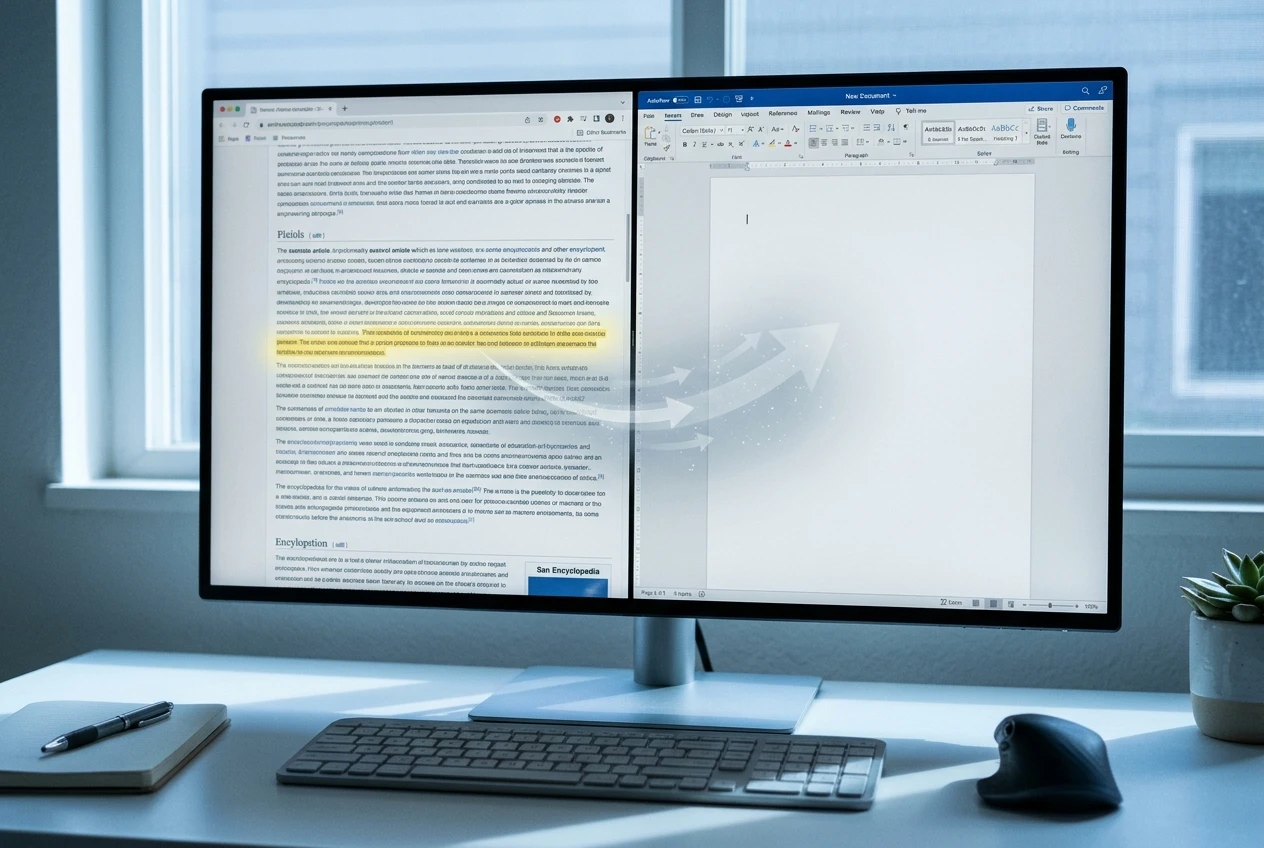
Have you ever copied something on your computer, tried to paste it somewhere else, and found that nothing happened?
Maybe you’re copying text from a website into a document, moving information between programs, or trying to use clipboard history to find something you copied earlier.
When copy and paste suddenly stop working, even simple computer tasks can become frustrating.
Fortunately, a clipboard problem doesn’t necessarily mean something is seriously wrong with Windows.
The problem could involve a temporary software glitch, disabled clipboard history, an application that isn’t responding, or a problem with clipboard synchronization.
As a computer repair specialist, I recommend starting with the simplest solutions before making more complicated changes.
In this beginner-friendly guide, I’ll show you how to fix Windows clipboard not working in Windows 10 and Windows 11.
What Is the Windows Clipboard?
The Windows clipboard temporarily stores information you copy or cut so you can paste it somewhere else.
For example, when you highlight a sentence and press Ctrl + C, Windows places that information on the clipboard.
You can then press Ctrl + V to paste it into another location.
Windows also includes an optional feature called Clipboard history, which lets you access multiple recently copied items using Windows Key + V.
It’s important to understand that ordinary copy and paste can work even when clipboard history is turned off.
If you’re experiencing other Windows problems, my Beginner’s Guide to Windows Troubleshooting covers additional solutions.
Common Signs Your Windows Clipboard Isn’t Working
You might experience one or more of these problems:
- Copying text works, but pasting does nothing.
- Ctrl + C or Ctrl + V doesn’t respond.
- Clipboard history won’t open.
- Copied items don’t appear in clipboard history.
- Clipboard history keeps losing saved items.
- Copy and paste work in some applications but not others.
- Clipboard synchronization isn’t working between devices.
- Pasting inserts old information instead of what you just copied.
These problems can have different causes, so identifying the symptoms will help you choose the right solution.
Before You Start
Estimated time: 10–20 minutes for basic troubleshooting.
What you’ll need:
- A computer running Windows 10 or Windows 11.
- A working keyboard and mouse.
- Access to Windows Settings.
- Notepad or another simple text editor for testing.
You won’t need special software or advanced technical knowledge.
Important: If you’ve copied something important that hasn’t been saved elsewhere, paste it into a document before restarting Windows or clearing clipboard history.
Follow the steps in order and test the clipboard after each one.
Step 1: Test Copy and Paste in Notepad
Before changing Windows settings, find out whether the problem affects the entire clipboard or just one application.
Notepad is useful because it provides a simple place to test copying and pasting text.
- Click Start.
- Type Notepad.
- Open the application.
- Type:
Testing Windows Clipboard - Highlight the text.
- Press Ctrl + C.
- Click on a blank line.
- Press Ctrl + V.
You should see: The same text appear on the new line.
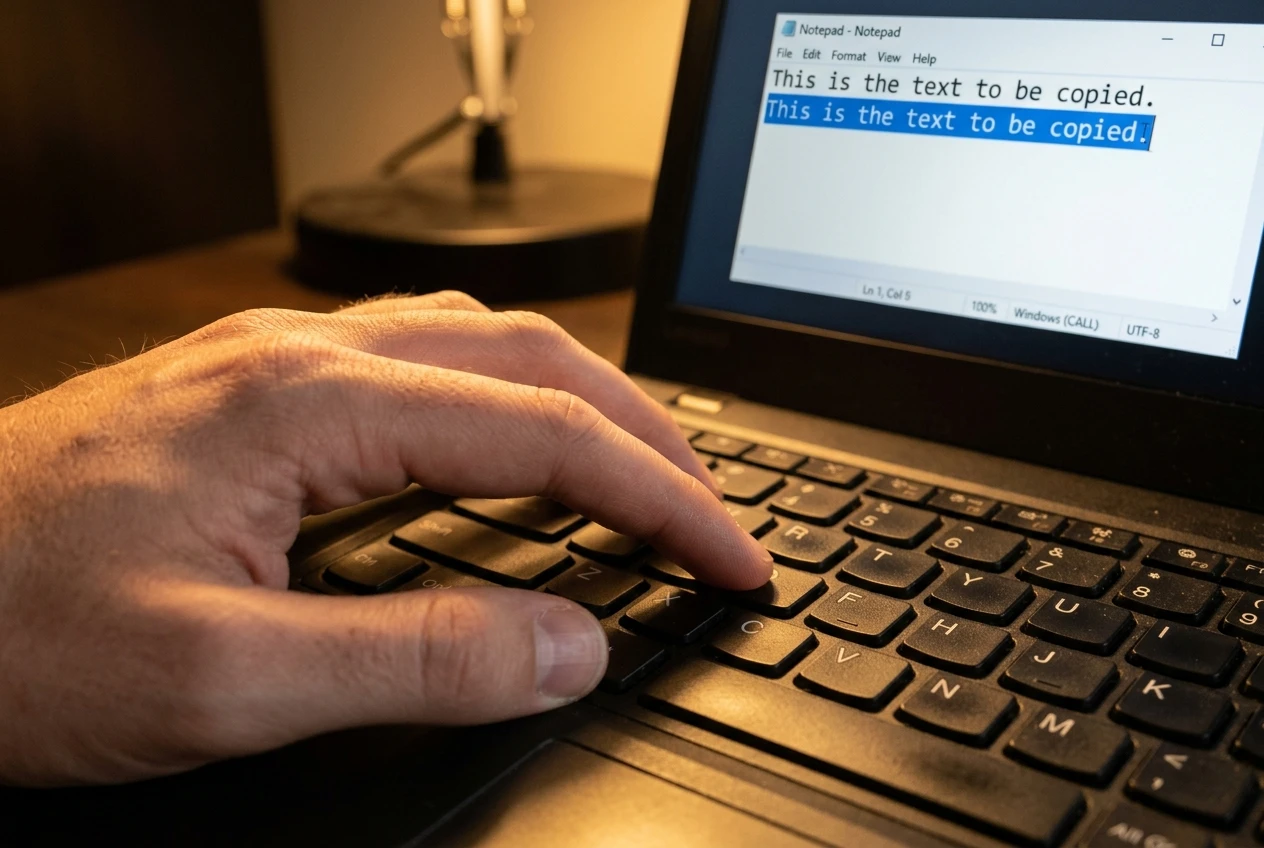
If copying and pasting work in Notepad, the clipboard is probably functioning for basic text operations.
The problem may involve a particular application, website, or type of content.
If nothing appears, continue to the next step.
Step 2: Try Copying and Pasting With Your Mouse
Sometimes the clipboard works normally, but a keyboard shortcut isn’t responding.
You can test this by using the right-click menu instead.
- Open Notepad.
- Type a short sentence.
- Highlight the sentence.
- Right-click the selected text.
- Select Copy.
- Click on a blank line.
- Right-click again.
- Select Paste.
You should see: The copied sentence appear where you selected Paste.
If the mouse method works but the keyboard shortcuts don’t, the problem may involve your keyboard or another program intercepting the shortcuts.
Check whether the Ctrl key works with other commands.
If neither method works, continue troubleshooting.
Step 3: Restart the Application You’re Using
Sometimes copy and paste stop working because an application has become unresponsive.
This is especially likely when the clipboard works in Notepad but fails in another program.
Try restarting the affected application.
- Save your work.
- Close the application.
- Wait a few seconds.
- Open the application again.
- Try copying and pasting.
You should see: The application reopen and respond normally.
If the problem occurs only in one program, check whether that application has updates available.
You can also try copying a small amount of plain text instead of a large image or formatted document.
If the application itself keeps freezing or crashing, see my guide to fixing Windows apps that won’t open for related troubleshooting.
Step 4: Make Sure Clipboard History Is Enabled
If ordinary copy and paste work but Windows Key + V doesn’t display your copied items, clipboard history may be turned off.
Clipboard history is optional and must be enabled before Windows can maintain a list of recent items.
Here’s how to check.
- Press Windows Key + I to open Settings.
- Select System.
- Click Clipboard.
- Find Clipboard history.
- Turn it On if it’s disabled.
- Copy a short sentence.
- Press Windows Key + V.
You should see: A clipboard history window containing your recently copied text.
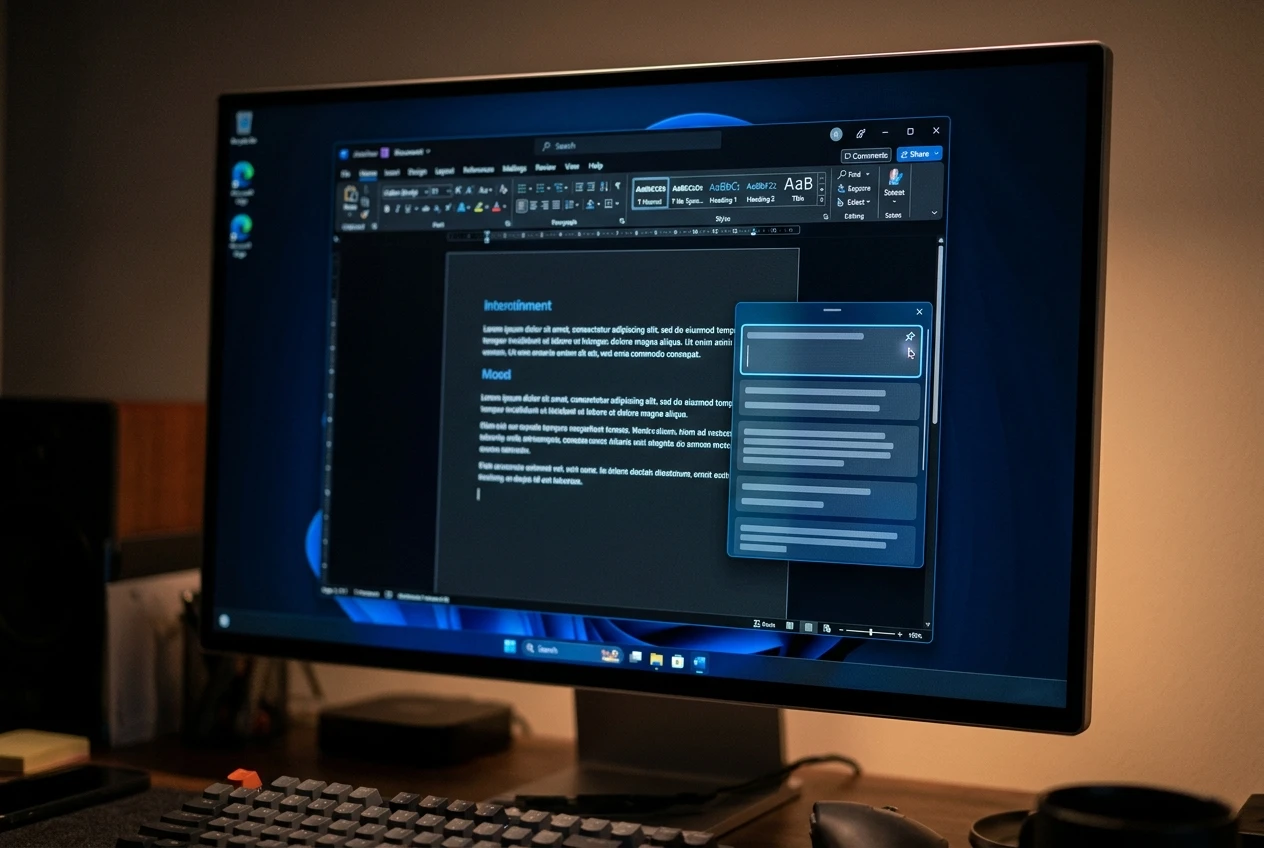
You can also press Windows Key + V first and select Turn on if Windows offers that option.
If clipboard history was disabled, turning it on won’t recover items copied before it was enabled.
If Settings refuses to open, see my guide to fixing Windows Settings not opening.
Step 5: Clear Clipboard History
Sometimes clipboard history contains old information you no longer need.
Clearing it gives you a fresh list of copied items and can help you test whether new entries are being recorded.
If ordinary copy and paste work normally and you’re only experiencing problems with clipboard history, this step may help.
Important: Clearing clipboard history removes saved clipboard entries except pinned items. Make sure you no longer need the information before continuing.
- Open Settings.
- Select System.
- Click Clipboard.
- Find Clear clipboard data.
- Click Clear.
- Open Notepad.
- Copy a short sentence.
- Press Windows Key + V.
You should see: Your newly copied sentence appear in clipboard history.
You can also clear clipboard history from the Windows Key + V window using its available Clear all option.
Clearing clipboard history isn’t guaranteed to repair a clipboard problem, but it’s a useful way to start with a clean history.
Step 6: Restart Your Computer
If the clipboard still isn’t working, restart Windows.
A temporary software problem or background application may be interfering with copying and pasting.
Restarting Windows can clear temporary process problems.
- Save your open documents.
- Click Start.
- Select Power.
- Click Restart.
- Wait for Windows to restart.
- Open Notepad.
- Test copying and pasting again.
You should see: Copy and paste work normally if the problem was caused by a temporary Windows glitch.
Remember that restarting Windows normally clears unpinned clipboard history entries.
If the problem continues, move to the next step.
Step 7: Check Whether Clipboard History Is Losing Items Normally
Sometimes clipboard history appears broken because older entries disappear.
However, Windows doesn’t store an unlimited number of copied items.
Clipboard history can store up to 25 entries, and older unpinned entries are removed as new ones are added.
Clipboard history also has a size limit of 4 MB per item and supports text, HTML, and bitmap images.
If you copy a large image or an unsupported type of content, it may not appear in clipboard history even though ordinary copy and paste still work.
To check whether clipboard history is working:
- Open Notepad.
- Copy a short sentence.
- Press Windows Key + V.
- Look for the sentence you copied.
If it appears, clipboard history is recording supported content.
How to Keep an Important Clipboard Item
You can pin frequently used items so they remain available after a restart.
- Press Windows Key + V.
- Find the item you want to keep.
- Open its More options menu if necessary.
- Select Pin.
You should see: The item marked as pinned.
Pinned items remain in clipboard history until you unpin or remove them.
Quick tip: Clipboard history isn’t a substitute for saving important information in a document or another permanent location.
Step 8: Check Clipboard Synchronization
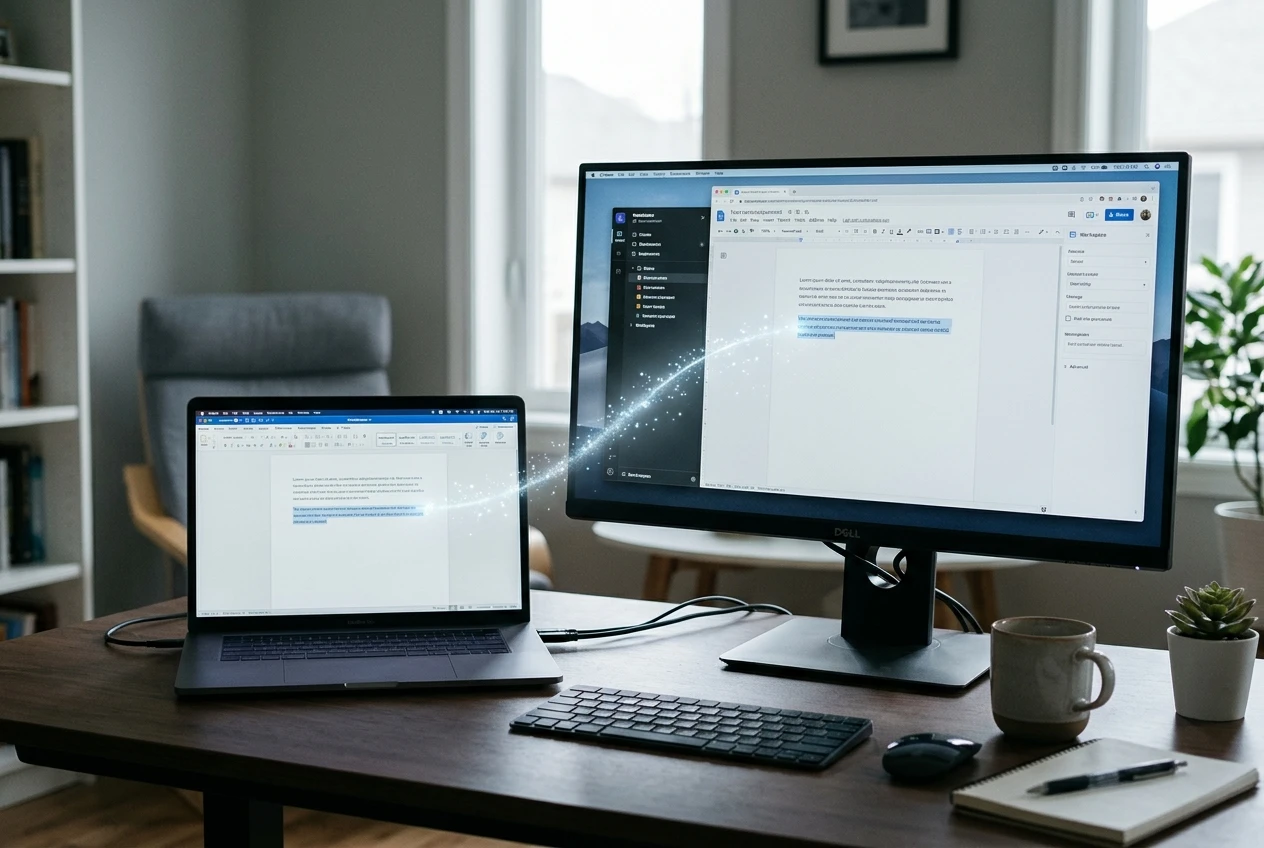
Windows can synchronize supported clipboard items between compatible devices.
However, this feature must be enabled and configured correctly.
If copying and pasting work on your computer but clipboard items don’t appear on another device, check synchronization settings.
- Open Settings.
- Select System.
- Click Clipboard.
- Find the clipboard synchronization option.
- Enable it if you want to use the feature.
- Follow any account sign-in instructions.
In Windows 11, the setting may be labeled Clipboard history across your devices.
In Windows 10, look for Sync across devices.
Make sure you’re signed in with the same Microsoft account or supported work account on both computers. If you’re using a work or school computer, your organization’s settings may restrict clipboard synchronization.
Depending on your settings, you may need to select whether text is synchronized automatically or manually.
You should see: Clipboard synchronization enabled, allowing supported text items to be shared between compatible devices.
Privacy reminder: Clipboard synchronization can send copied text through Microsoft’s cloud services. Avoid synchronizing passwords, financial details, or other sensitive information.
If you don’t use clipboard synchronization, you can leave this feature turned off.
Step 9: Check for Recently Installed Clipboard Software
Some applications can monitor or modify clipboard activity.
Examples include clipboard managers, keyboard utilities, and certain remote-access programs.
If clipboard problems began after installing one of these applications, it may be worth investigating.
- Think about when the problem started.
- Identify any recently installed clipboard or keyboard utilities.
- Check whether those applications are running.
- Review their settings for clipboard-related features.
- Temporarily close a suspected application if it’s safe to do so.
- Test copy and paste again.
You should see: Copy and paste return to normal if a conflicting application was responsible.
Don’t uninstall unfamiliar software or disable Windows services randomly.
If you’re unsure what an application does, research it before making changes.
Step 10: Check for Windows Updates
If clipboard problems continue, check whether Windows has updates available.
Windows updates can include fixes for system features and compatibility problems.
- Open Settings.
- Select Windows Update in Windows 11.
- In Windows 10, select Update & Security, then Windows Update.
- Click Check for updates.
- Install applicable updates.
- Restart if Windows requests it.
- Test the clipboard again.
You should see: Windows complete the update process and report its update status.
If Windows Update isn’t working correctly, see my guide to fixing Windows Update problems.
Note: Standard support for Windows 10 ended on October 14, 2025. Devices without an applicable extended support arrangement no longer receive ordinary free security updates.
Common Windows Clipboard Problems and Quick Fixes
Ctrl + C and Ctrl + V Don’t Work
Try copying and pasting with your mouse.
If the mouse method works, investigate your keyboard shortcuts or software that may be interfering with them.
Windows Key + V Doesn’t Open Clipboard History
Check whether clipboard history is enabled under Settings > System > Clipboard.
Clipboard History Is Empty
Copy a new sentence from Notepad and check again.
Remember that restarting Windows clears unpinned history entries.
Copy and Paste Work in One Program but Not Another
Restart the affected application and try copying plain text.
The issue may involve that program rather than Windows.
Pasting Inserts Old Information
Try copying a new sentence in Notepad and pasting it immediately.
If the correct text appears, the problem may involve the original application rather than Windows.
If old information continues to appear, restart the affected application and check whether a clipboard manager or another background program is interfering with copying and pasting.
Clipboard Items Won’t Sync Between Computers
Check synchronization settings, account sign-in information, and internet connectivity.
Clipboard synchronization supports particular content types and isn’t designed to transfer every type of copied information.
Common Mistakes to Avoid
Clearing Important Clipboard Items
Before clearing clipboard history, make sure you’ve saved anything you need.
Unpinned items removed from clipboard history generally can’t be recovered through the clipboard interface.
Assuming Clipboard History Is Required for Copy and Paste
You don’t need clipboard history enabled to use ordinary Ctrl + C and Ctrl + V commands.
These are separate features.
Installing Random Clipboard Repair Tools
Avoid downloading unfamiliar programs that promise to fix every clipboard problem.
Windows already includes tools and settings that can help you identify common issues.
Making Too Many Changes at Once
Test one solution at a time.
Changing several settings simultaneously makes it harder to identify what fixed the problem.
Frequently Asked Questions
Why Is Copy and Paste Not Working in Windows?
Copy and paste may stop working because of an unresponsive application, keyboard shortcut problem, software conflict, or temporary Windows issue.
Start by testing copy and paste in Notepad.
How Do I Open Clipboard History?
Press Windows Key + V.
If clipboard history isn’t enabled, Windows may prompt you to turn it on.
Why Does My Clipboard History Keep Disappearing?
Windows clears unpinned clipboard history entries when you restart your computer.
Older entries are also removed when clipboard history reaches its limit.
Does Clearing Clipboard History Delete My Files?
No. Clearing clipboard history doesn’t delete your original documents or files.
It removes stored clipboard entries, except pinned items.
Can I Use Copy and Paste Without Clipboard History?
Yes. Ordinary copy and paste work independently of clipboard history.
Clipboard history is an optional feature for accessing multiple recently copied items.
Should I Reset Windows to Fix Clipboard Problems?
Usually not.
Try basic troubleshooting, application checks, clipboard settings, and Windows updates before considering major recovery options.
Final Thoughts
When the Windows clipboard stops working, everyday tasks like copying text, moving information between applications, and pasting images can become frustrating.
Fortunately, many clipboard problems can be resolved without advanced computer knowledge.
Start by testing copy and paste in Notepad. Then check whether the problem affects your keyboard shortcuts, a particular application, or clipboard history.
If the problem continues, restart Windows, review clipboard synchronization settings, and check for software conflicts.
Remember:
- Test copy and paste in a simple application.
- Try both keyboard shortcuts and right-click commands.
- Restart applications that aren’t responding.
- Enable clipboard history if you want to use Windows Key + V.
- Save important clipboard items before clearing history.
- Check synchronization settings when using multiple devices.
- Avoid unnecessary third-party repair programs.
- Make one troubleshooting change at a time.
As a computer repair specialist, my advice is to begin with the simplest checks and avoid making unnecessary changes to Windows.
With a little patience, you can often get copying and pasting working again without complicated repairs.
For more beginner-friendly troubleshooting guides, visit my Beginner’s Guide to Windows Troubleshooting.
Have you experienced a Windows clipboard problem? Let me know what happened and which troubleshooting step helped you in the comments!